Outlines
Table of contents
In Slydekit, you can create an outline using the tableofcontents command.
#import "@preview/slydekit:0.5.0": *
#show: slydekit.with(...)
// Title slide
#title-slide
// Insert a table of contents
#tableofcontents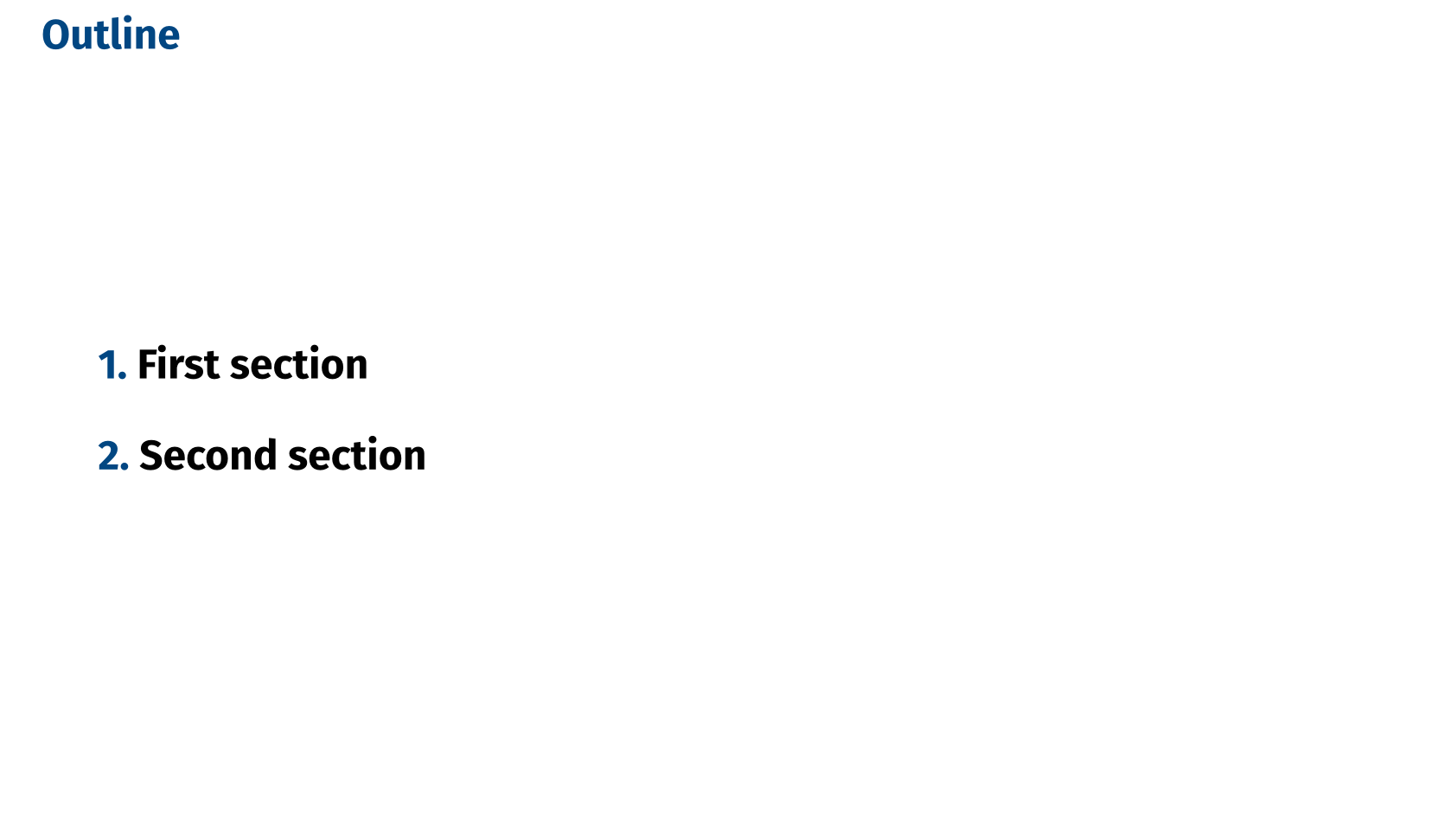 Table of contents - Simple theme
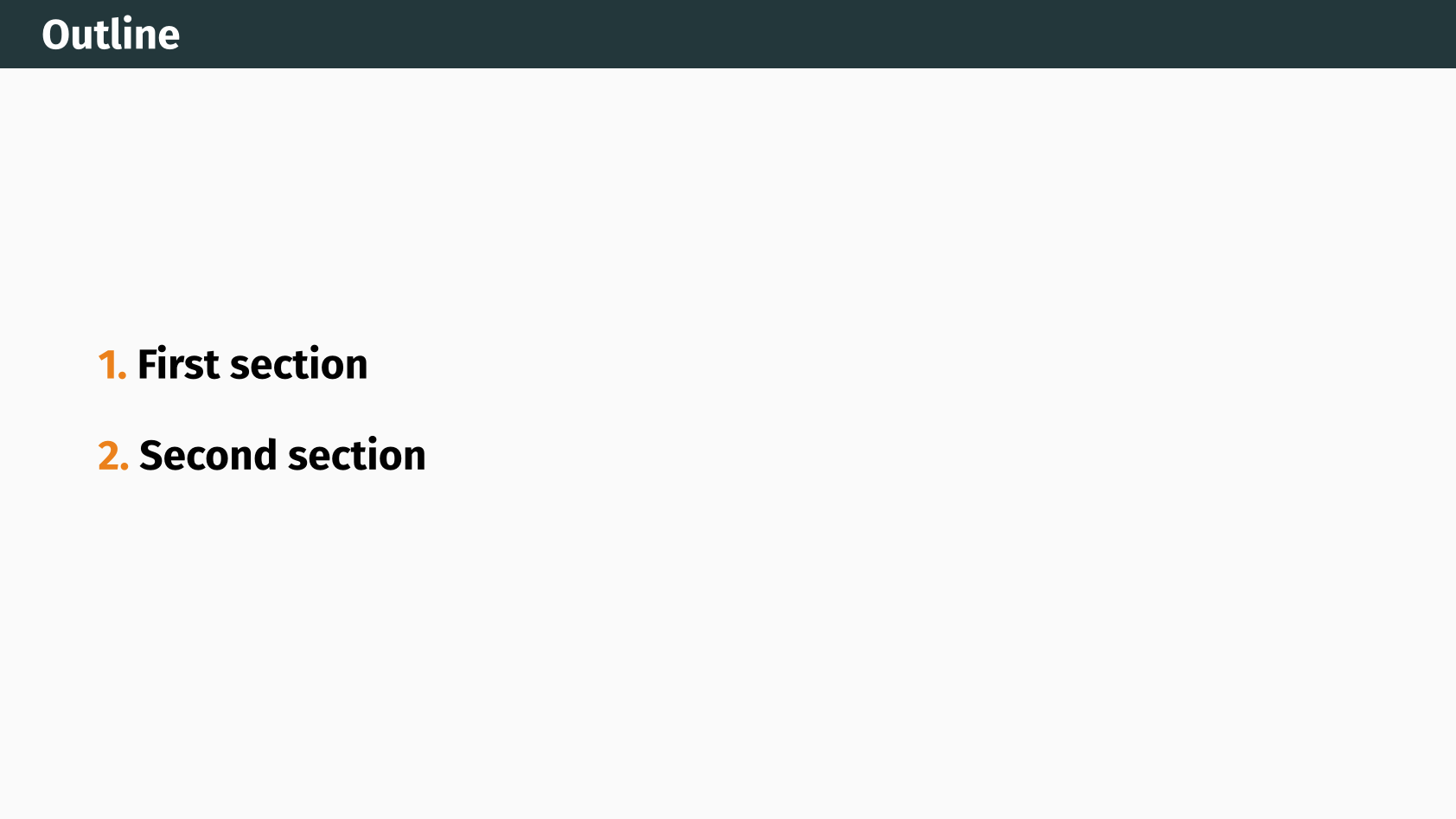 Table of contents - Metropolis theme
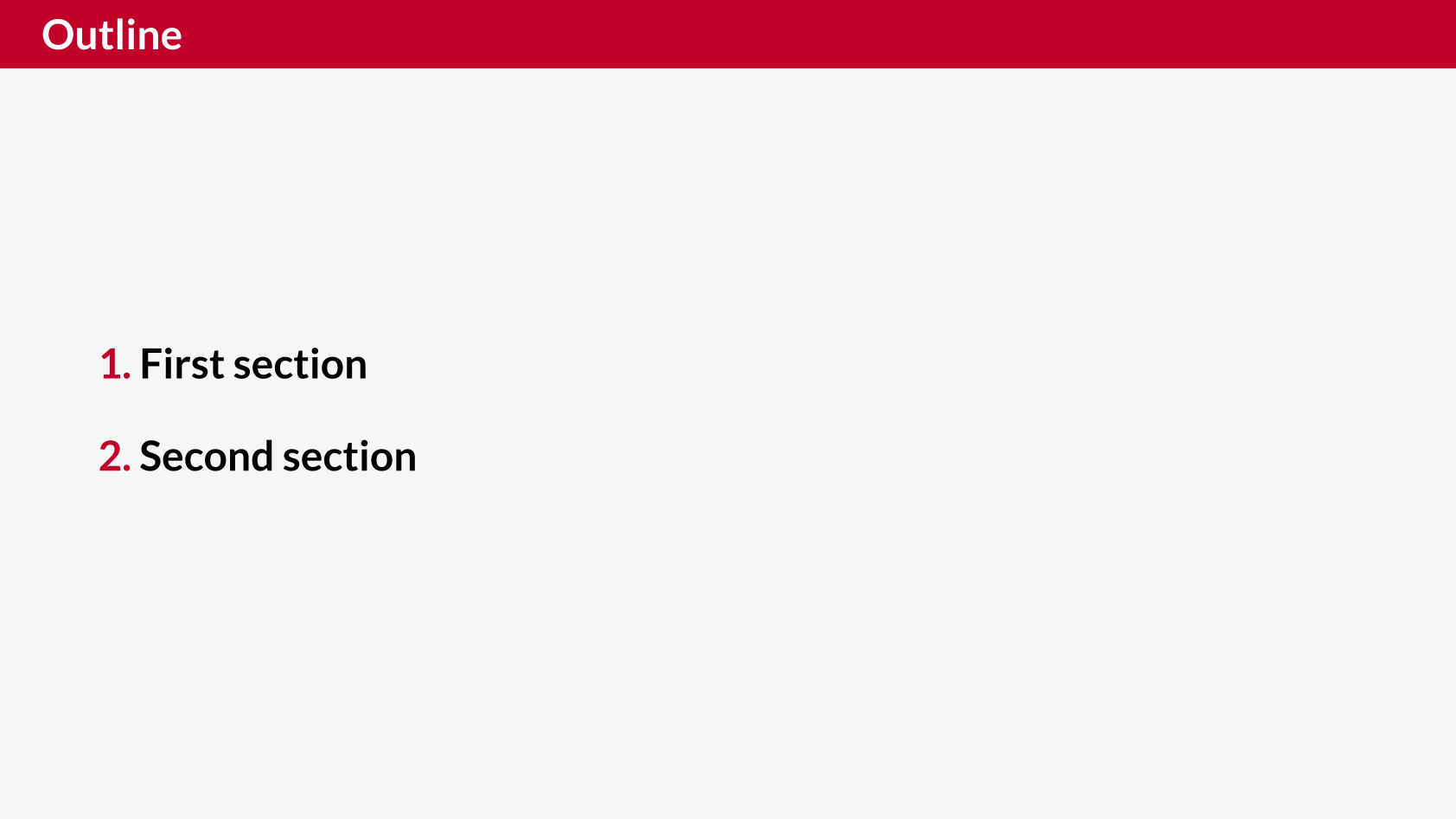 Table of contents - Fancy theme
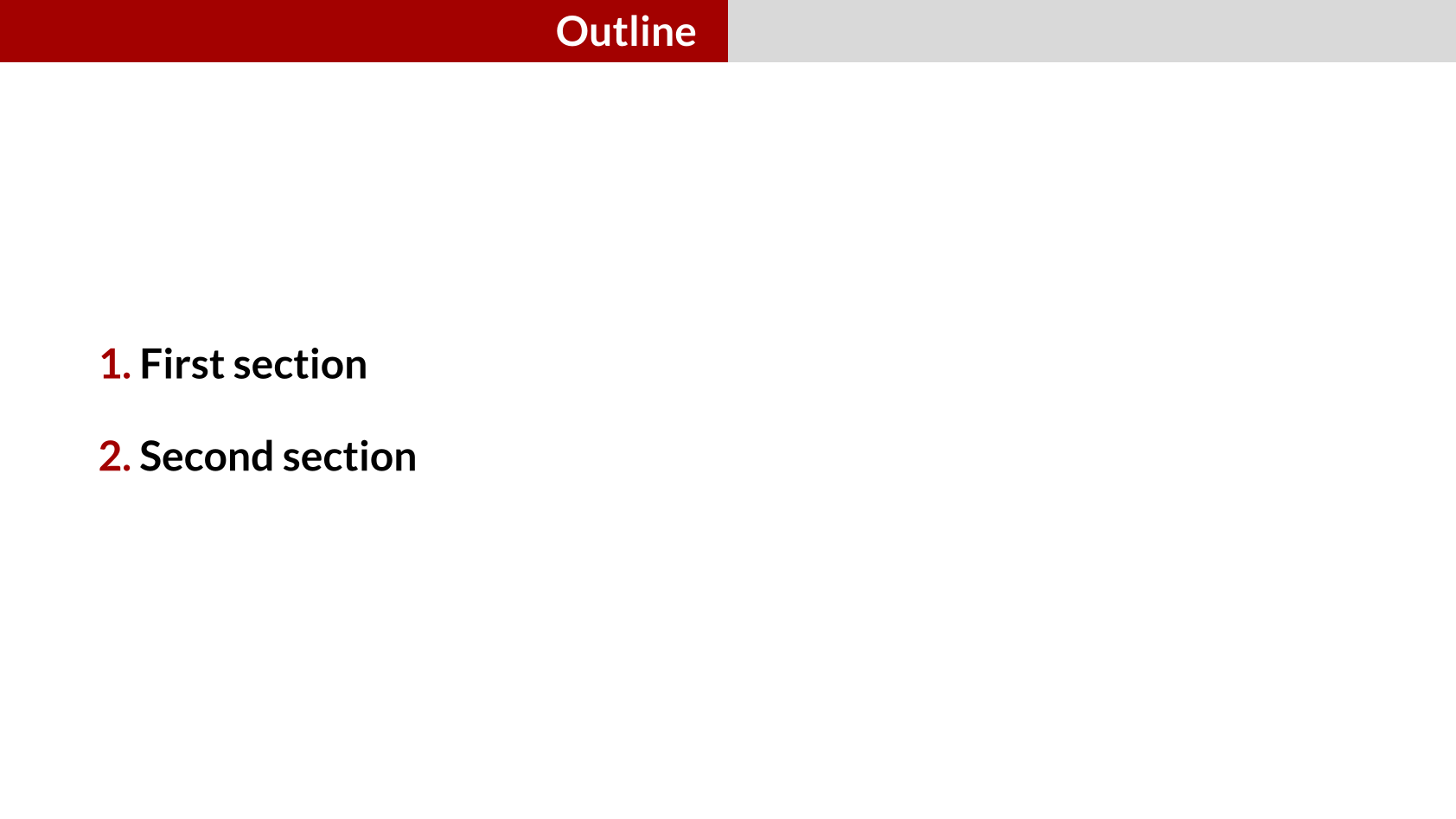 Table of contents - Cambfurt theme
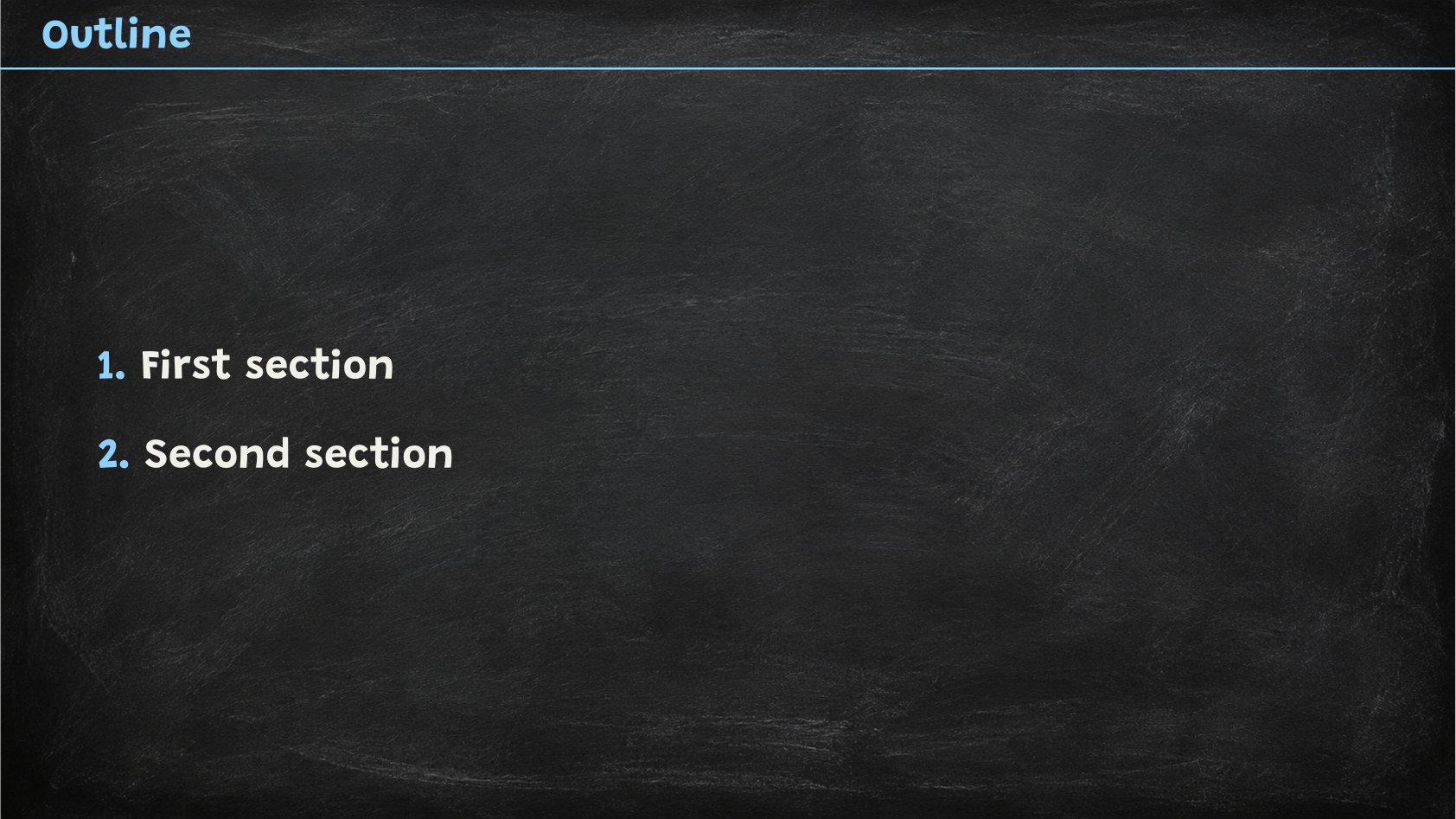 Table of contents - Chalkboard theme
If you want to create a custom theme, Slydekit provides the toc command to create a simple table of contents with the current theme primary color. The toc function has the following signature:
#let toc(
  fill: (:),
  display-appendix: auto,
  slide-level: 2
)fill – default: (:)The color used to fill the outline number and entries. The dictionary keys are:
"number": The color used to fill the outline number."entry": The color used to fill the outline entries.
By default the outline number is filled with the theme primary color, and the outline entries are filled with black.
display-appendix – default: autoWhether to display the appendix in the table of contents. The default value is auto, which means that the appendix outline will be displayed on a dedicated slide. If set to true, the appendix will always be displayed in the main outline. If set to false, the appendix outline will never be displayed.
slide-level – default: 2The heading level that defines the slides. The section level is defined as slide-level - 1. For example, if slide-level is set to 2, then headings at level 1 will be treated as sections, and headings at level 2 will be treated as slides.
Actually, tableofcontents is just a wrapper around toc, that includes the title slide and the table of contents in a single slide.
Progressive outline
Slydekit provides a progressive-outline command that creates a progressive outline, where each section is revealed one by one. This function is inspired by Touying but is implemented in a different way. Only the simple and cambfurt built-in themes support progressive outlines.
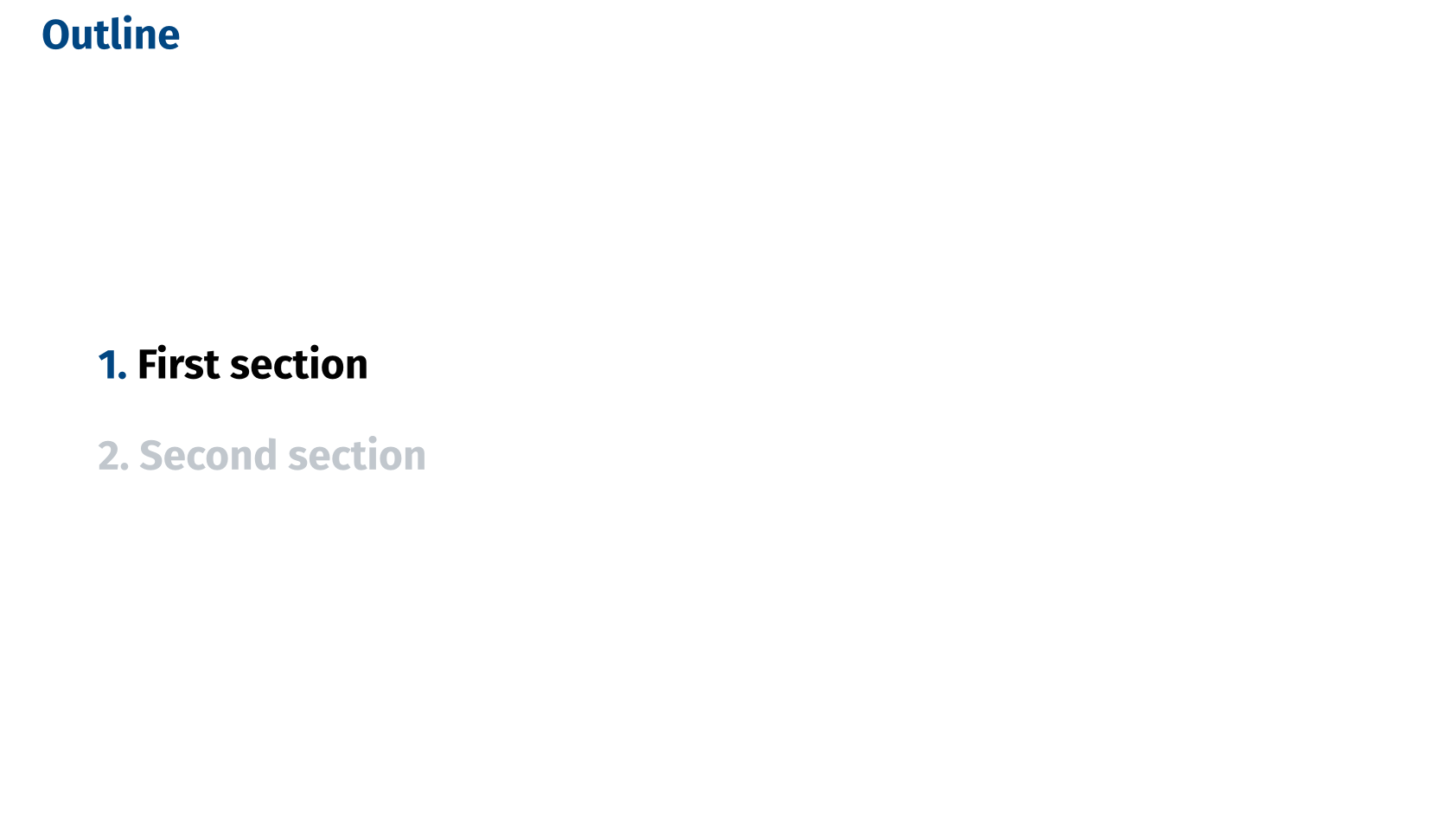
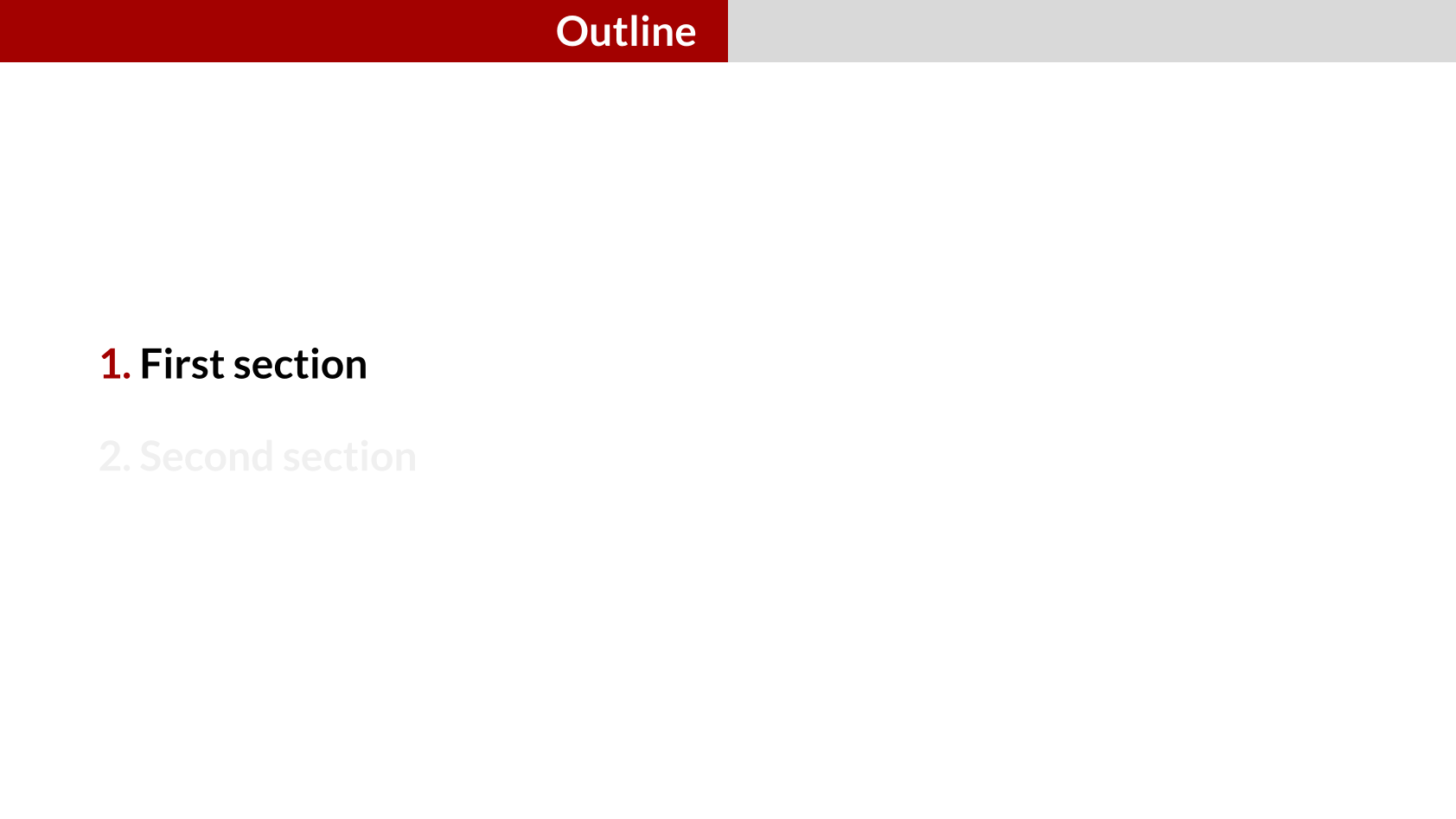
#let progressive-outline(
  it,
  active-color: (:),
  inactive-color,
  entry-size: 0.8575em,
  gutter: 4%,
  display-subsection: false,
  display-appendix: auto,
  slide-level: 2
)itThe content of the slide.
active-color – default: (:)The color used to fill the active slide indicator. The dictionary keys are:
"number": The color used to fill the outline number."entry": The color used to fill the outline entries.
By default the outline number is filled with the theme primary color, and the outline entries are filled with black.
inactive-colorThe color used to fill the inactive slide indicators.
entry-size – default: 0.8575emThe size of the text used for the outline entries. The default value is 0.8575em, which is a good size for most presentations.
gutter – default: 4%The space between the outline entries. The default value is 4%.
display-subsection – default: falseWhether to display subsections in the progressive outline. The default value is false. If set to true, the progressive outline will display subsections as well.
display-appendix – default: autoWhether to display the appendix in the progressive outline. The default value is auto, which means that the appendix outline will be displayed on a dedicated slide. If set to true, the appendix will always be displayed in the main outline. If set to false, the appendix will never be displayed.
slide-level – default: 2The heading level that defines the slides. The toc function displays the sections headings at slide-level - 1.
A typical implementation of the progressive-outline command when creating a theme is as follows:
#show heading.where(level: 1): it => {
  // Formatting the content
  ...

  // Creating the progressive outline
  progressive-outline(it, active-color, inactive-color)
}
Hide sections
Slydekit provides the hide-new-section-slide function to hide the slide that introduces a new section, while keeping the section in the outline. This is useful when you want to keep the outline clean and concise, but still want to have the section in the outline. To use this function, simply add the following line to your presentation:
#show: hide-new-section-slideprogressive-outline, since hide-new-section-slide hides level 1 heading slides. However, the sections will still be present in the tableofcontents.If you need fine-grained control over which sections appear in the outline, you can use the <hide-toc> label to hide specific sections. This is particularly useful for sections such as bibliographies, but it can be applied to any section you want to exclude from the outline. Simply add the label to the section title as follows:
= Bibliography <hide-toc>The <hide-toc> label can also be used to hide a slide, defined with #slide(..., label: <hide-toc>) or == Title <hide-toc>, from the outlines (tableofcontents, progressive-outline and mini-slides). This can be useful for a bibliography slide for instance.
In this case, all the headings of level greater than the hidden slide will be unnumbered and not displayed in the outlines (tableofcontents, progressive-outline and mini-slides). This is because the hidden slide is considered a hidden ancestor of the following slides, and therefore all its descendants are also hidden from the outlines.