Top bar and mini-slide
Slydekit provides optional navigation elements to help structure and navigate presentations. The topbar displays the presentation’s content as a persistent navigation bar, highlighting the current section to provide a clear overview of the presentation structure. The minislide complements the topbar by displaying a compact visual representation of the slides within the current section, allowing the audience to quickly identify the current slide and its position in the presentation. Together, these components provide a lightweight navigation system that improves orientation without taking significant space away from the main slide content.
To activate a given navigation style, you can set the navigation-style argument in the slydekit command.
// For the topbar navigation style
#show: slydekit.with(
navigation-style: "topbar",
)
// For the minislide navigation style
#show: slydekit.with(
navigation-style: "minislide",
)Top bar
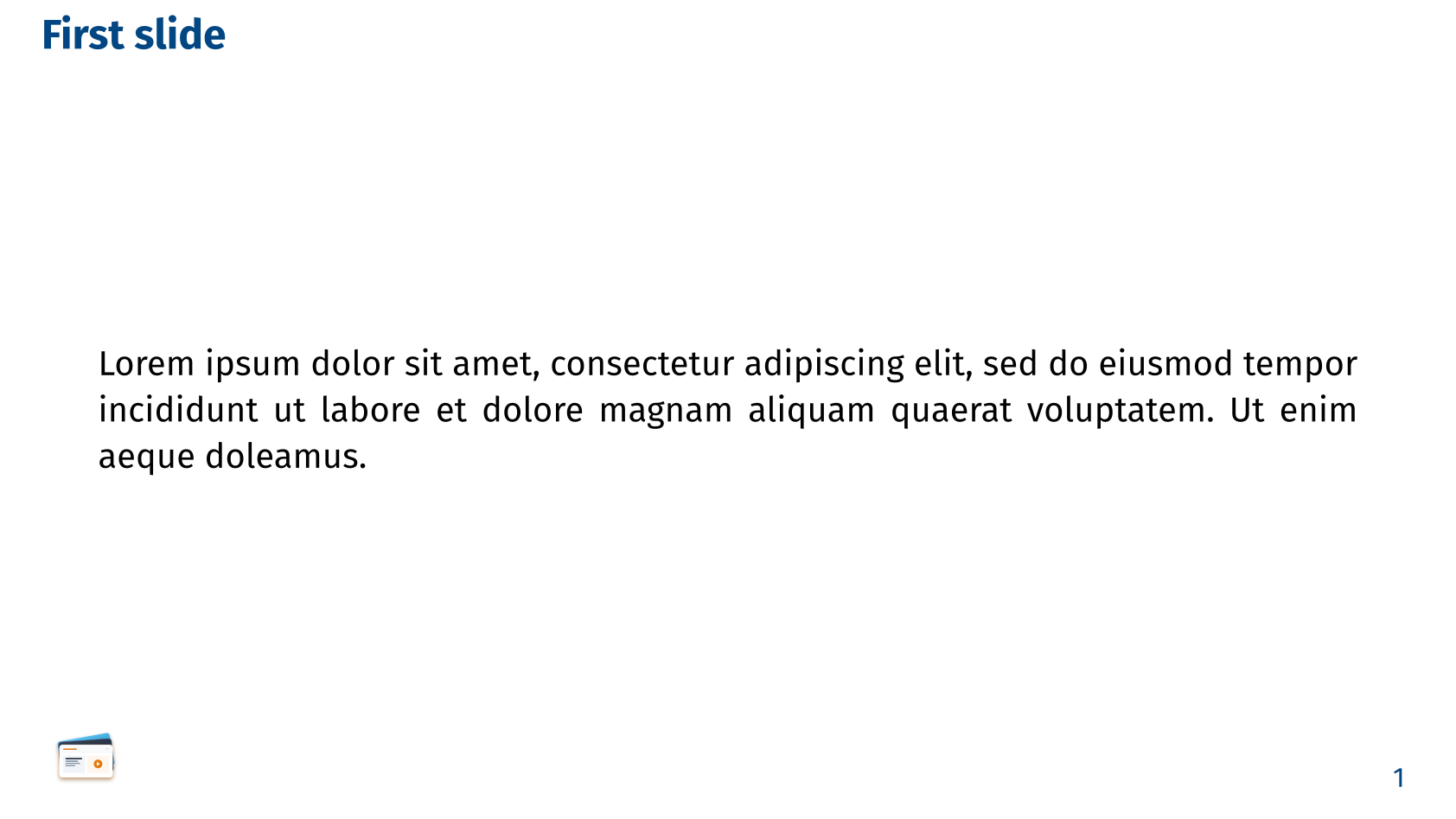 Topbar navigation style - Simple theme
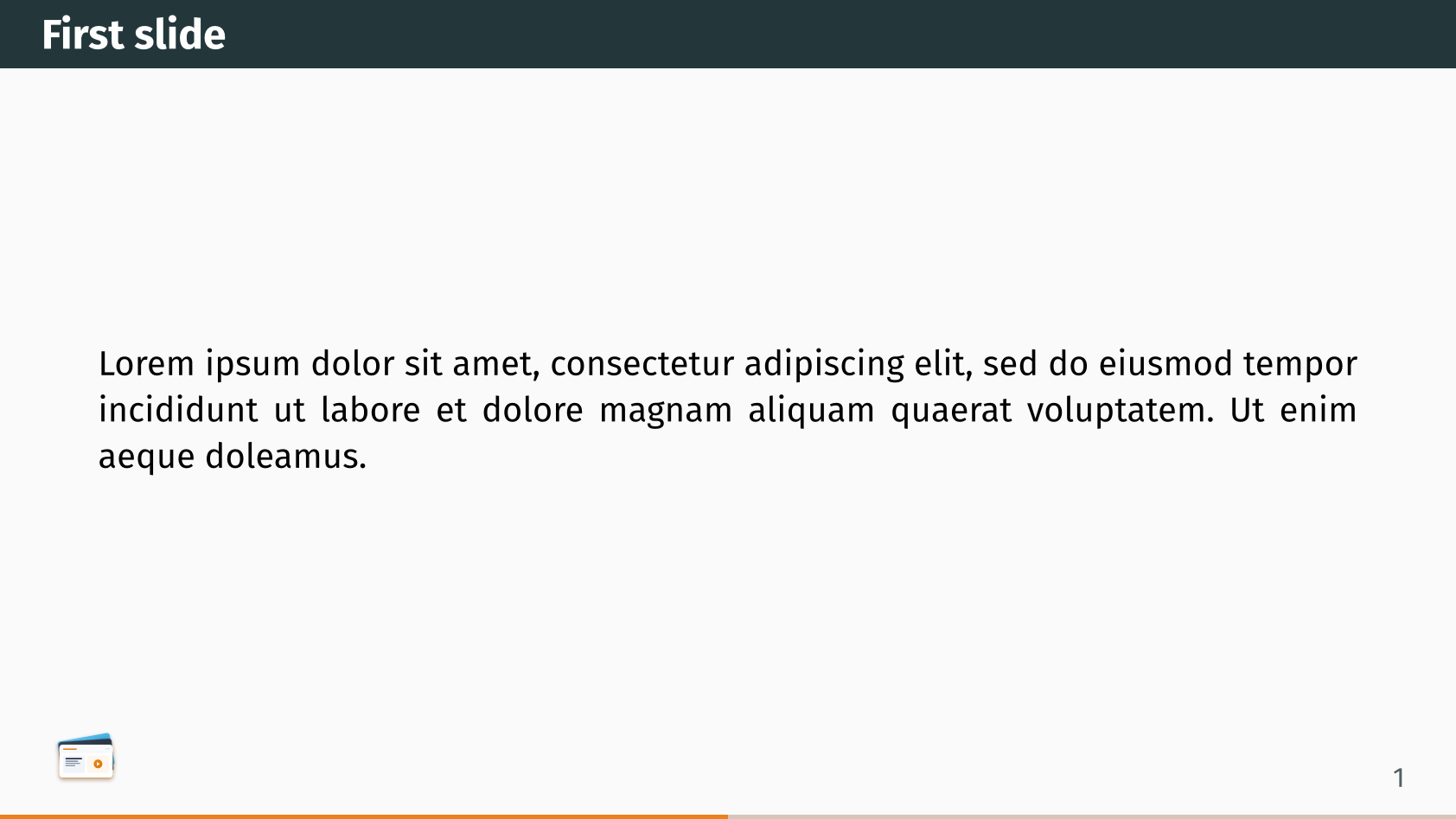 Topbar navigation style - Metropolis theme
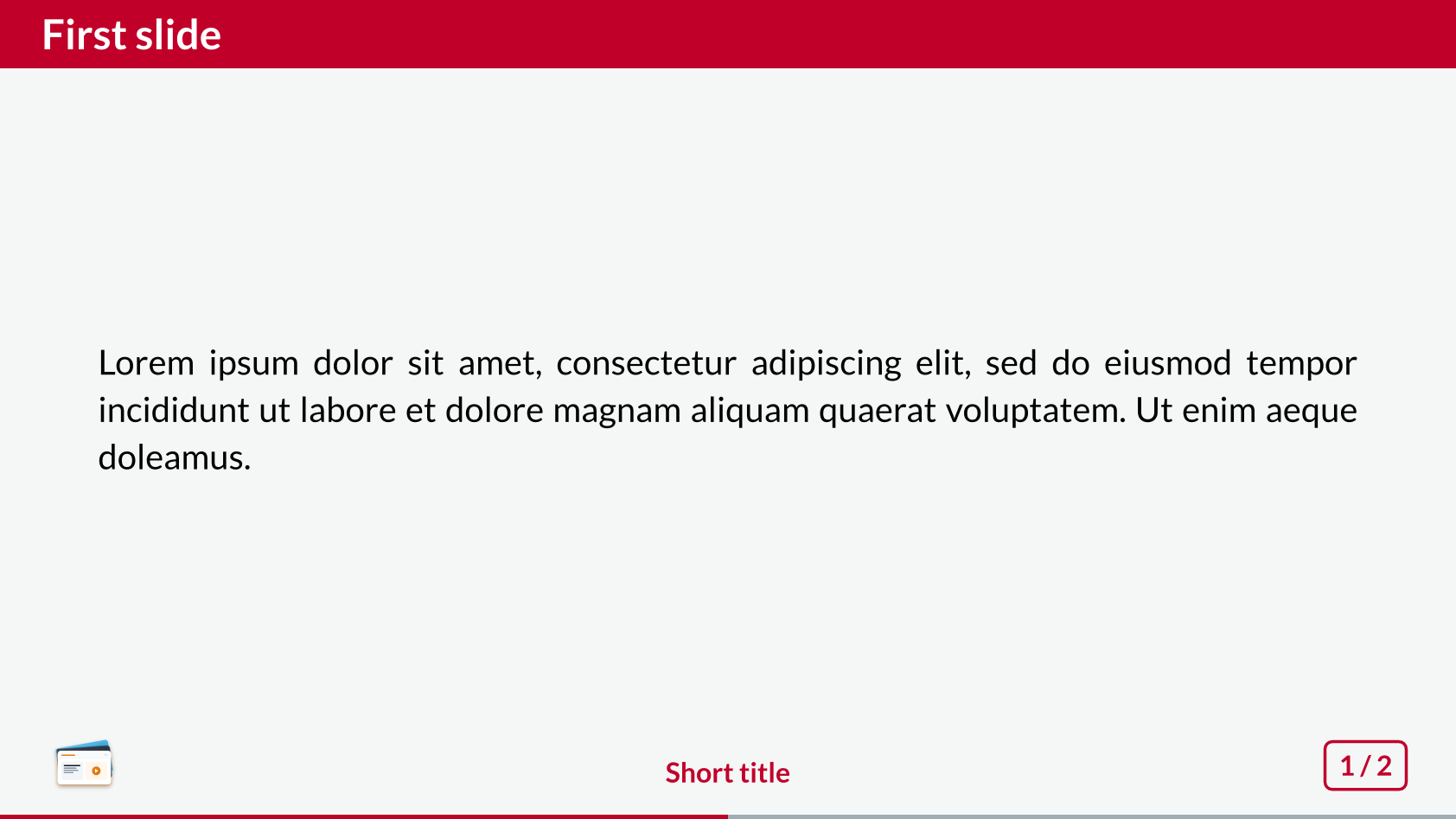 Topbar navigation style - Fancy theme
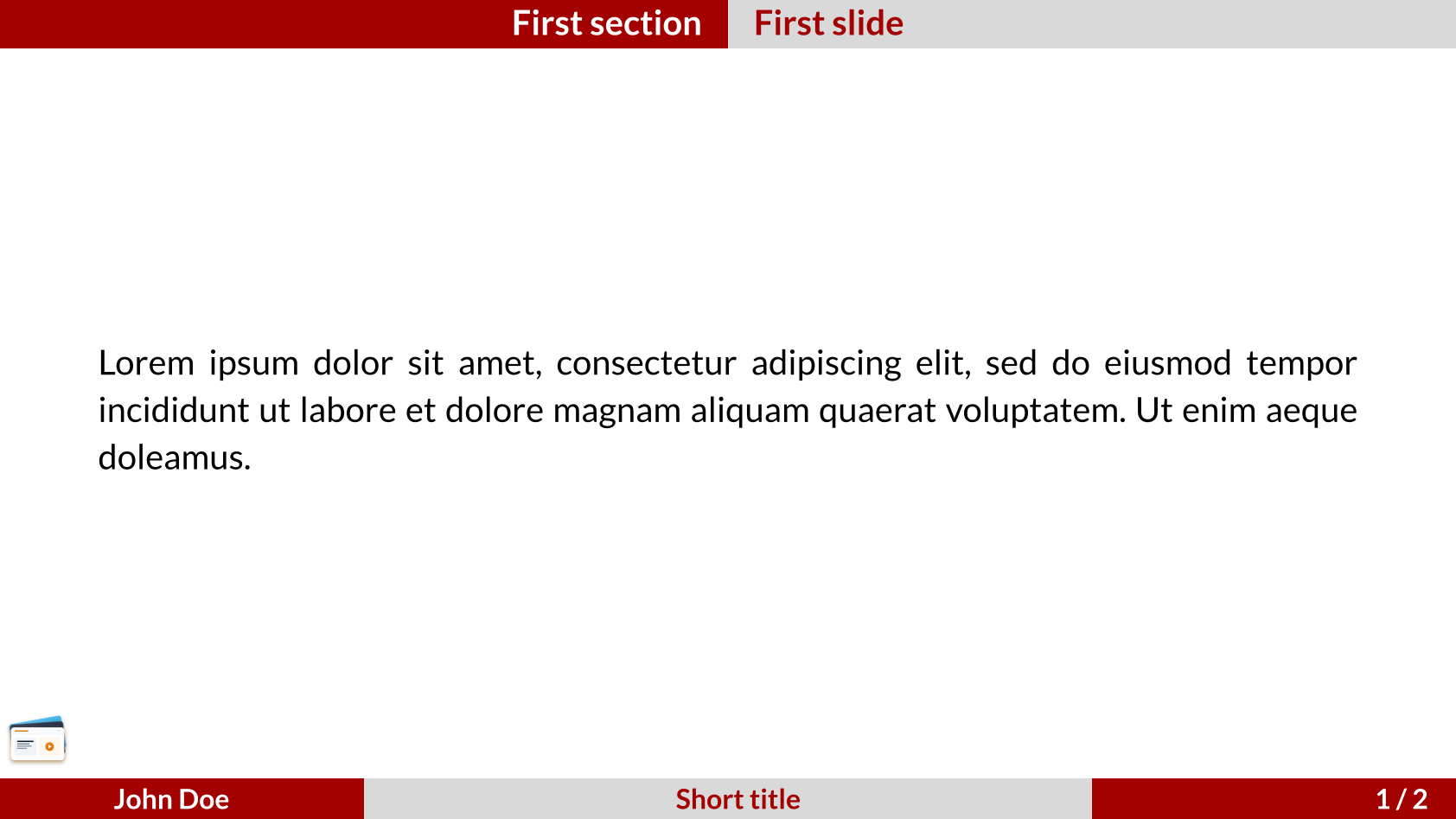 Topbar navigation style - Cambfurt theme
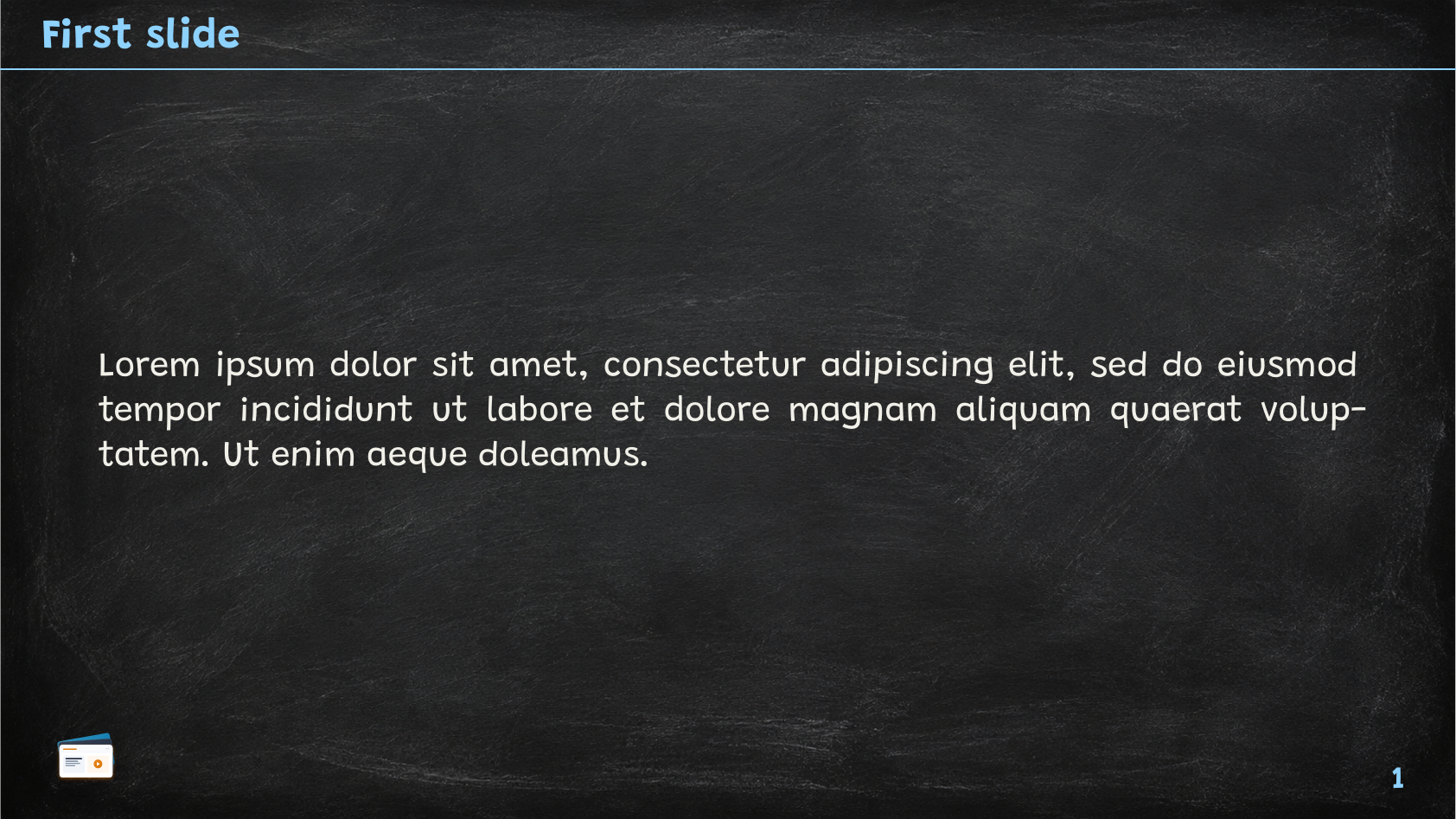 Topbar navigation style - Chalkboard theme
Mini-slide
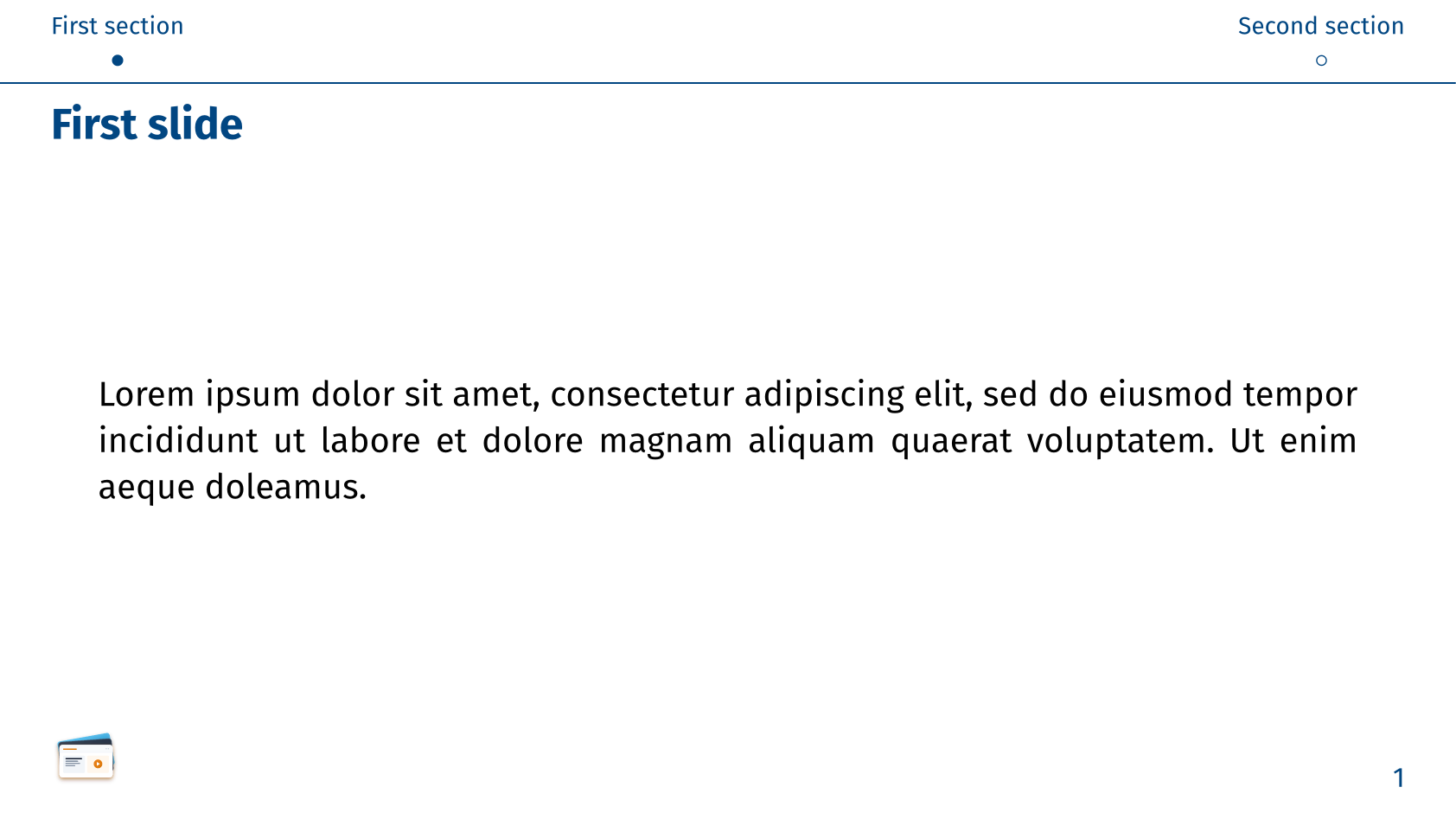 Minislide navigation style - Simple theme
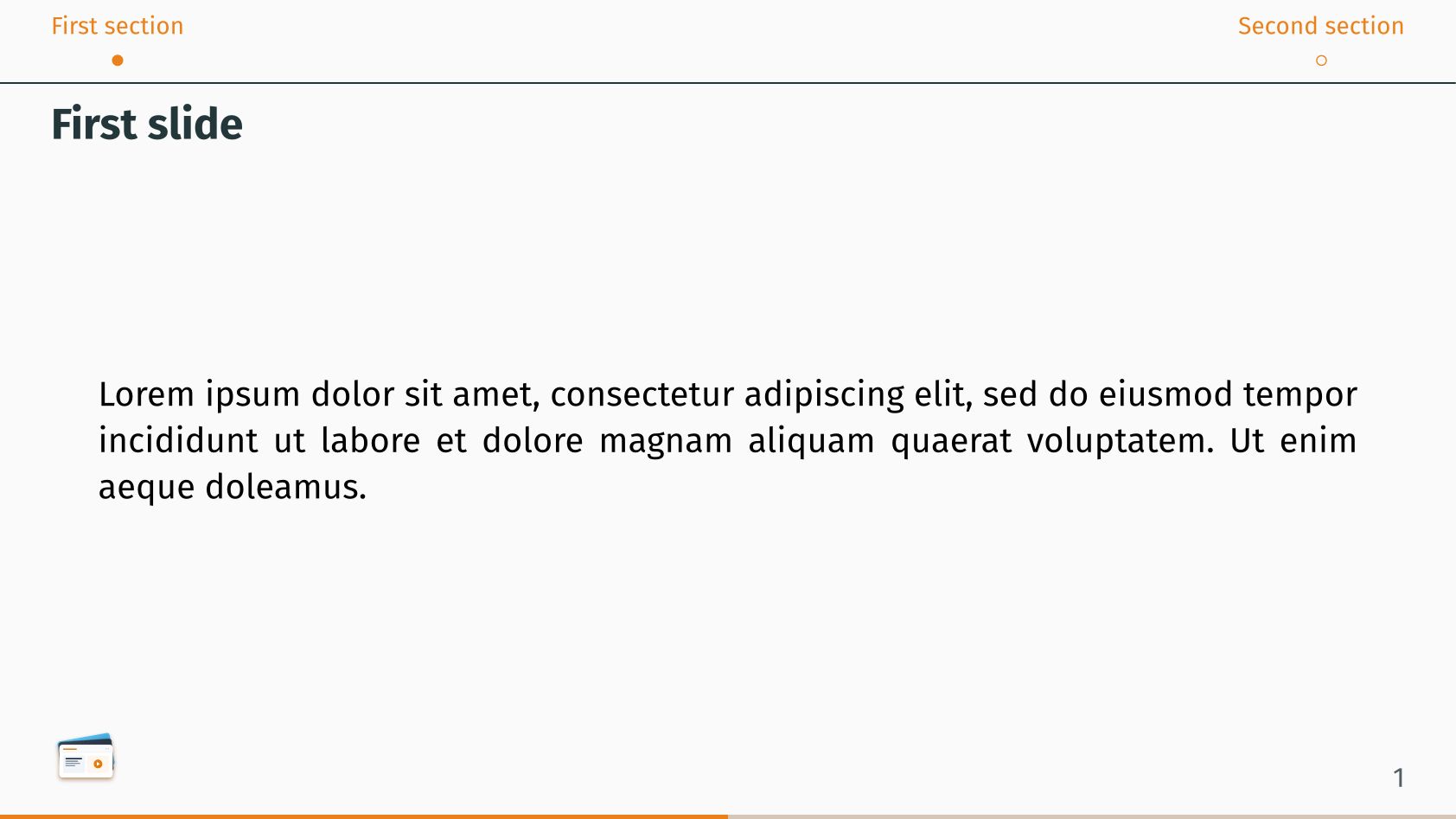 Minislide navigation style - Metropolis theme
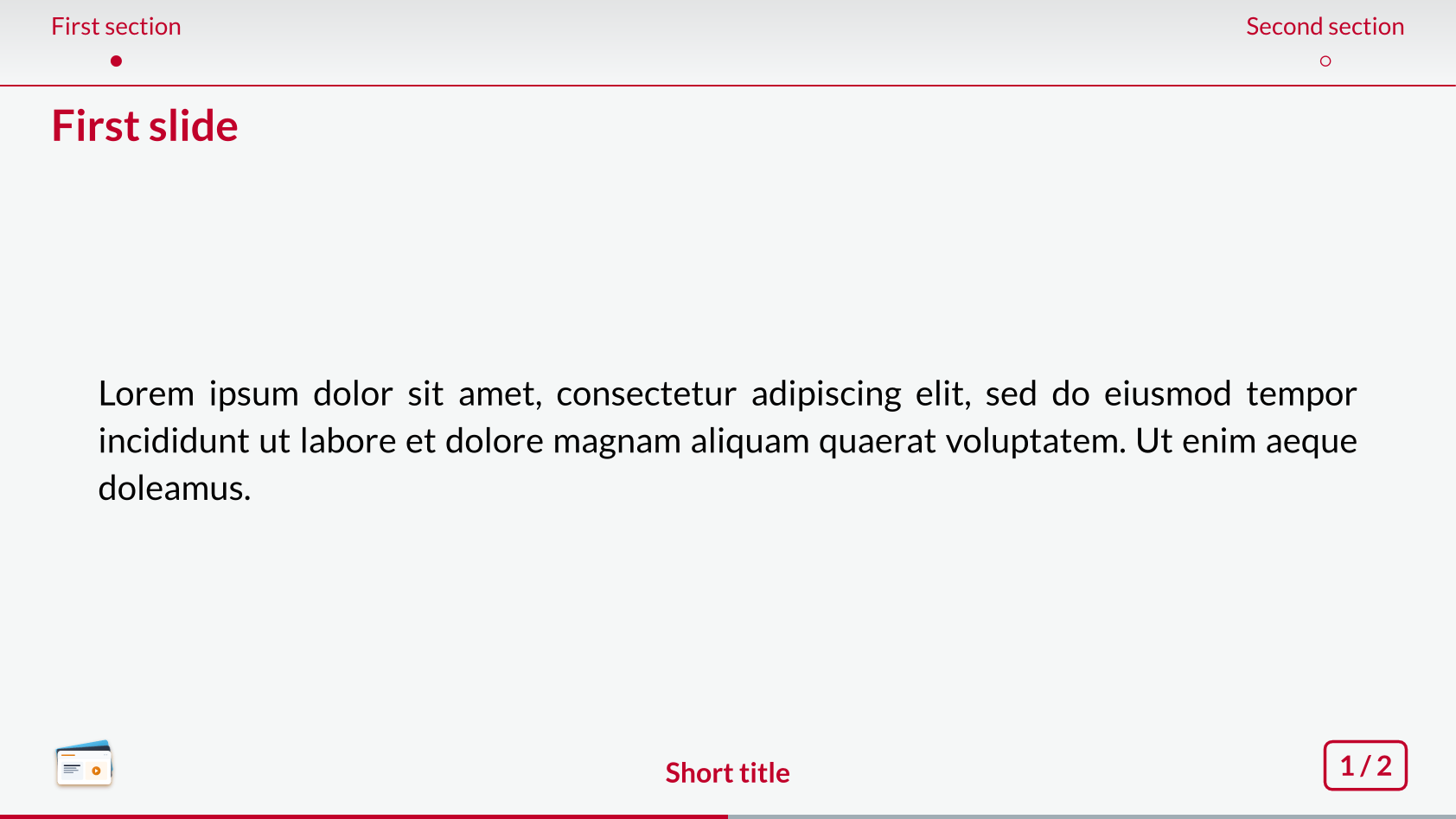 Minislide navigation style - Fancy theme
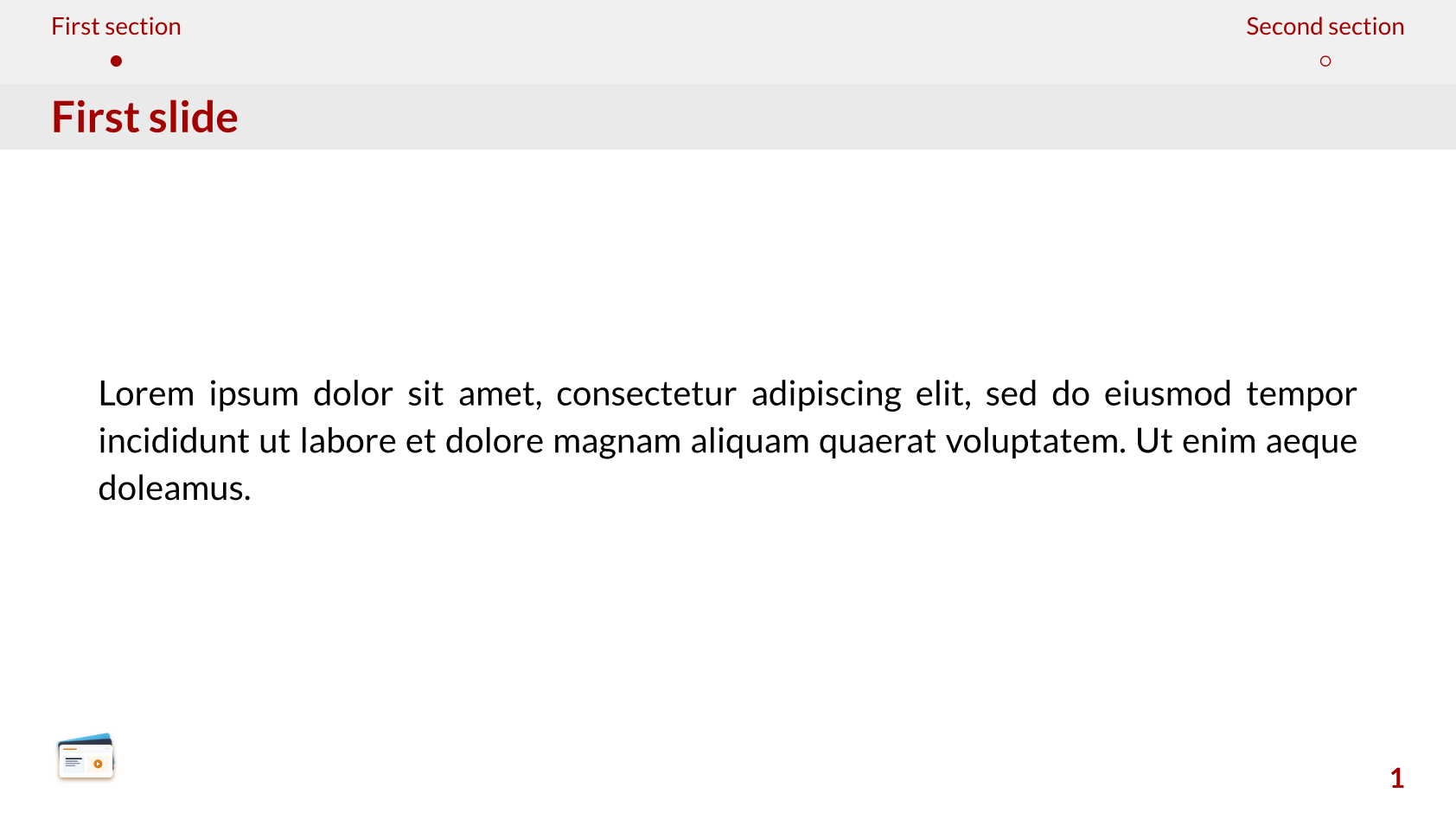 Minislide navigation style - Cambfurt theme
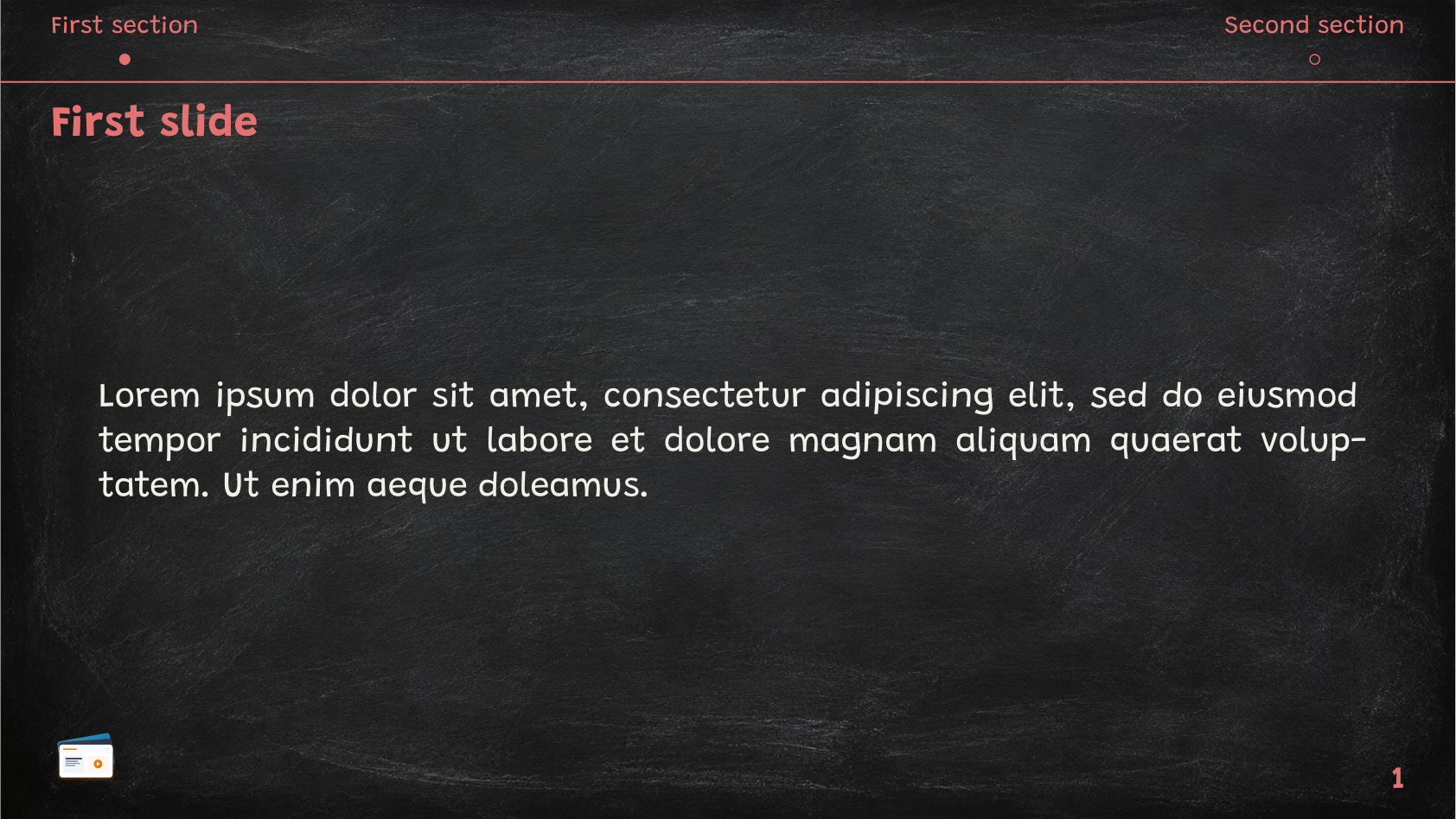 Minislide navigation style - Chalkboard theme
To implement the minislide navigation style, Slydekit provides the mini-slides helper function, adapted from the corresponding implementation in Touying to work seamlessly with Slydekit.
#let mini-slides(
fill: none,
alpha: 100%,
display-subsection: true,
section-numbering: false,
linebreaks: true,
display-appendix: auto,
slide-level: 2
)fill – default: noneThe color used to fill the active slide indicator. If set to none, the indicator uses the header entry defined color dictionary instead.
alpha – default: 100%The transparency applied to inactive slides. A value of 100% makes them fully transparent, while 0% makes them fully opaque.
display-subsection – default: trueA boolean value that determines whether to display bullets for each slide under the sections. If set to true, bullets will be displayed for each slide under the sections. If set to false, bullets will not be displayed.
section-numbering – default: falseA boolean value that determines whether to display section numbering. If set to true, section numbers will be displayed next to the section titles. If set to false, section numbers will not be displayed.
linebreaks – default: trueA boolean value that determines whether to place the bullets on a new line under the section title. If set to true, bullets will be placed horizontally on a new line under the section title. If set to false, bullets will be placed vertically on the same line as the section title.
display-appendix – default: autoA boolean value that determines whether to display appendix sections. If set to auto, the main sections are displayed during the main presentation and switches to appendix during the appendix. If set to true, it always displays everything (main + appendix). If set to false, it never displays appendix sections.
slide-level – default: 2The heading level that defines the slides. The section level is defined as slide-level - 1.
Usage in custom themes
If you create a presentation using the topbar or minislide navigation style, you only need to implement the navigation element in the header of your theme. For examples of how to implement these navigation styles, refer to the Slydekit GitHub repository, which contains implementations of the topbar and minislide navigation styles for the built-in themes.