Built-in themes
Slydekit provides a set of built-in themes that you can use to customize the appearance of your presentations. Each theme defines a unique combination of colors, fonts, and layout styles, allowing you to create visually appealing slides with minimal effort.
Currently, Slydekit includes the following built-in themes:
simplemetropolisfancycambfurtchalkboard
Each theme comes with its own default color palette and font settings, which can be further customized to suit your preferences. They also include two navigation styles: topbar and minislide, which can be selected using the navigation argument in the #slydekit.with function.
To apply a built-in theme to your presentation, simply set the theme argument in the #slydekit.with function to the desired theme name. For example, to use the simple theme, you would write:
#show: slydekit.with(
theme: simple,
navigation: "topbar",
)Simple
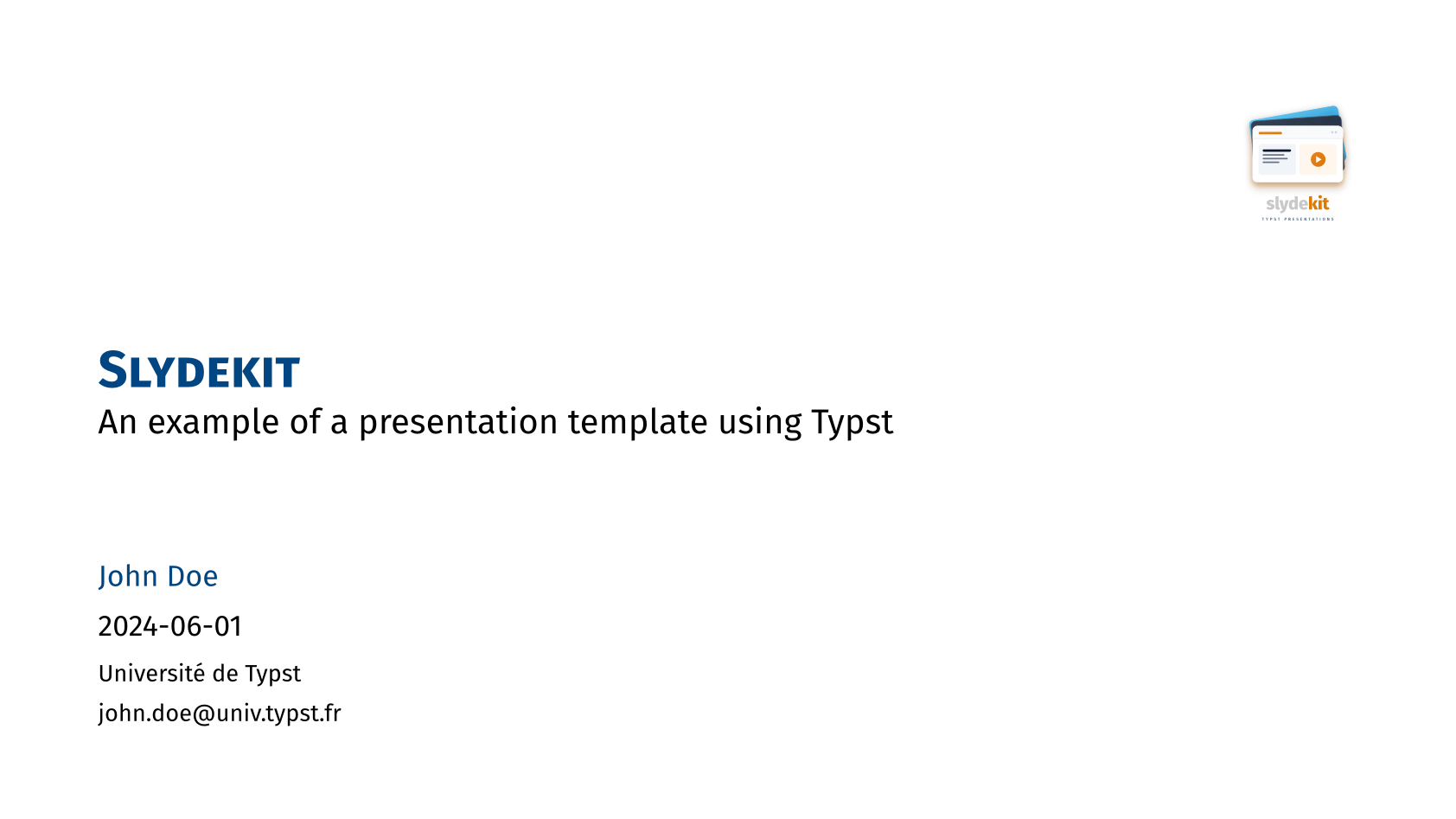
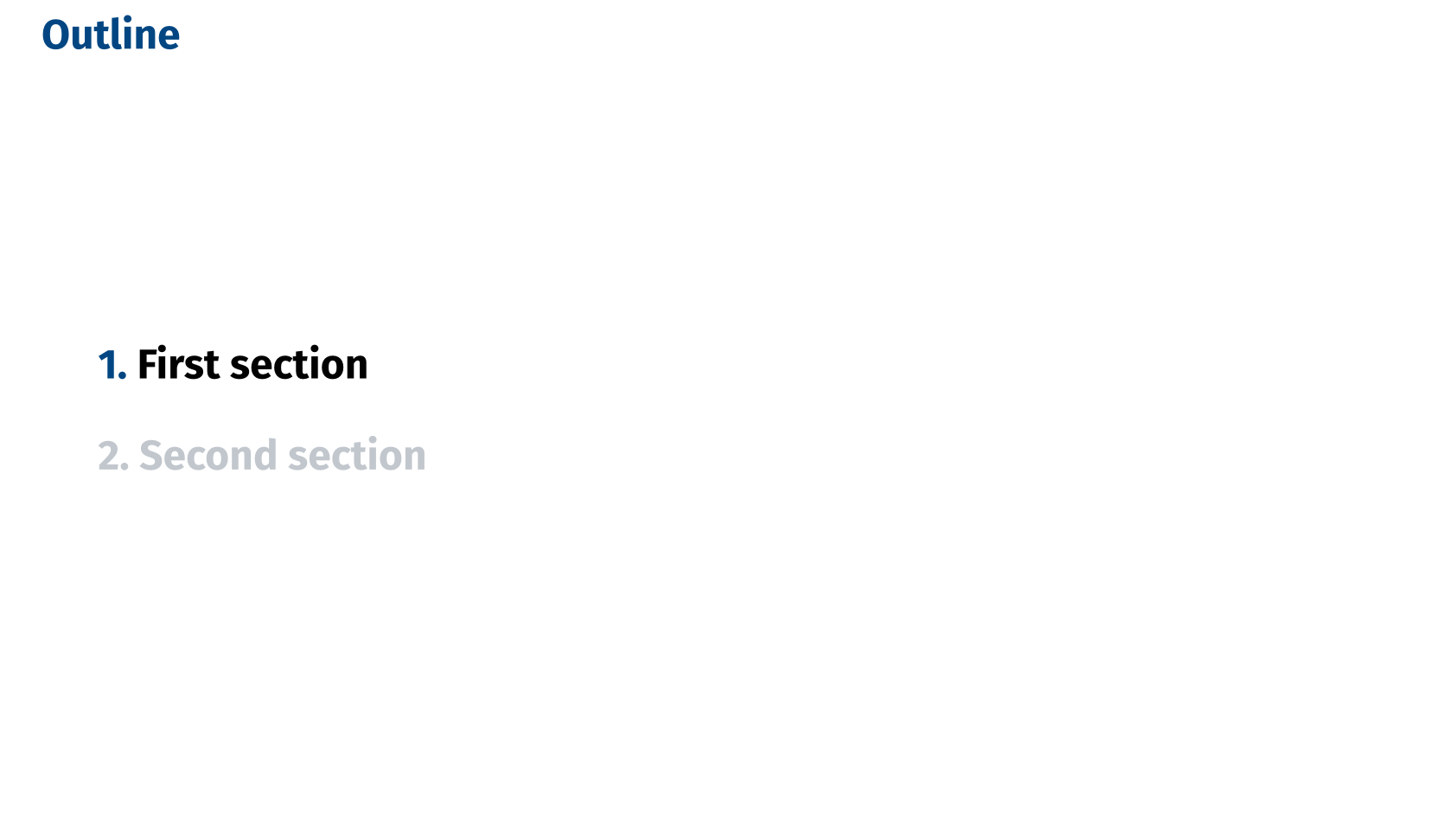
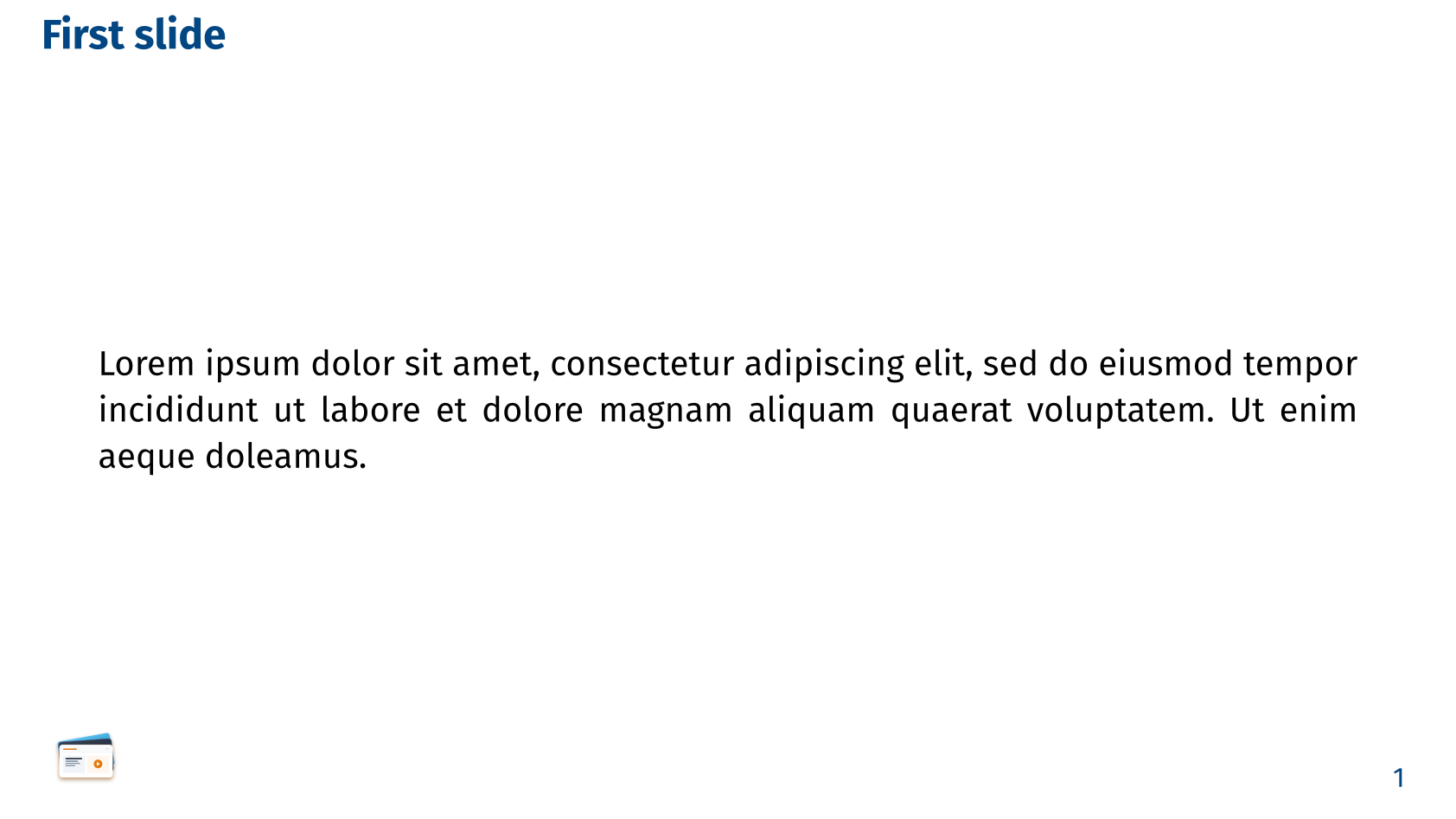
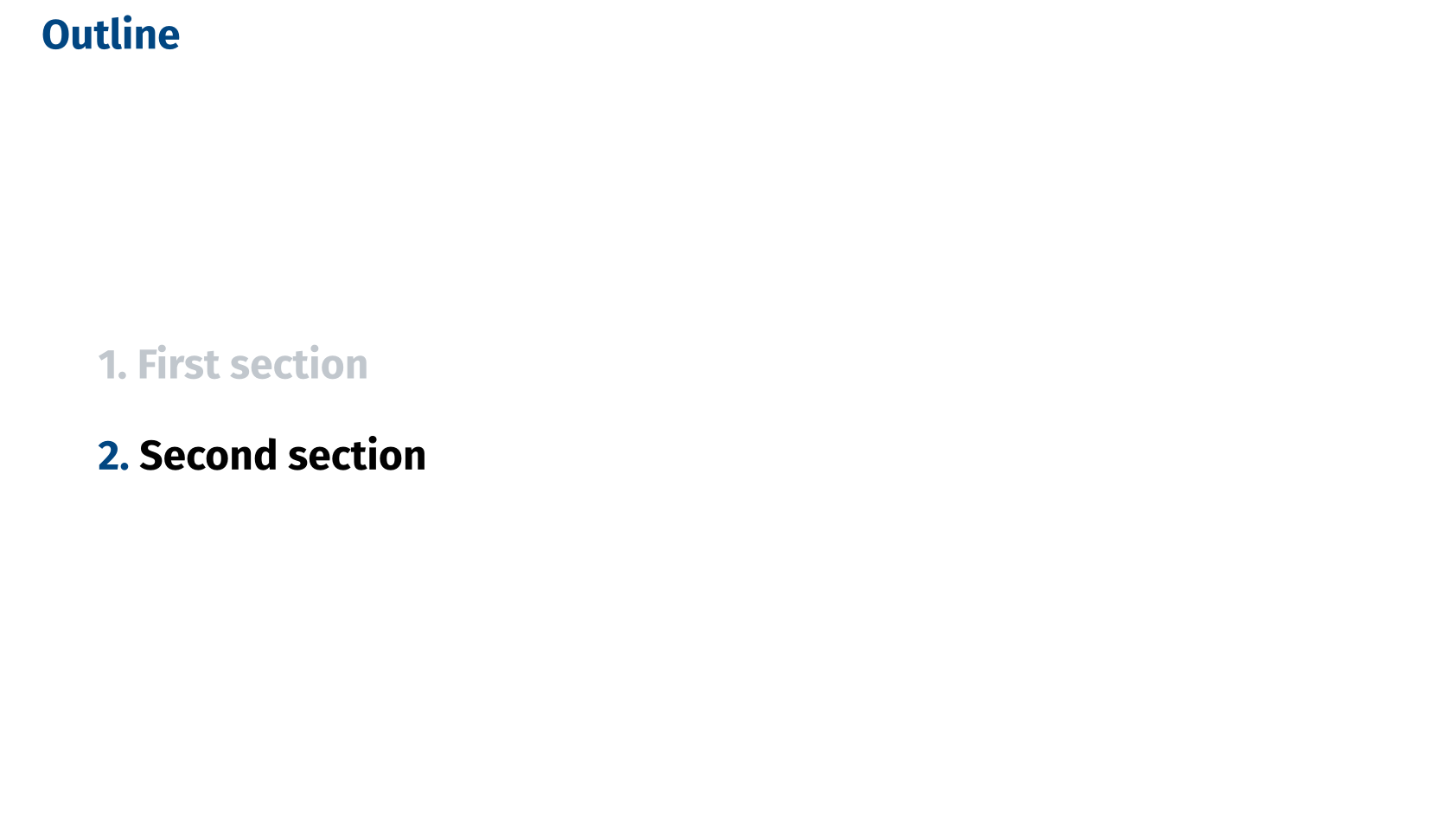
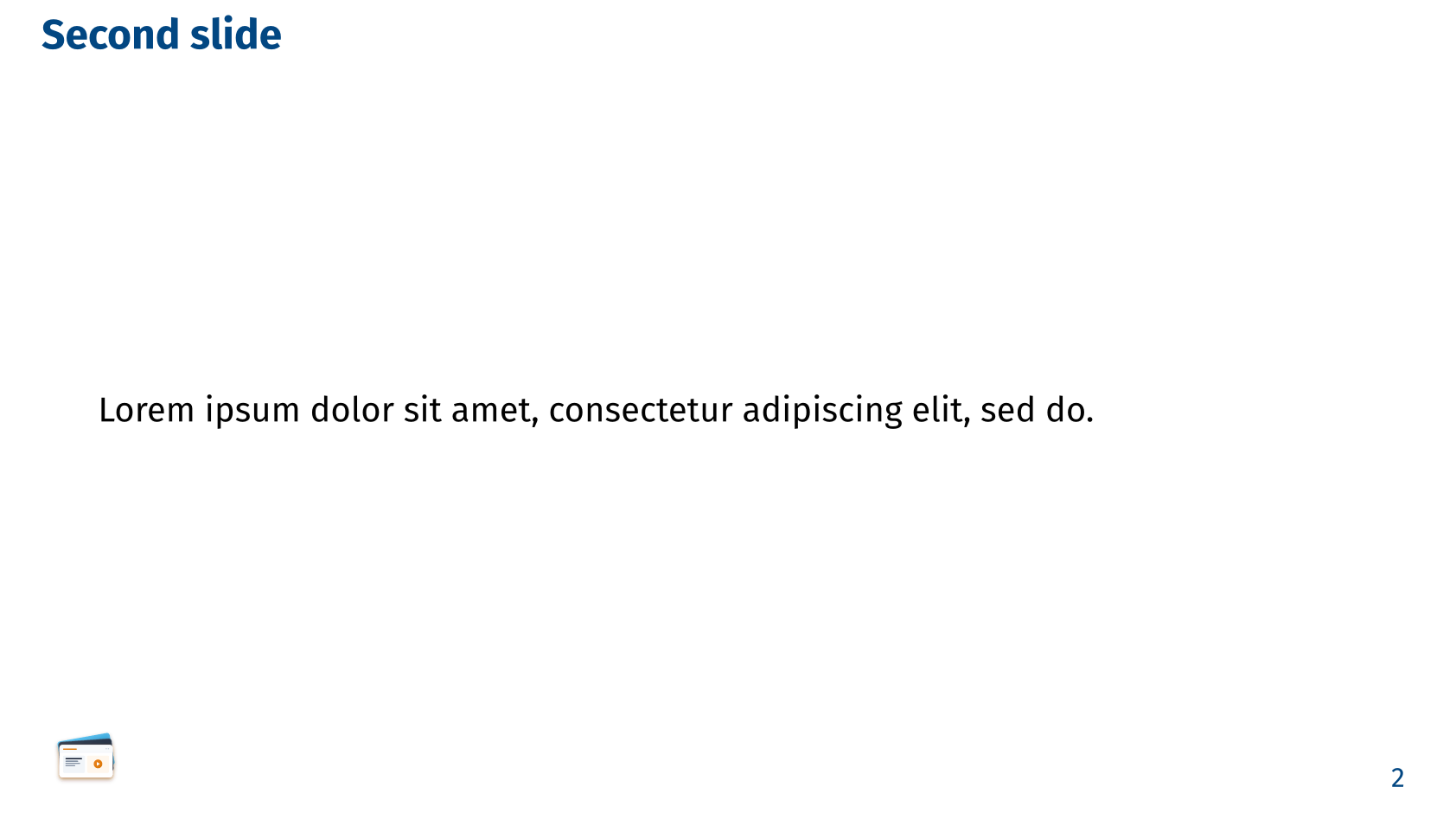
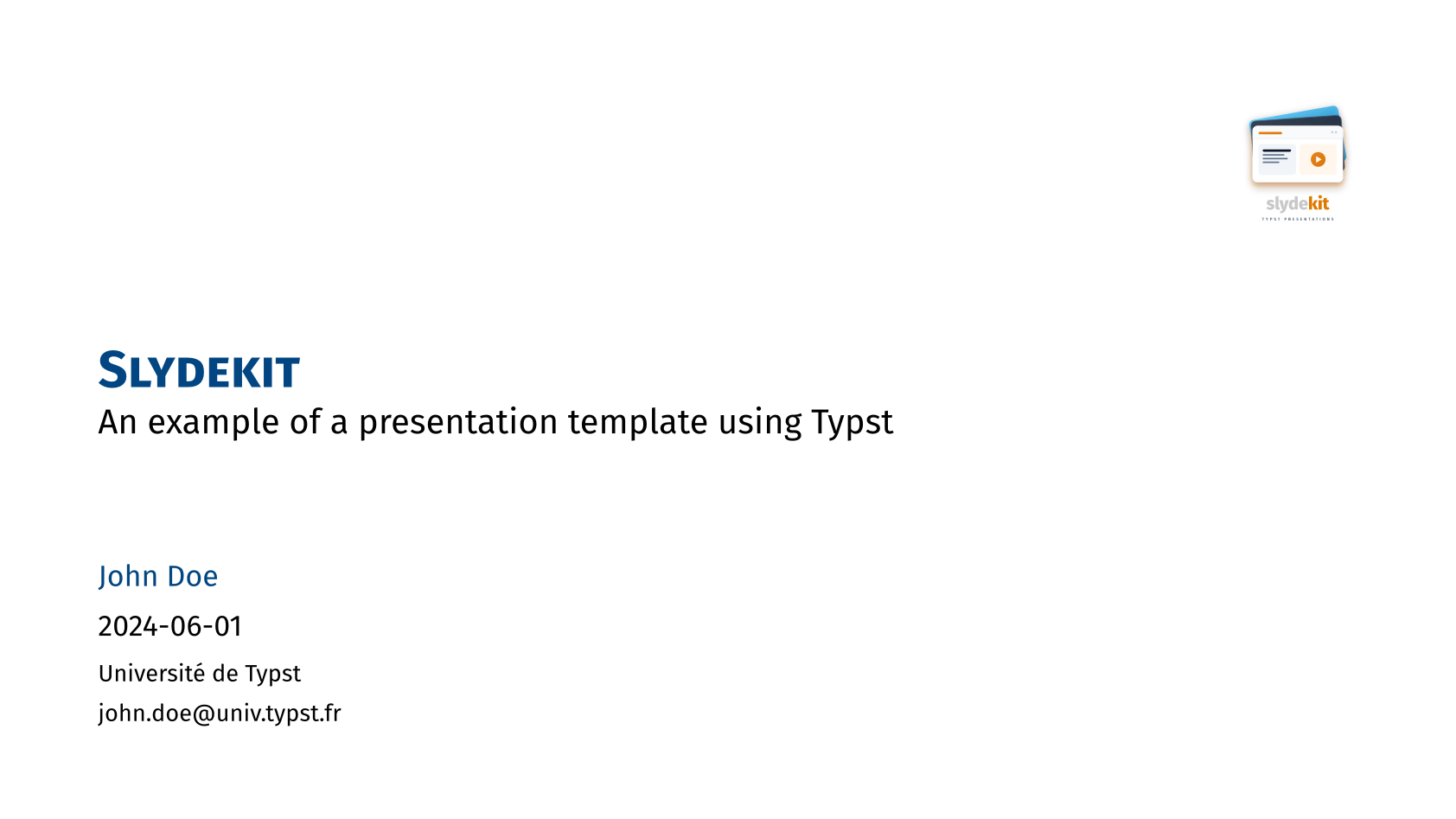
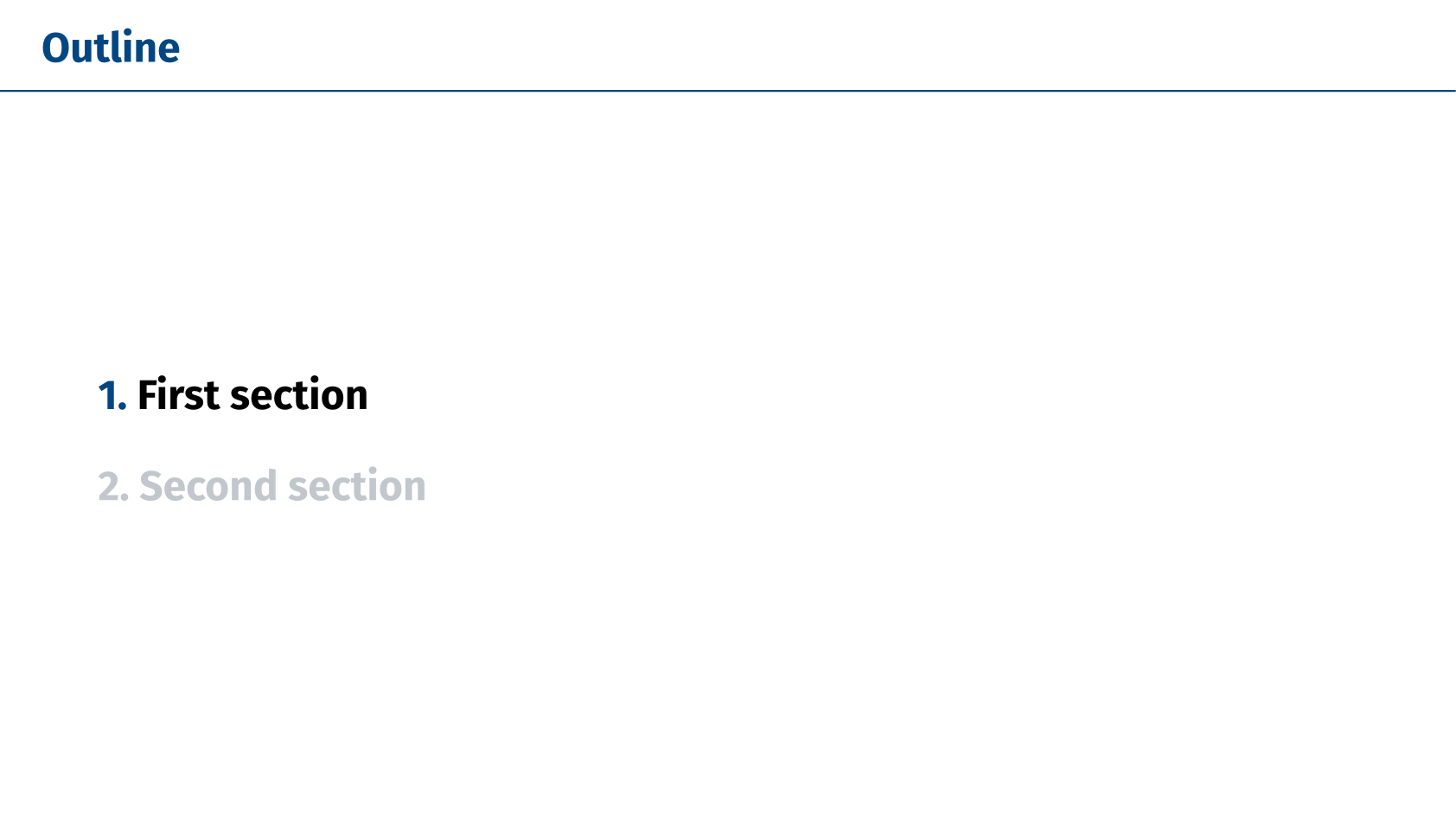
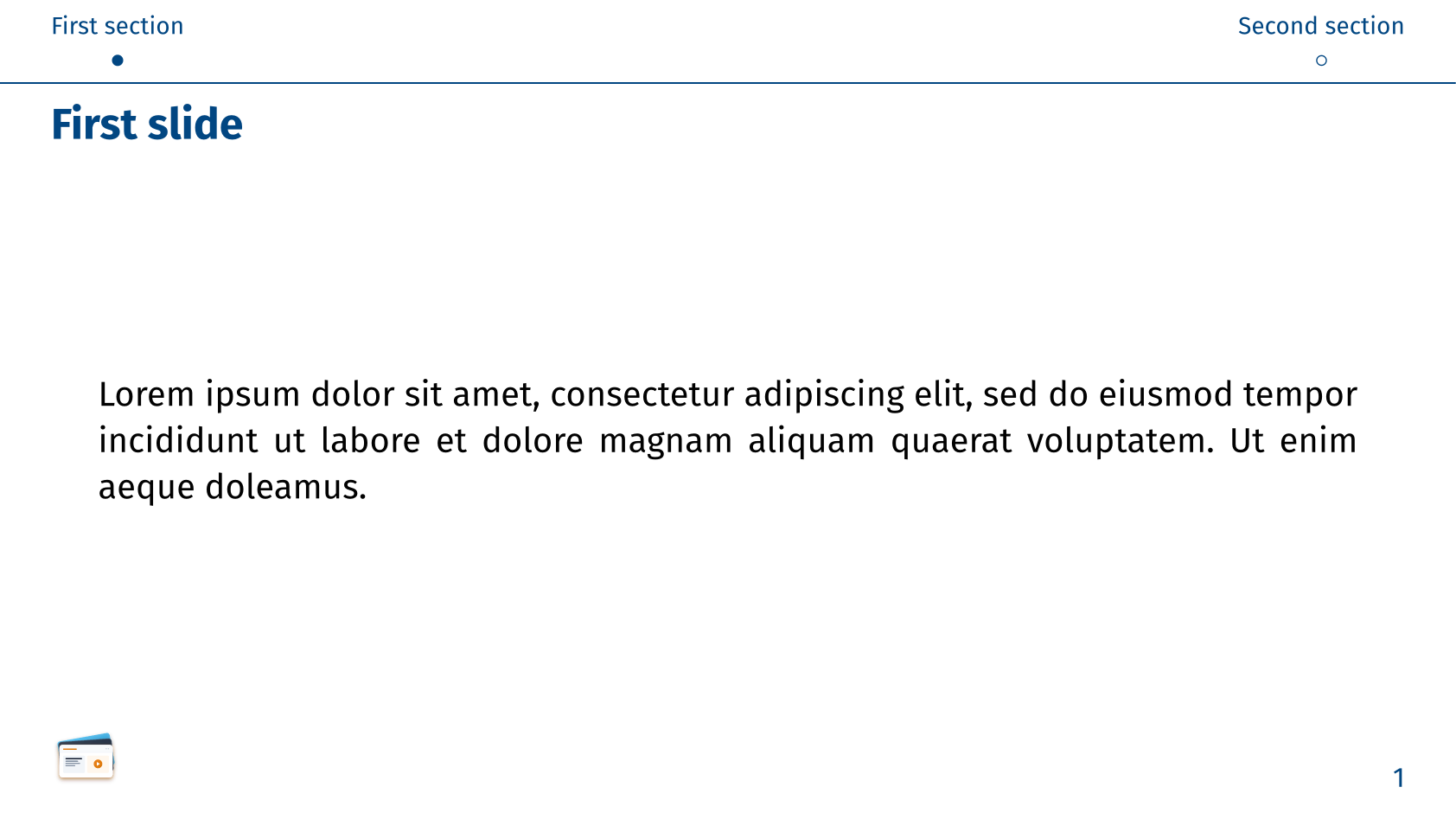
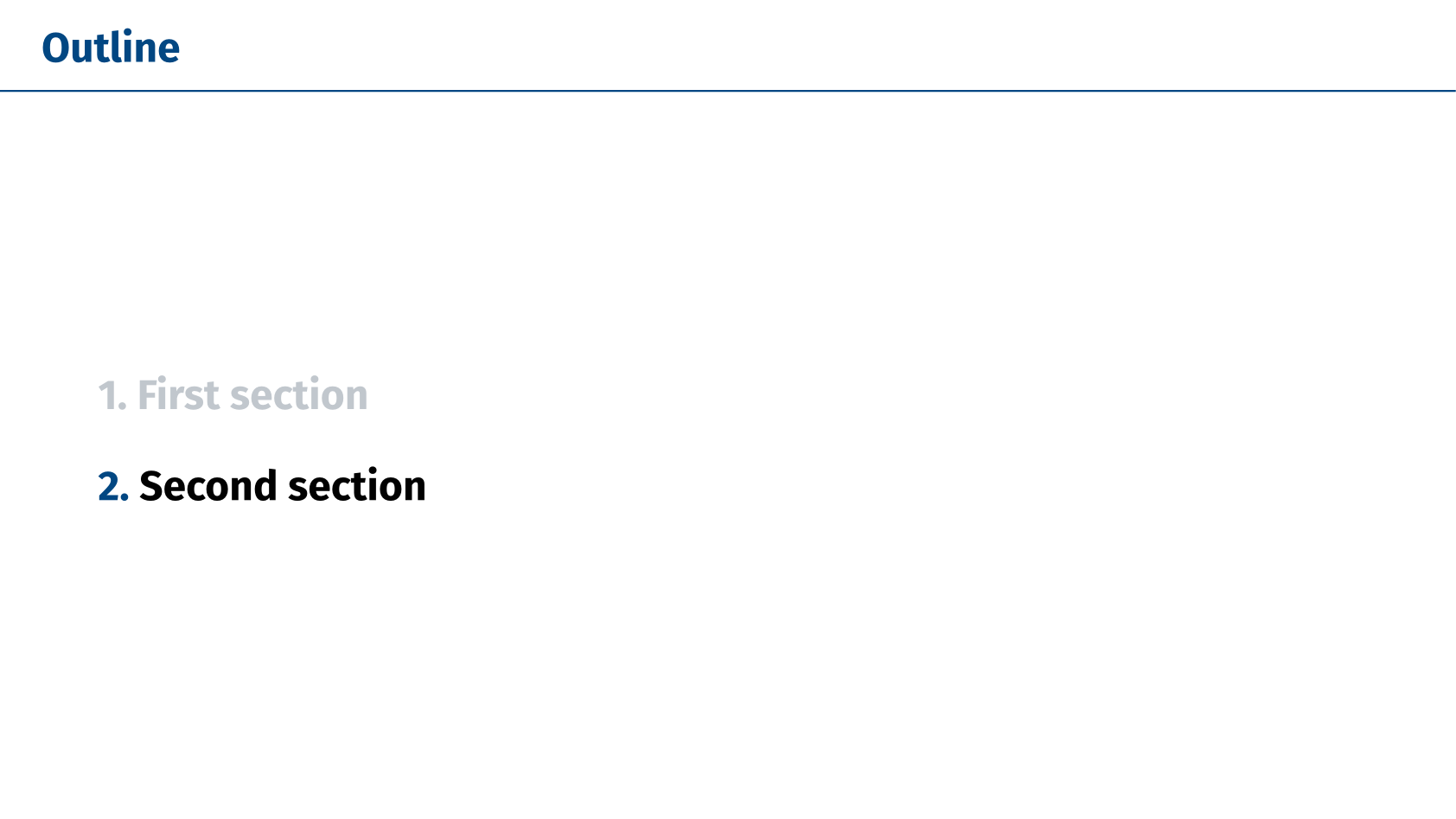
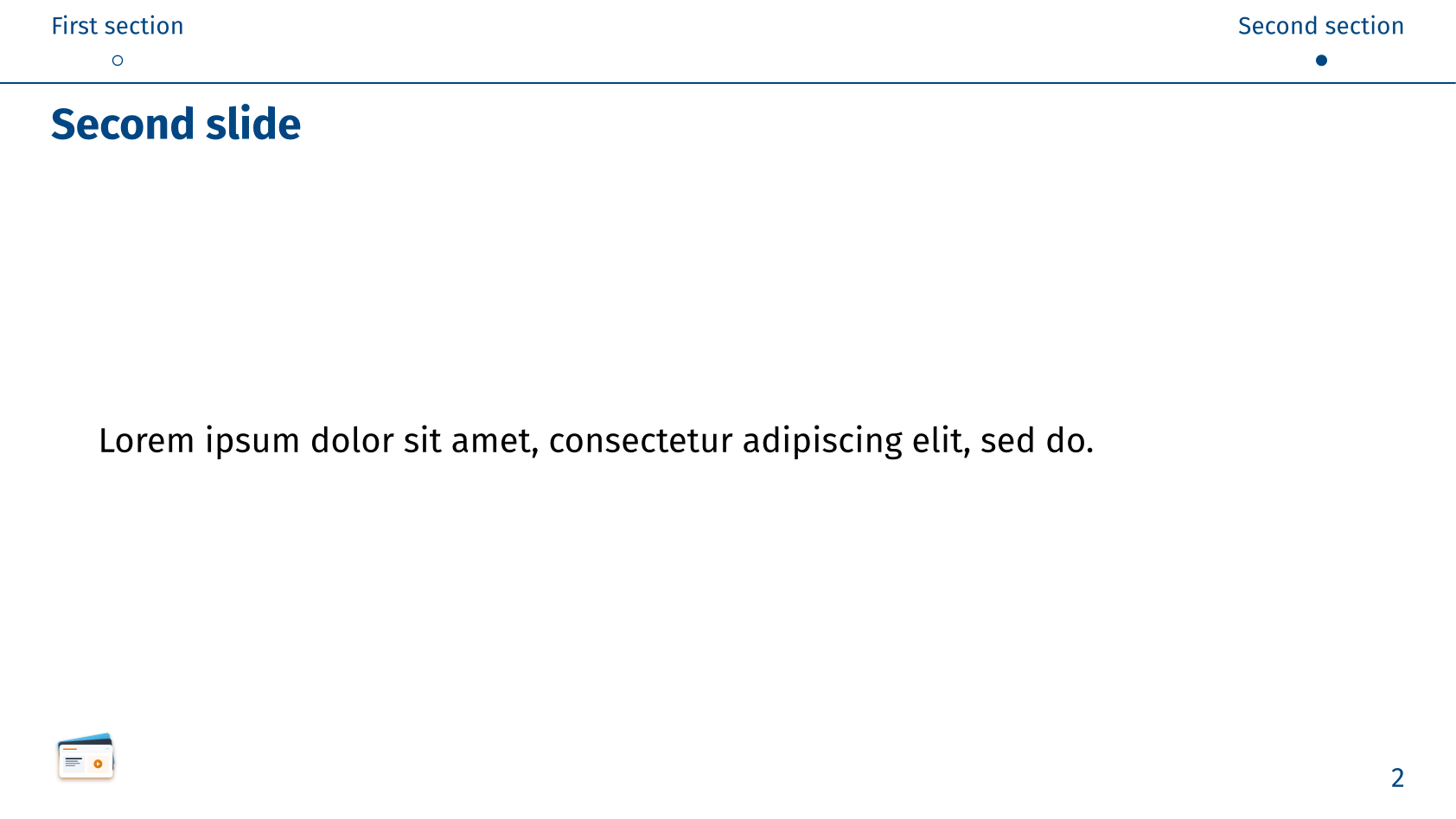
The simple theme is a clean and minimalistic design that focuses on readability and clarity. It uses a light background with dark text, making it suitable for professional presentations.
The default color palette and font settings for the simple theme are:
#let simple-colors = (
primary: rgb("#014682"),
secondary: rgb("#637382"),
focus: rgb("#014682"),
background: none,
header: rgb("#014682"),
footer: rgb("#014682"),
)
#let simple-fonts = (
body: "Fira Sans",
math: "Fira Math",
raw: "Fira Code",
)Topbar navigation style

Minislide navigation style

Metropolis
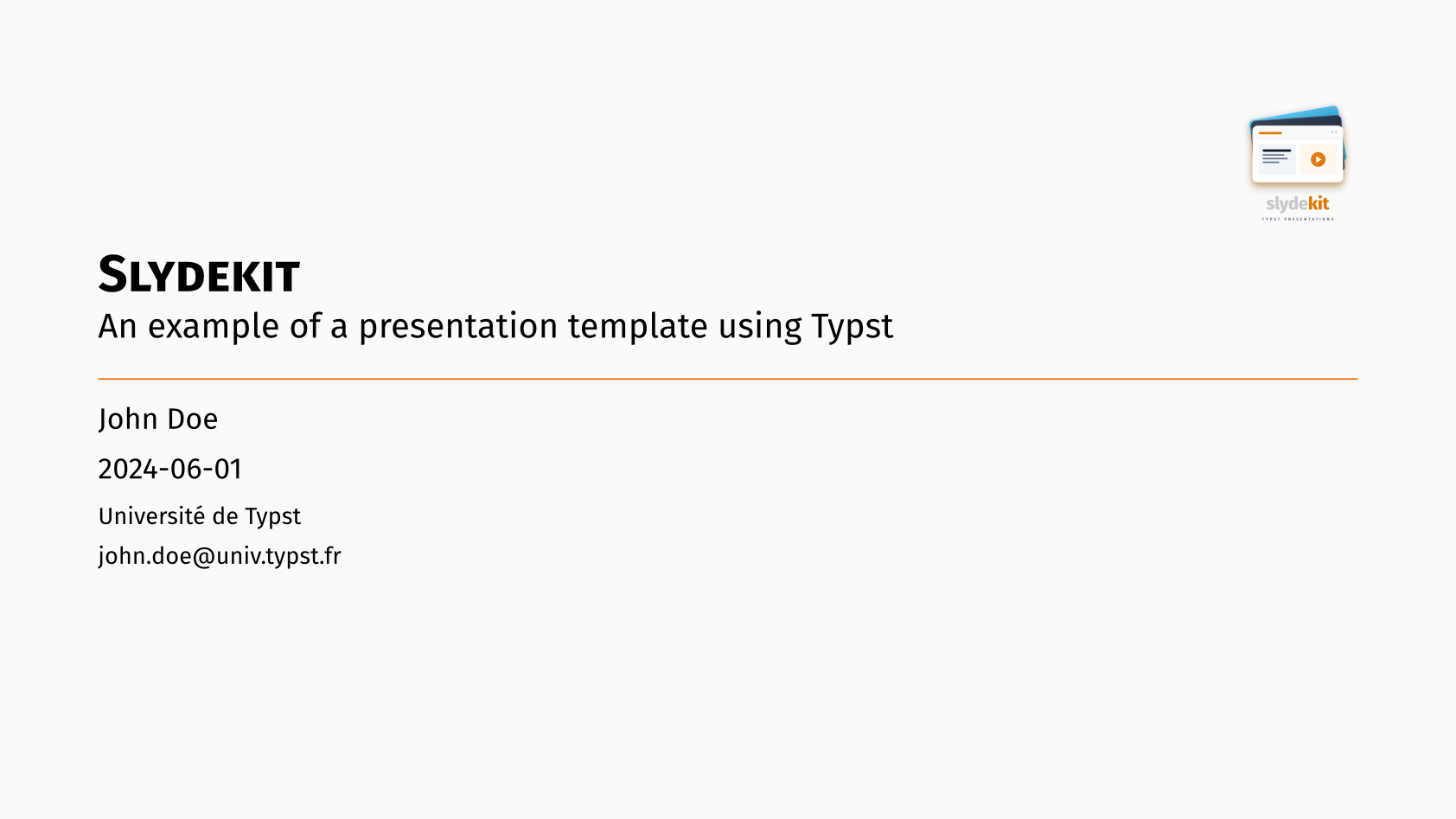
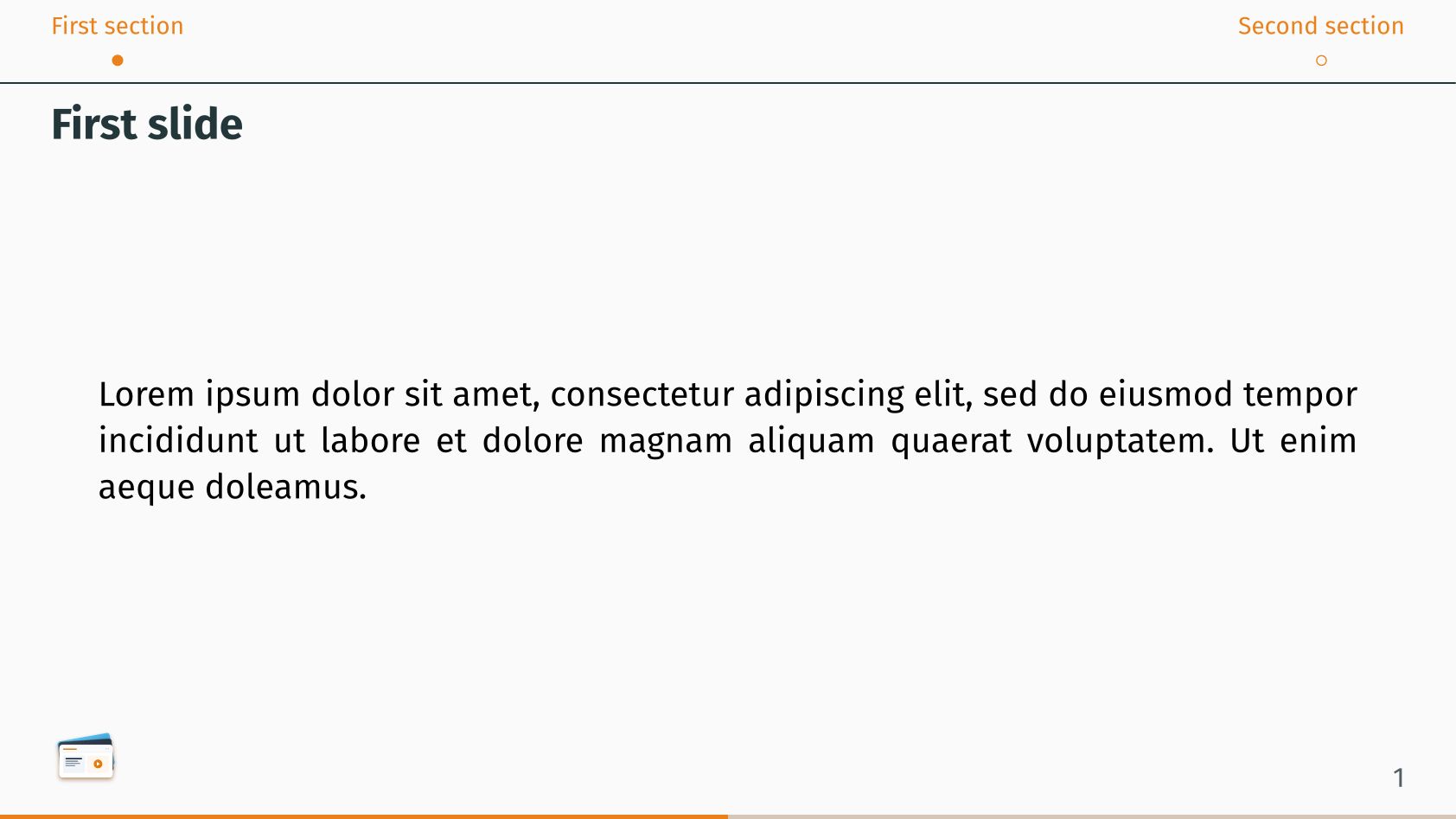
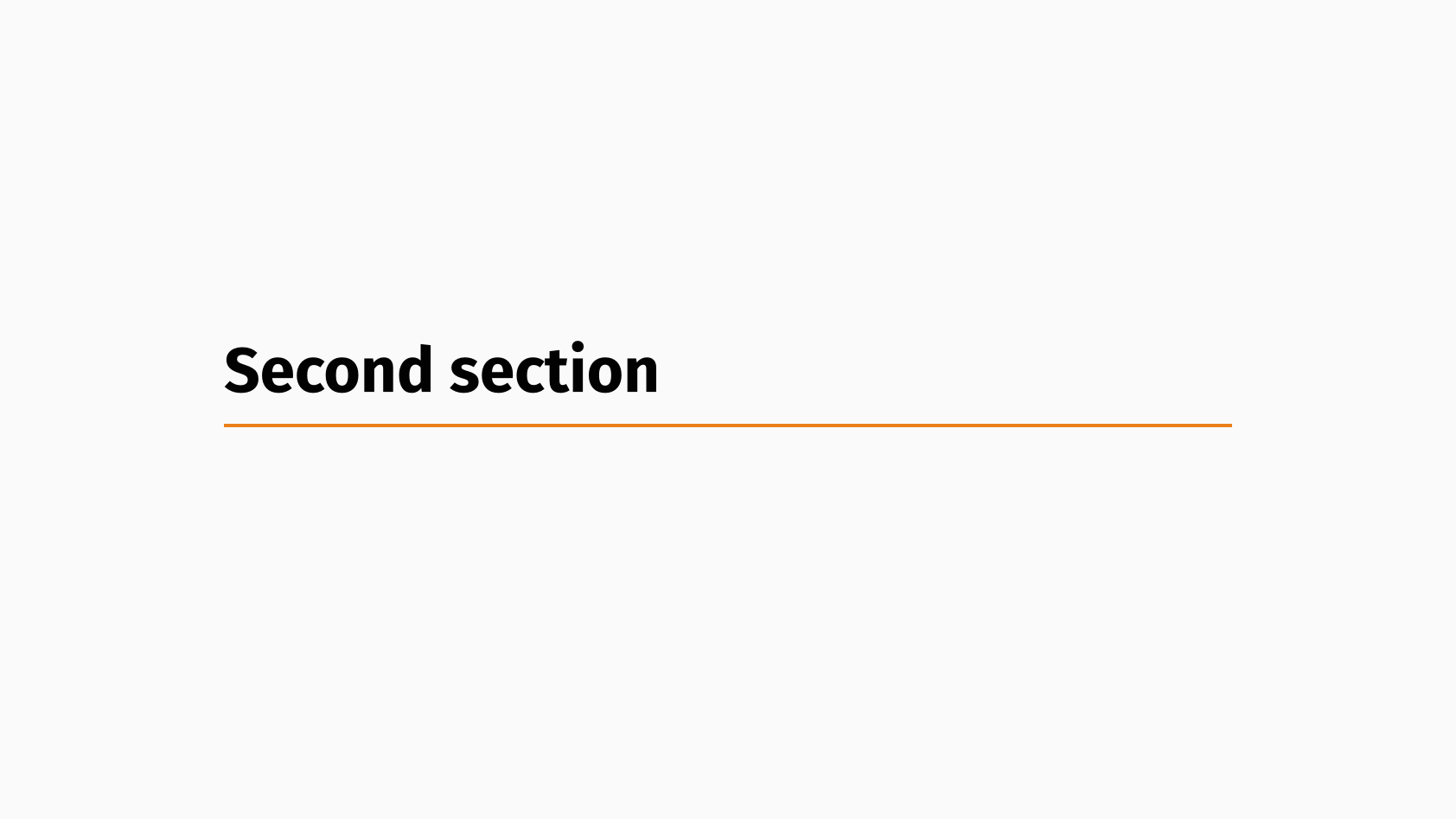
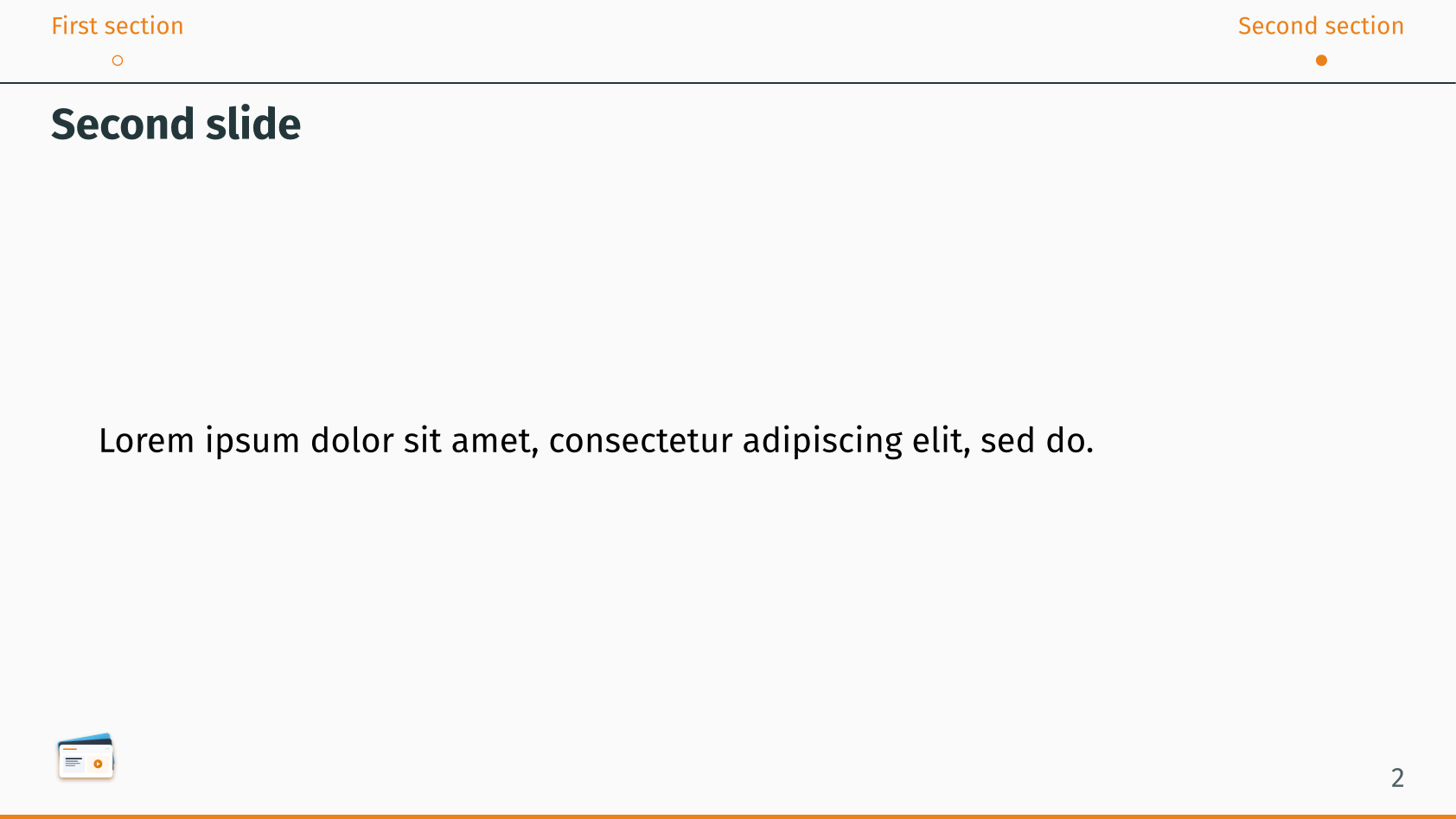
The metropolis theme is inspired by the popular Metropolis Beamer theme. It features a modern design with a light gray background and vibrant accent colors, making it ideal for tech-oriented presentations.
The default color palette and font settings for the metropolis theme are:
#let metropolis-colors = (
primary: rgb("#eb811b"),
secondary: rgb("#d6c6b7"),
focus: rgb("#23373b"),
background: rgb("#fafafa"),
header: rgb("#23373b"),
footer: rgb("#23373b").lighten(20%),
)
#let metropolis-fonts = (
body: "Fira Sans",
math: "Fira Math",
raw: "Fira Code",
)Topbar navigation style
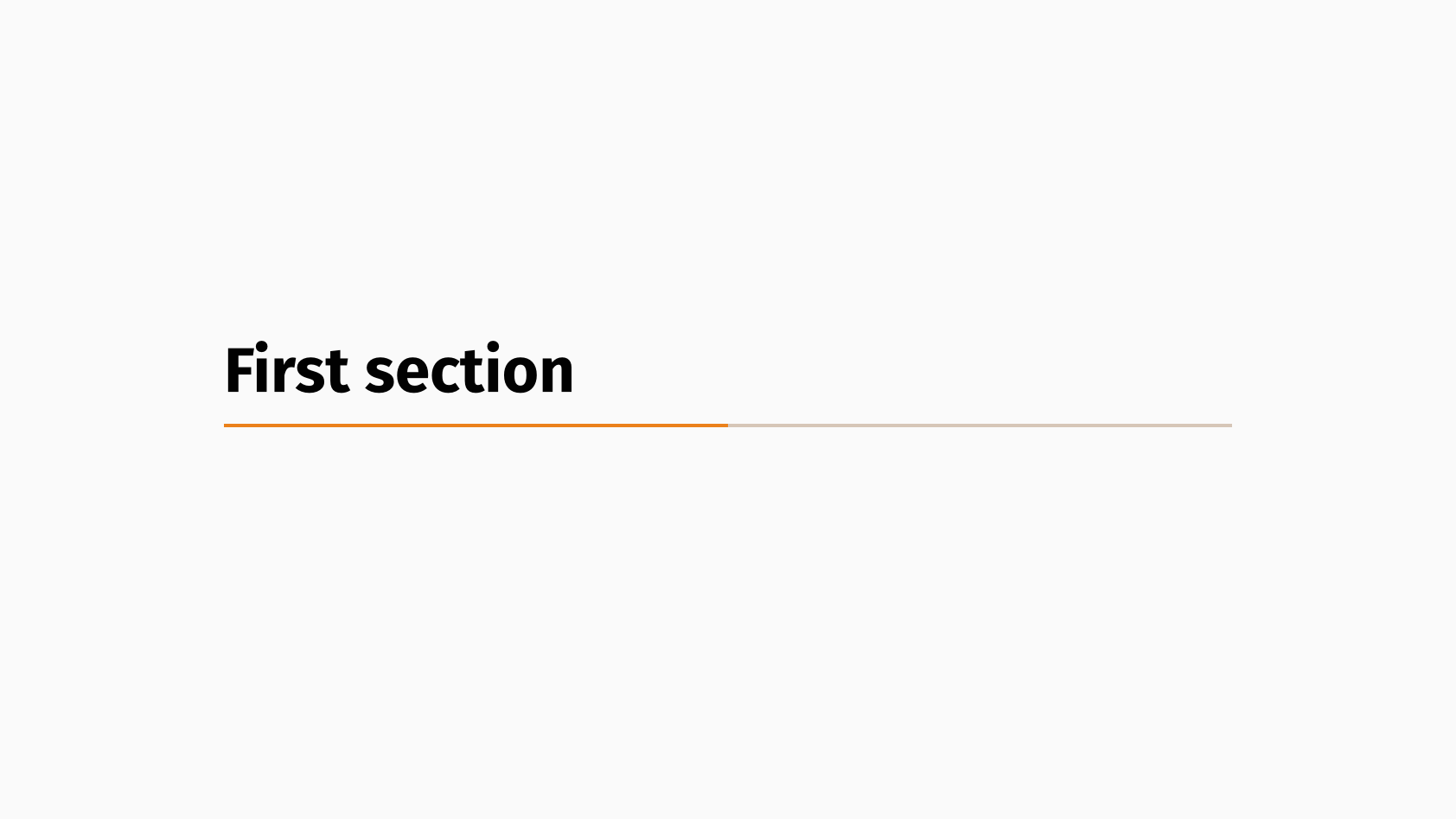
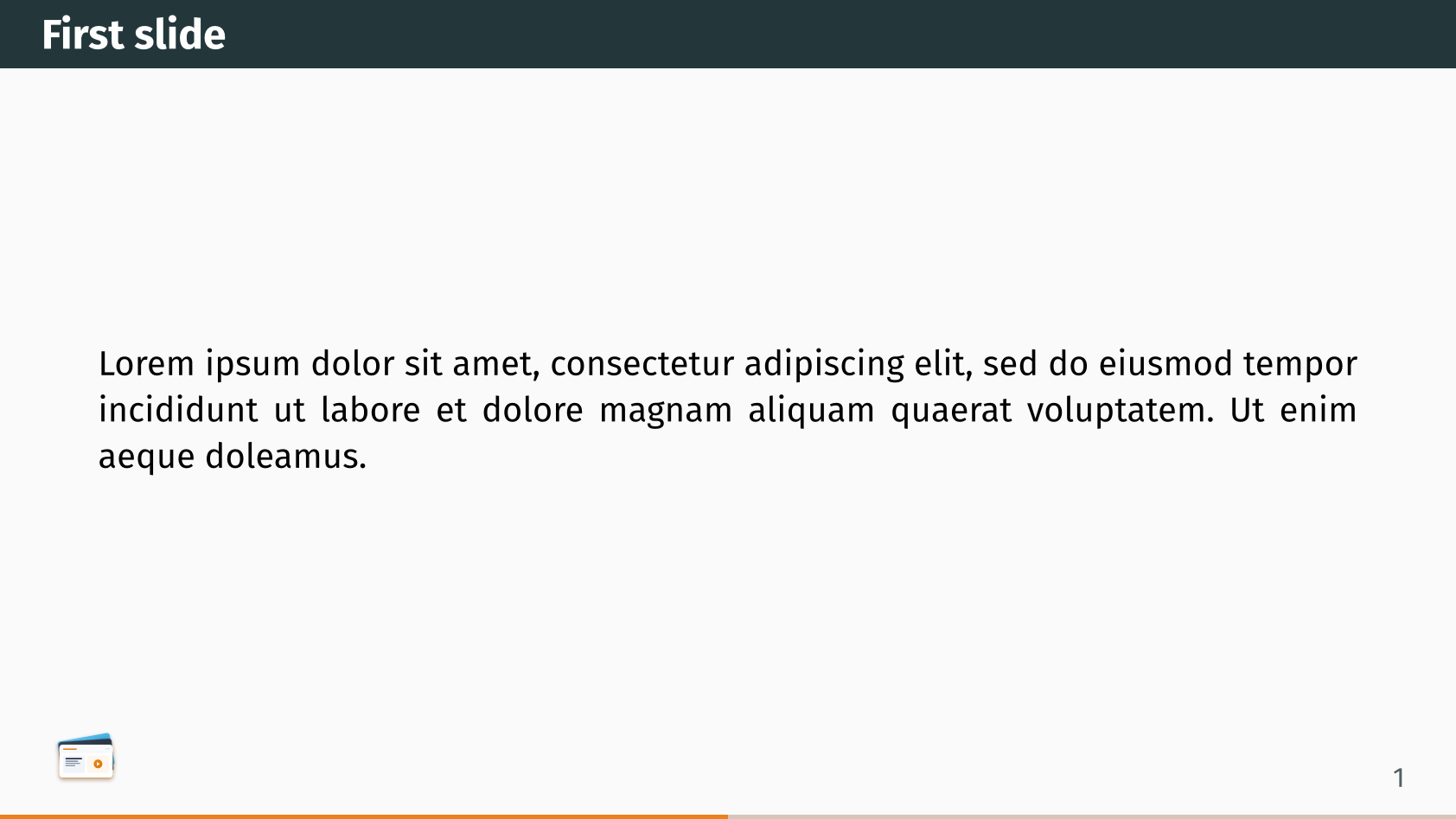

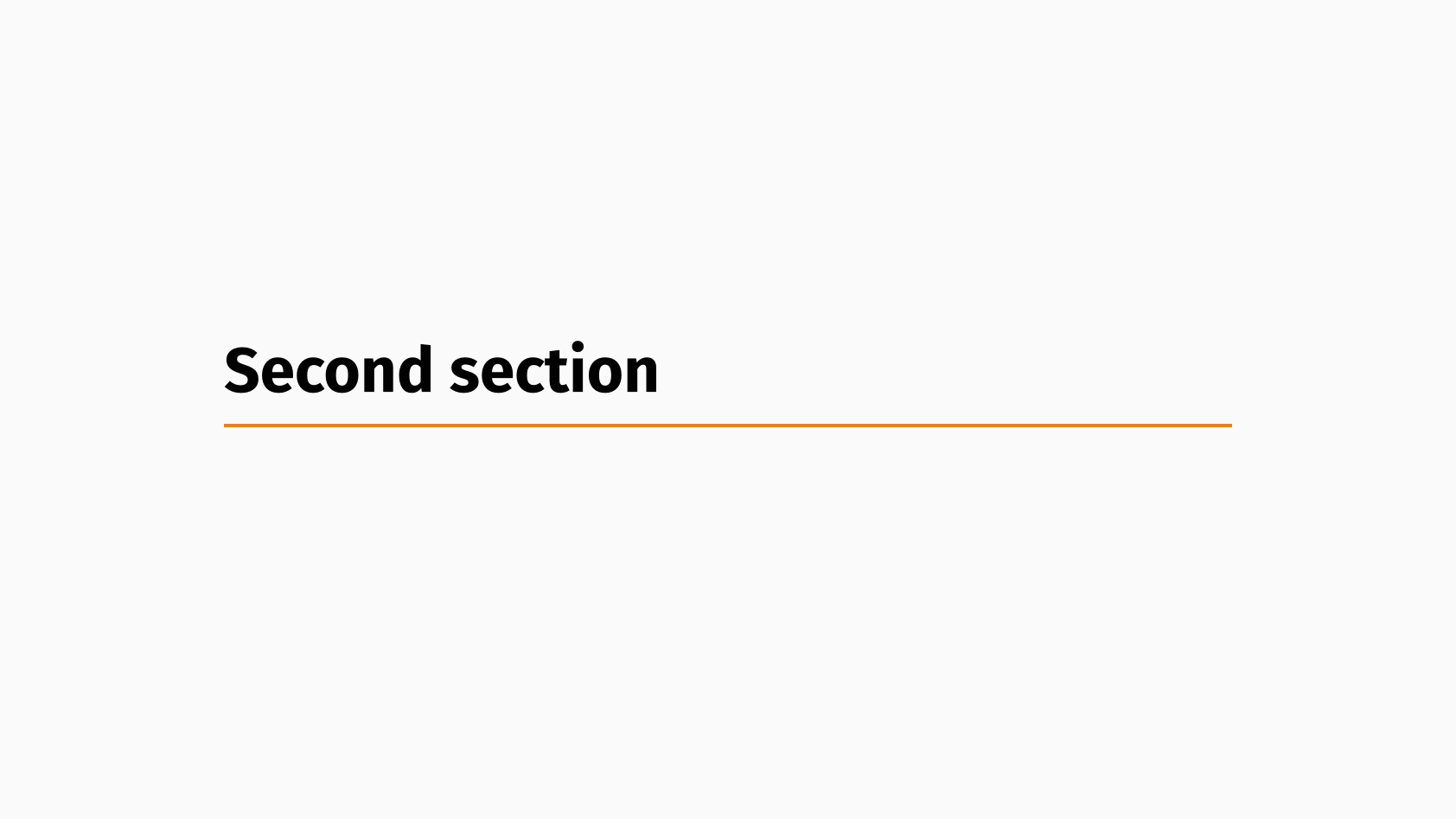
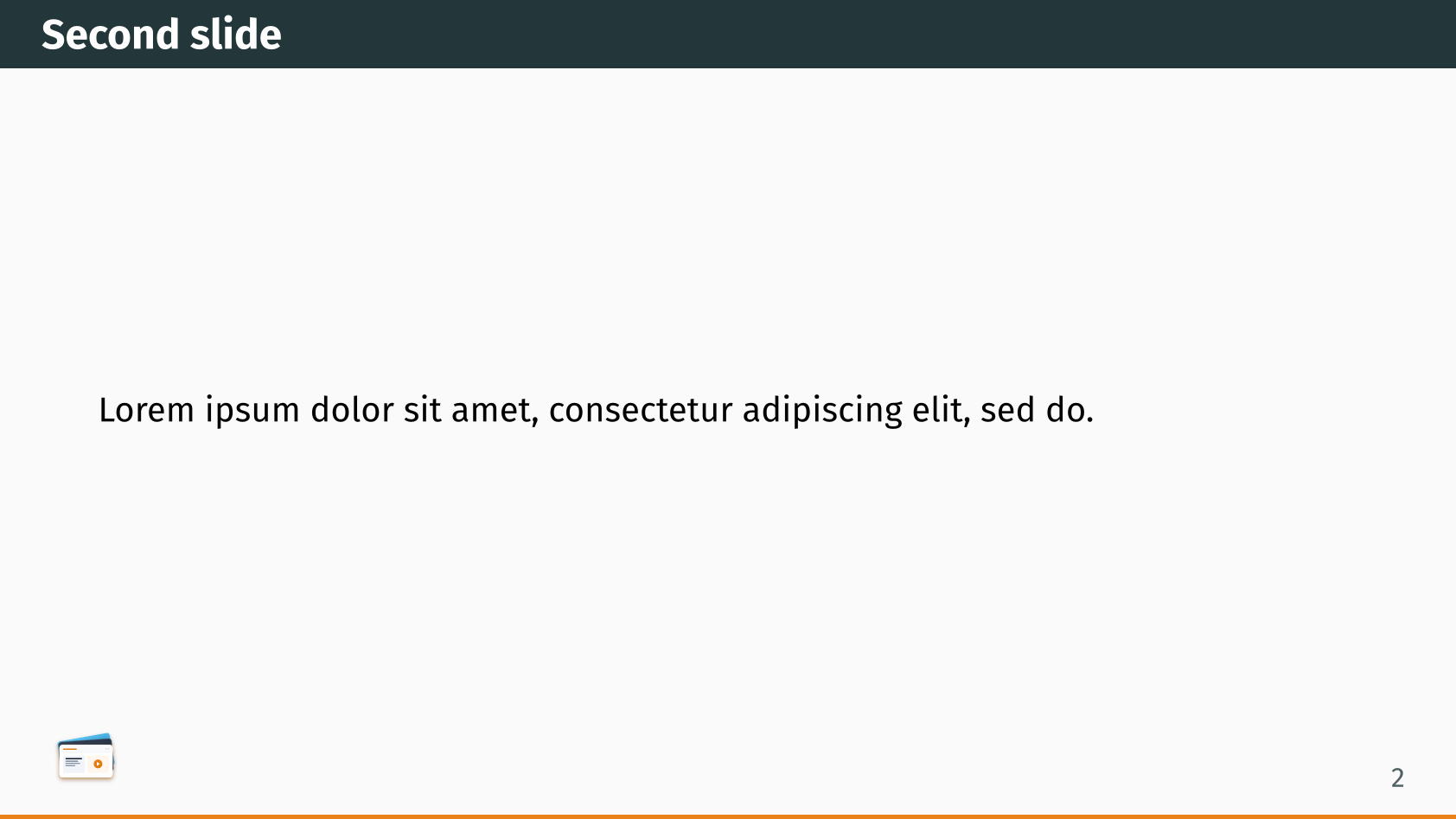
Minislide navigation style
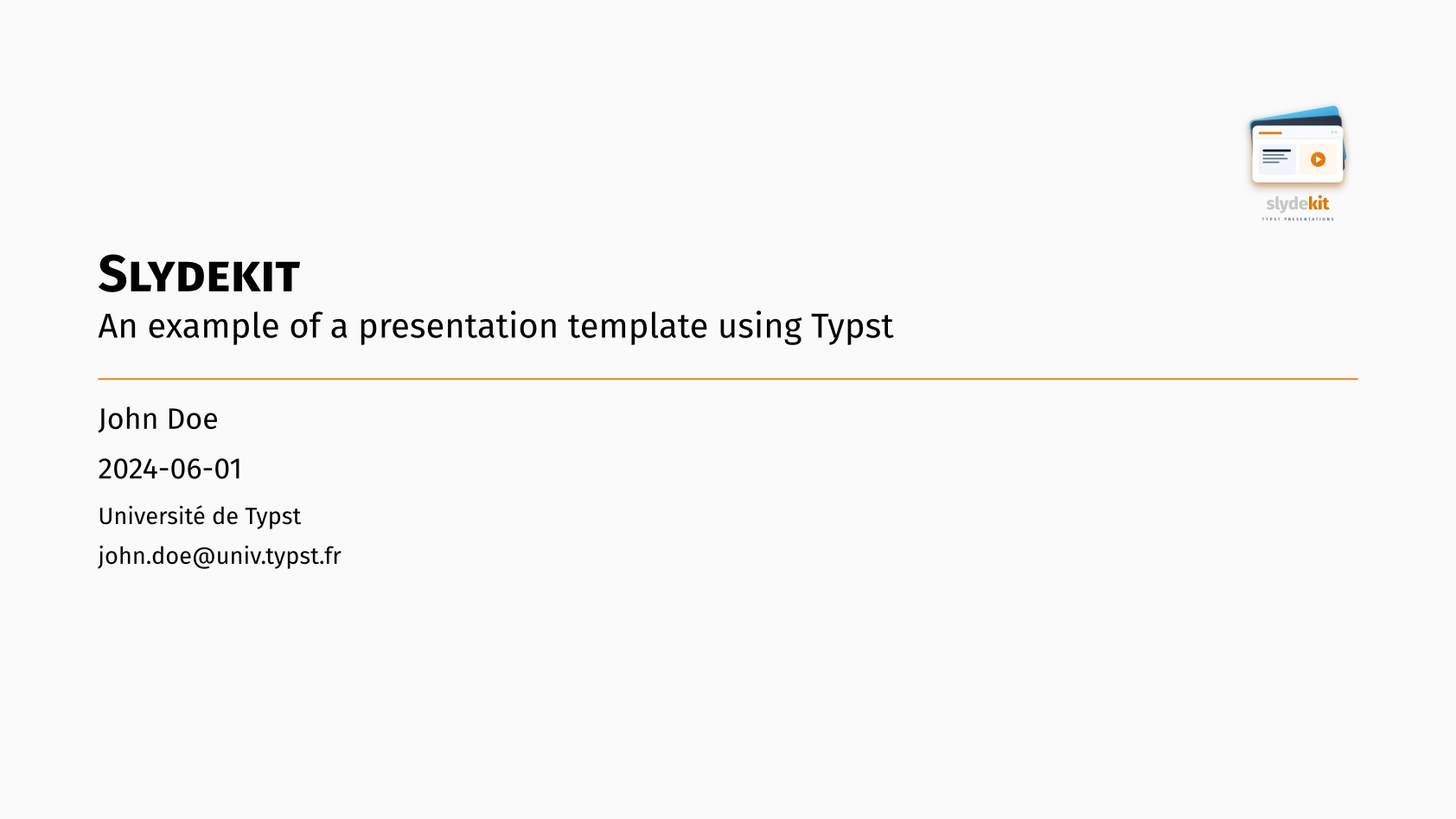
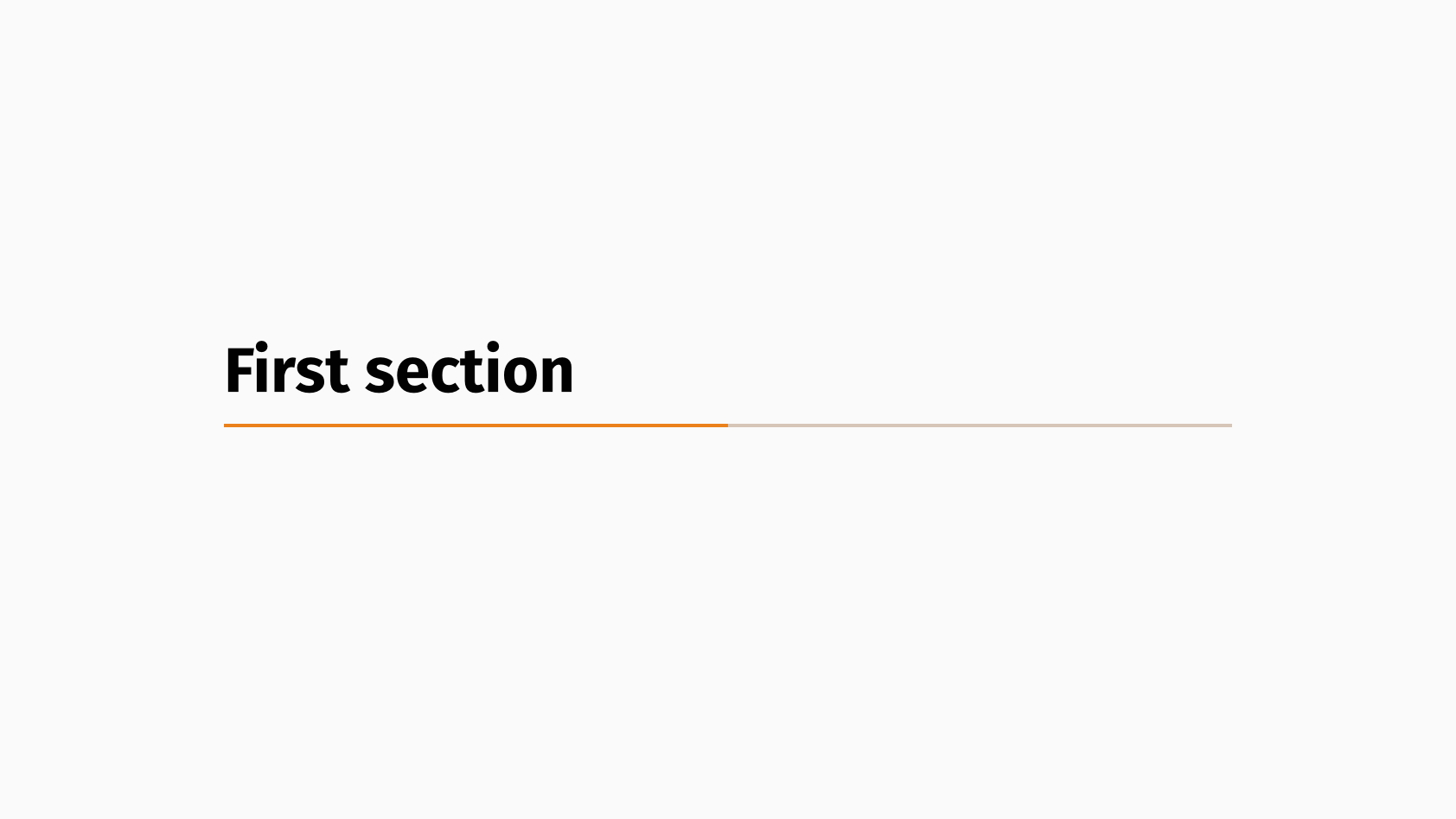

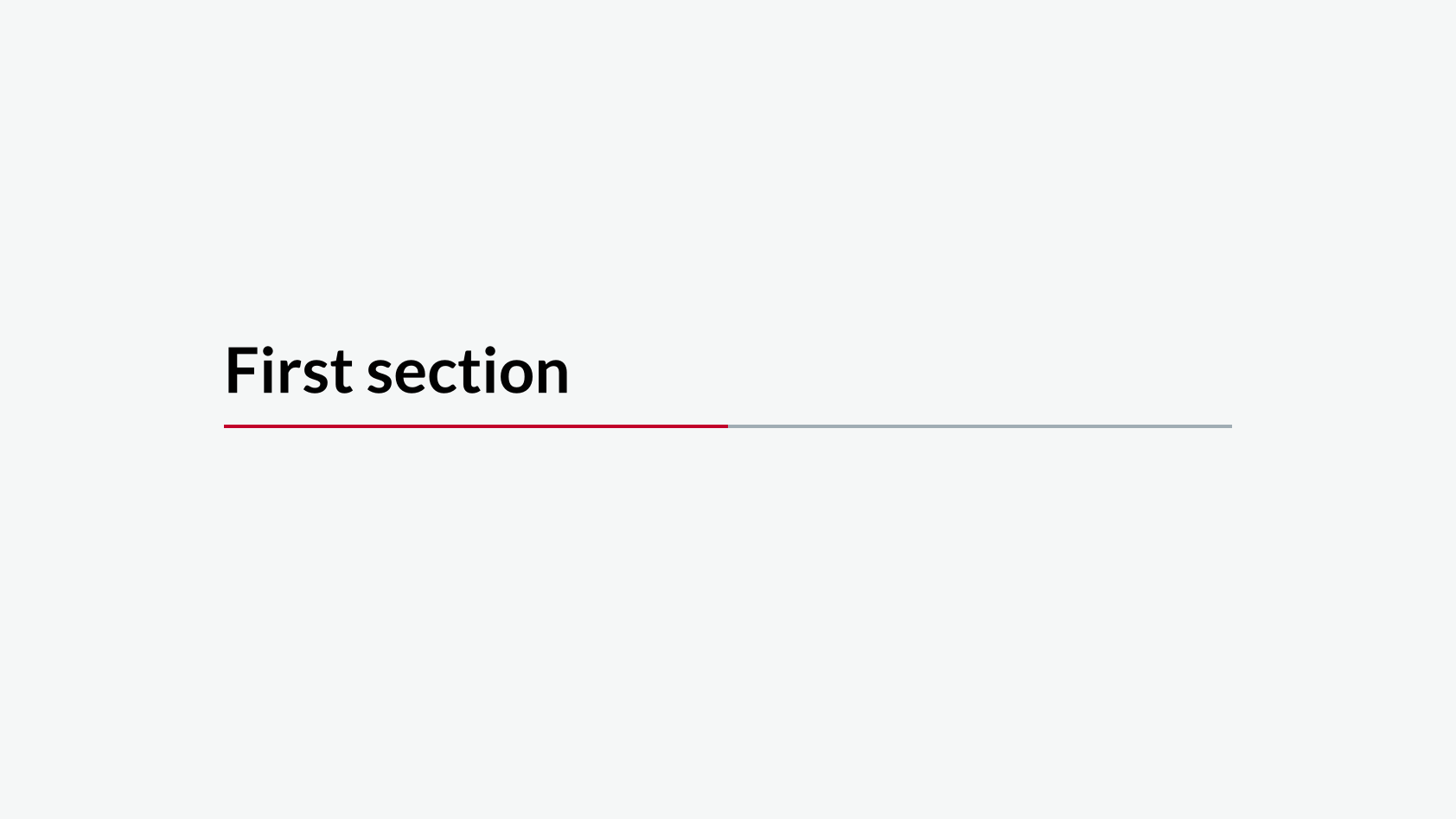
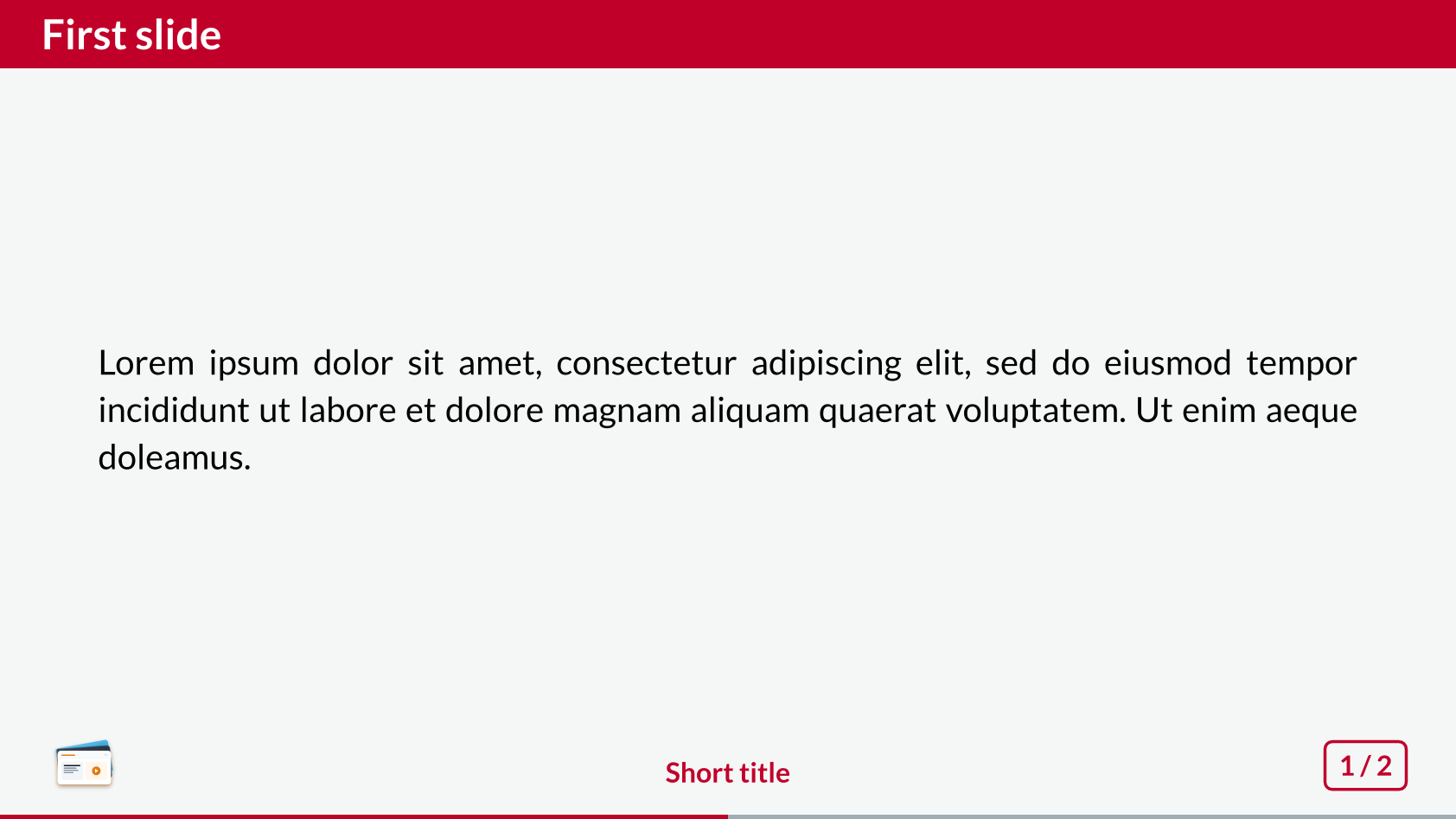
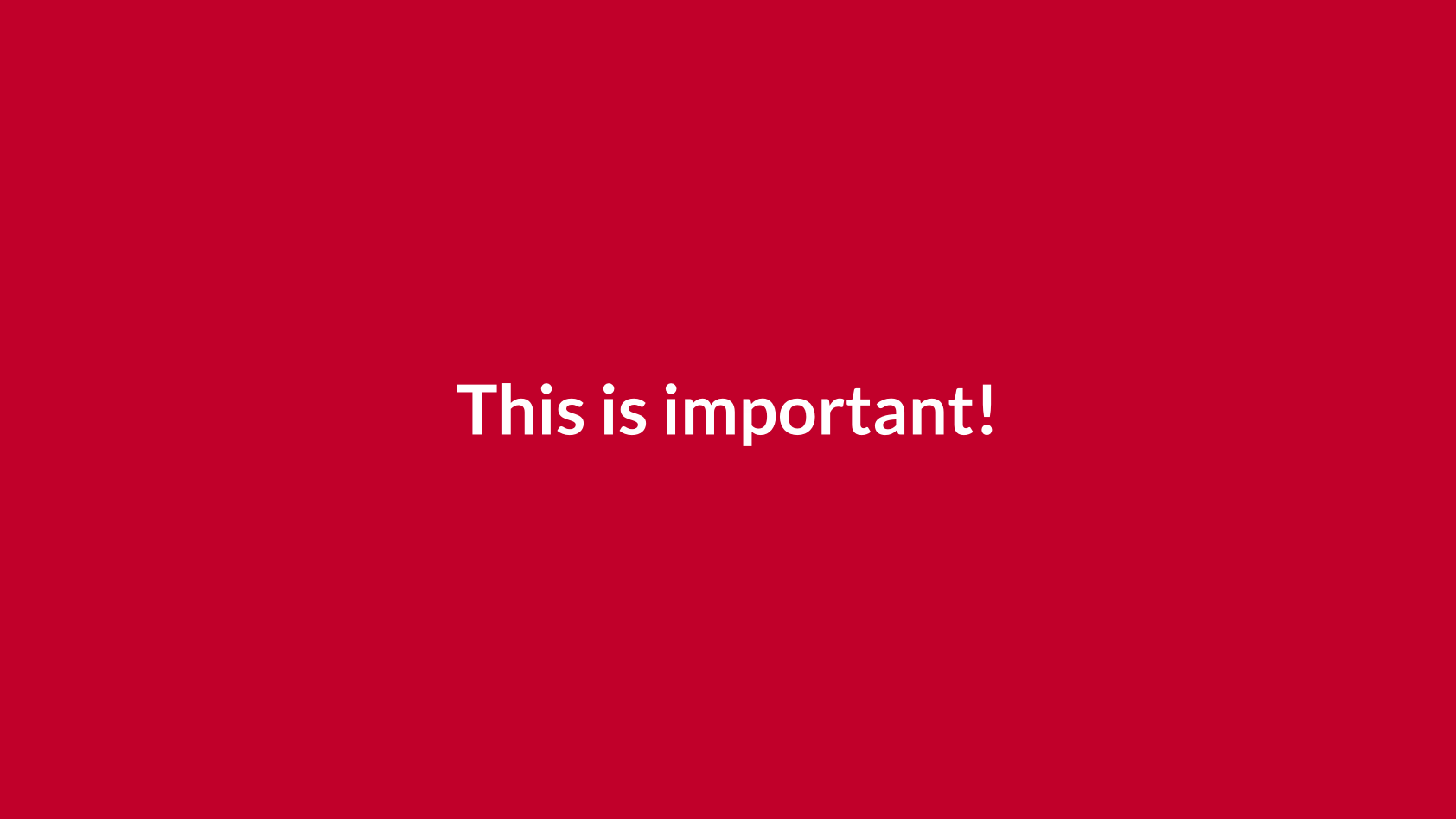
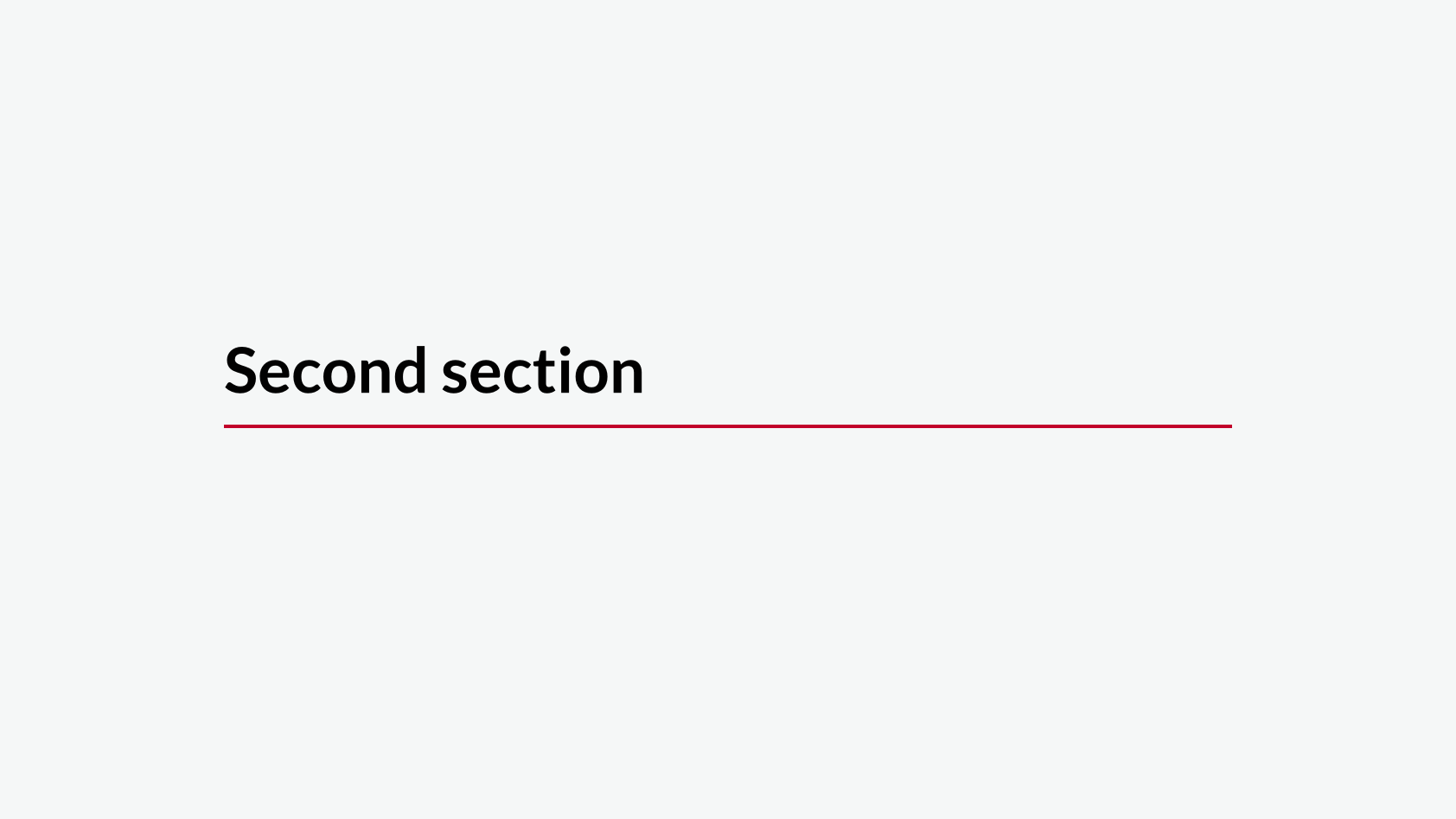
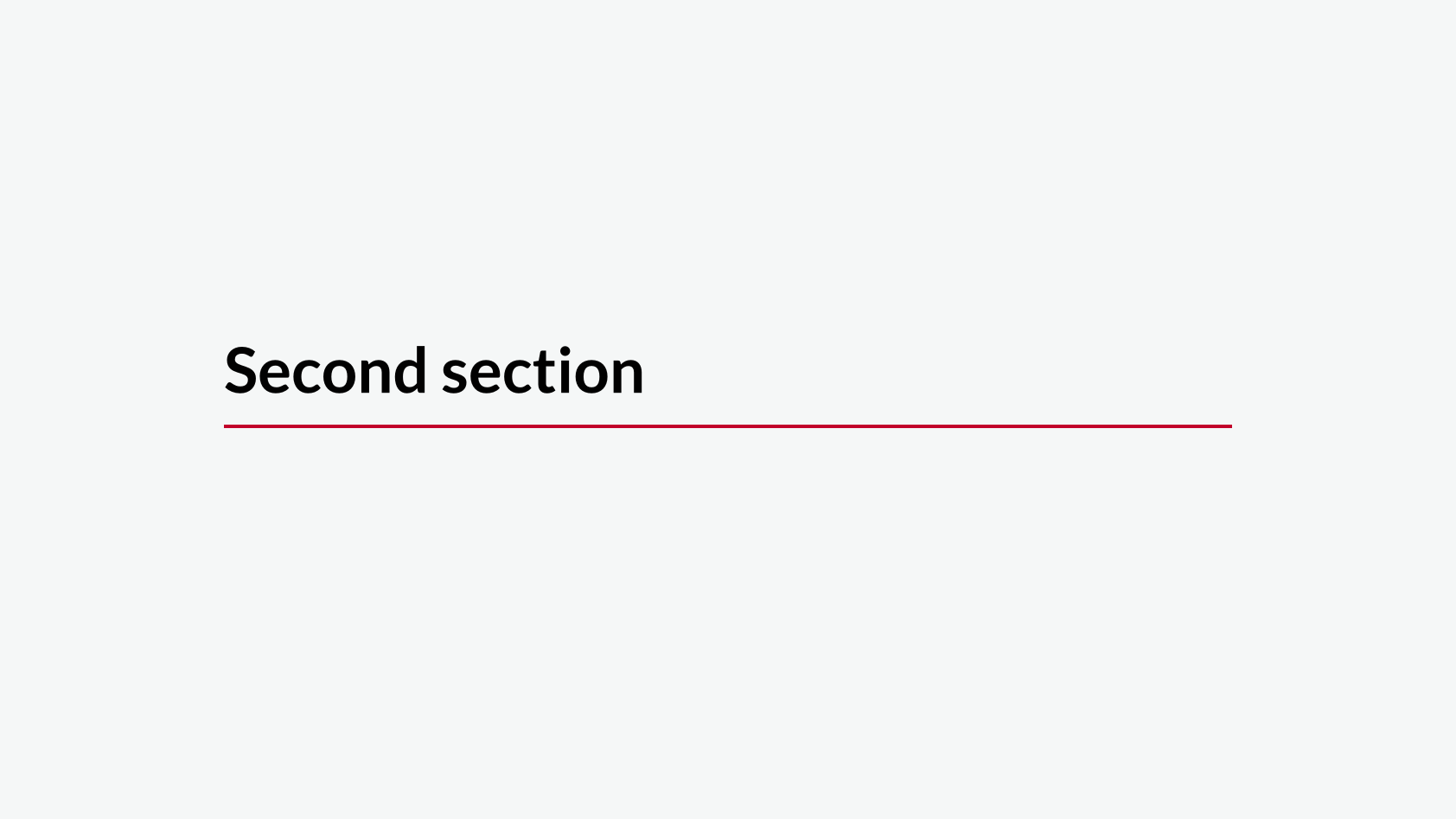
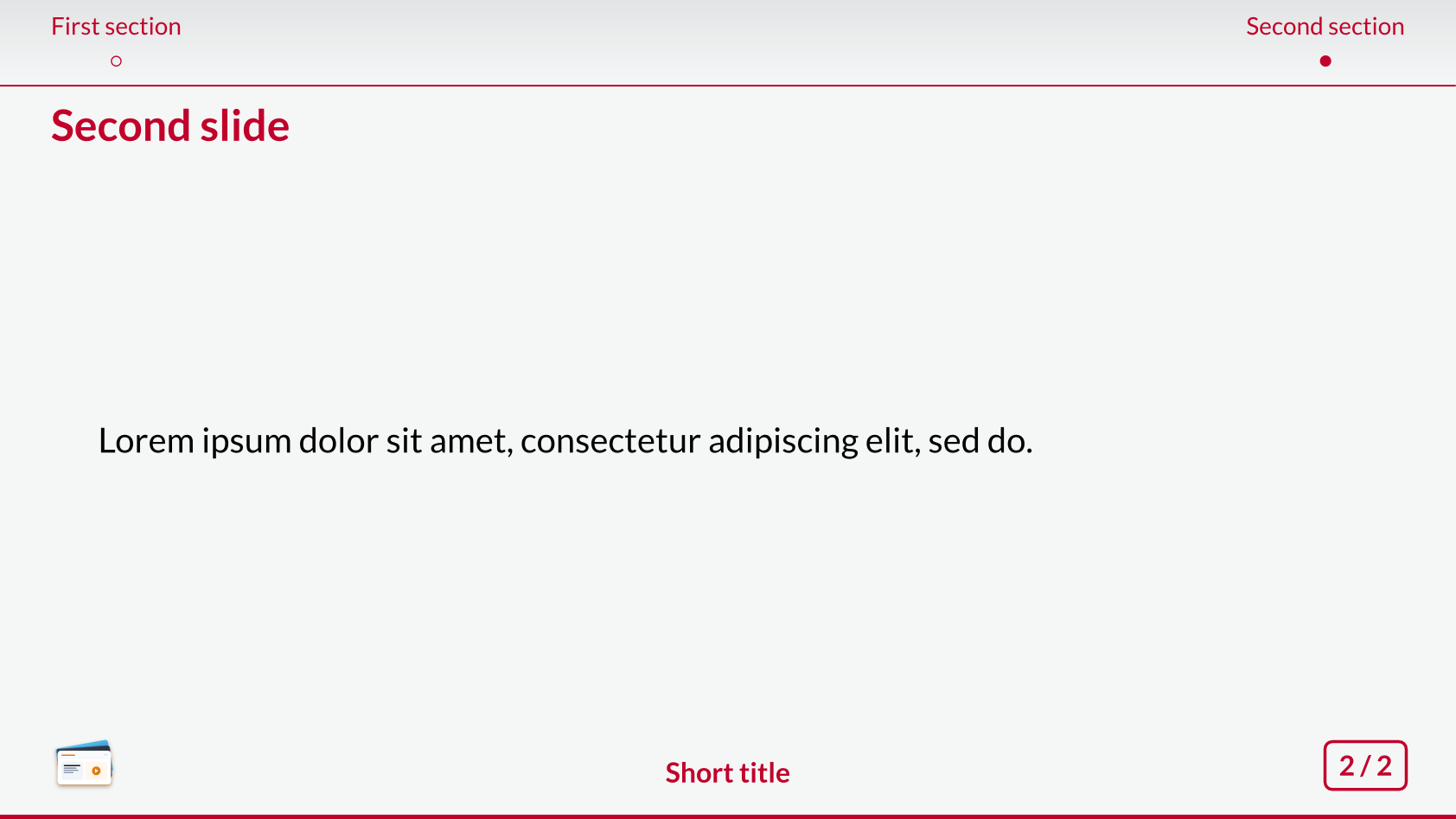
Fancy
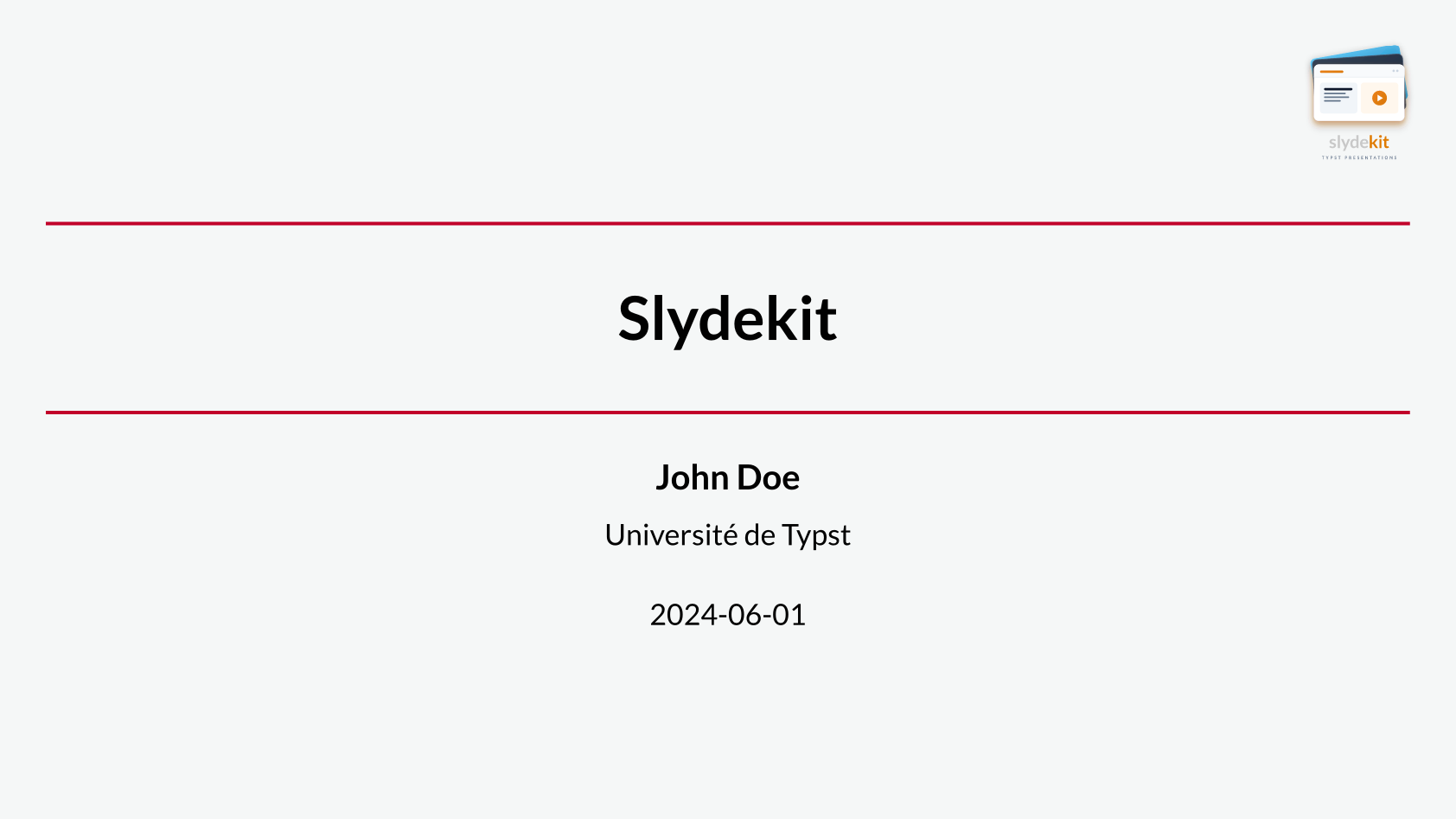
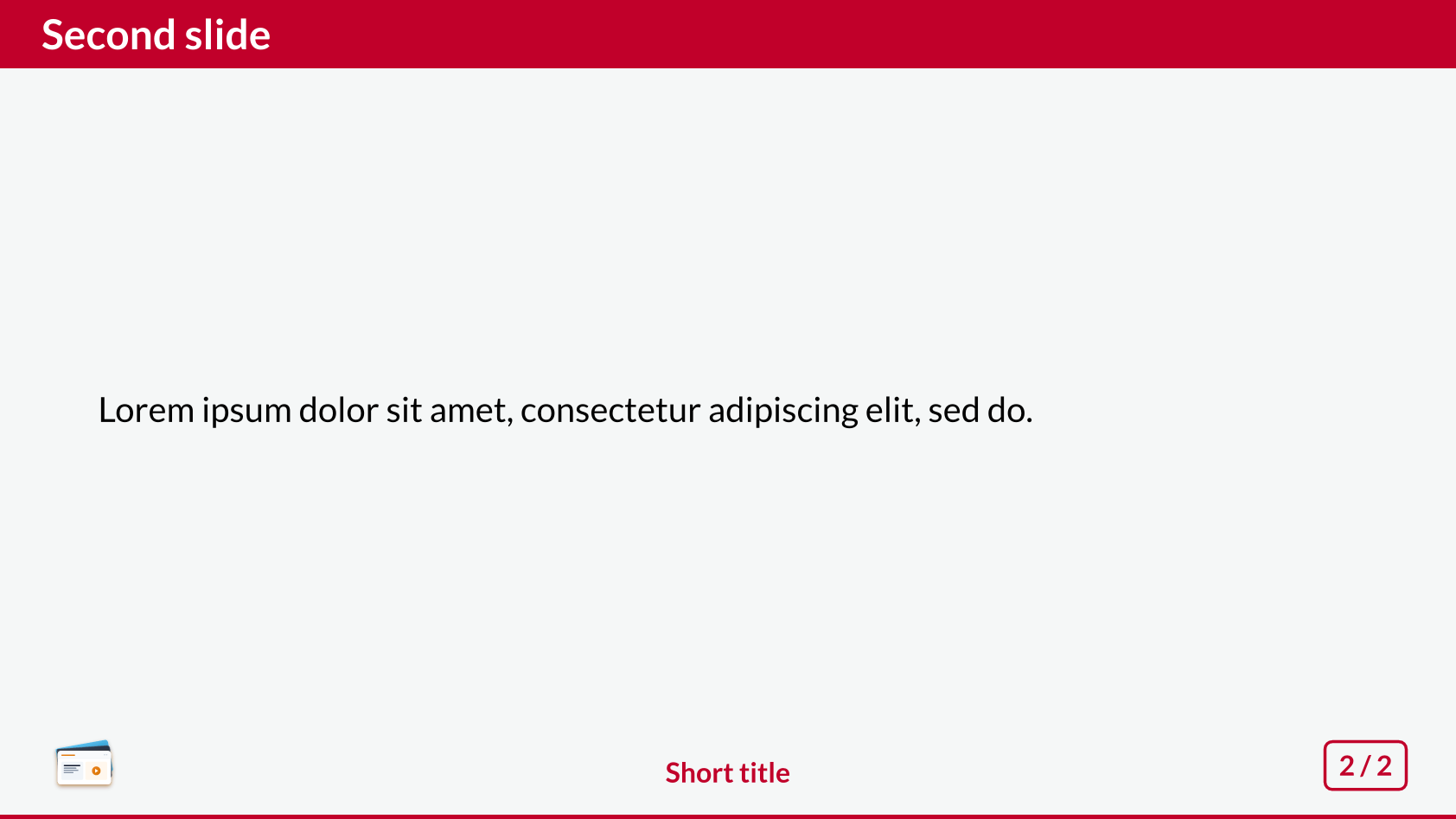
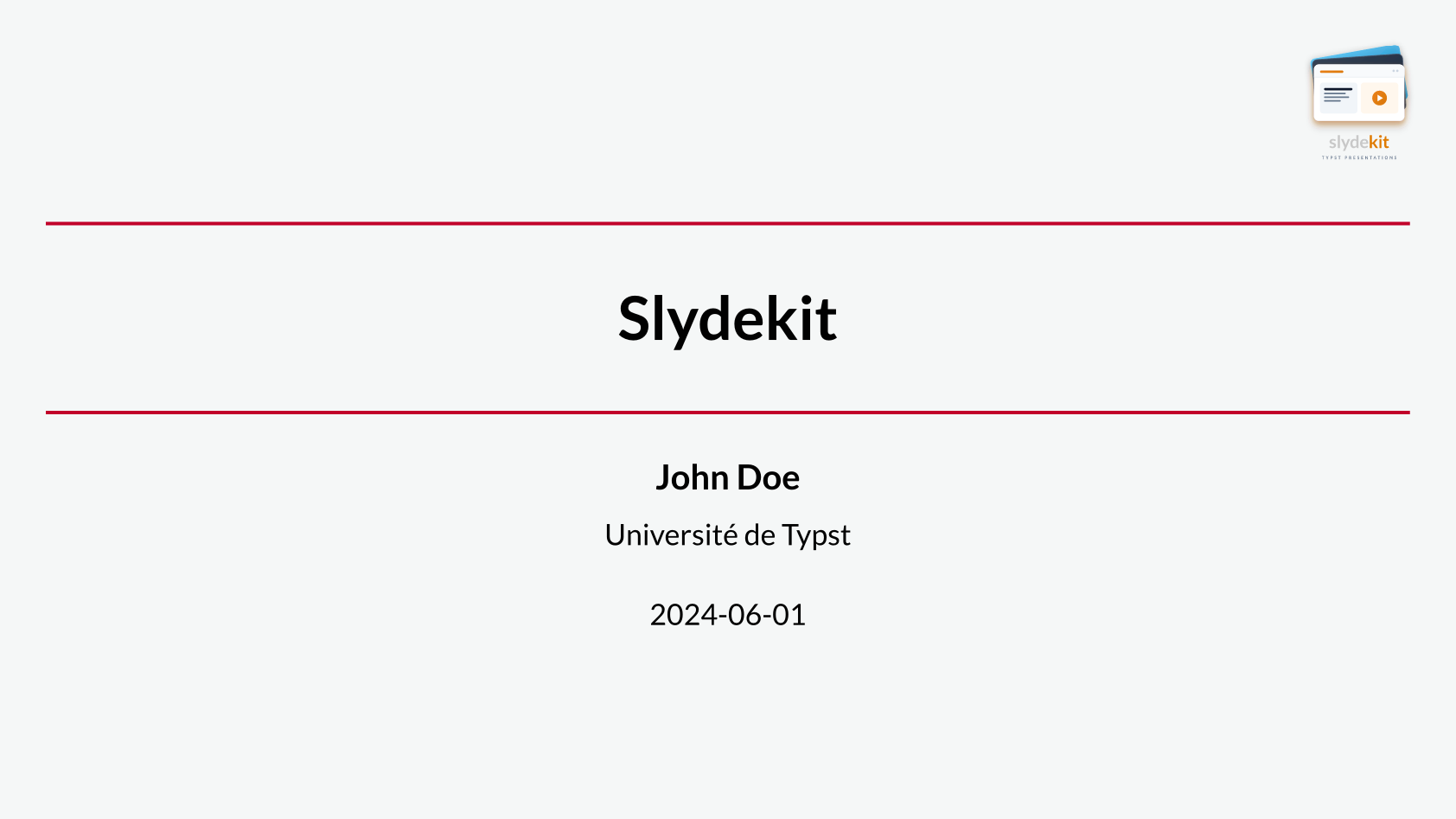
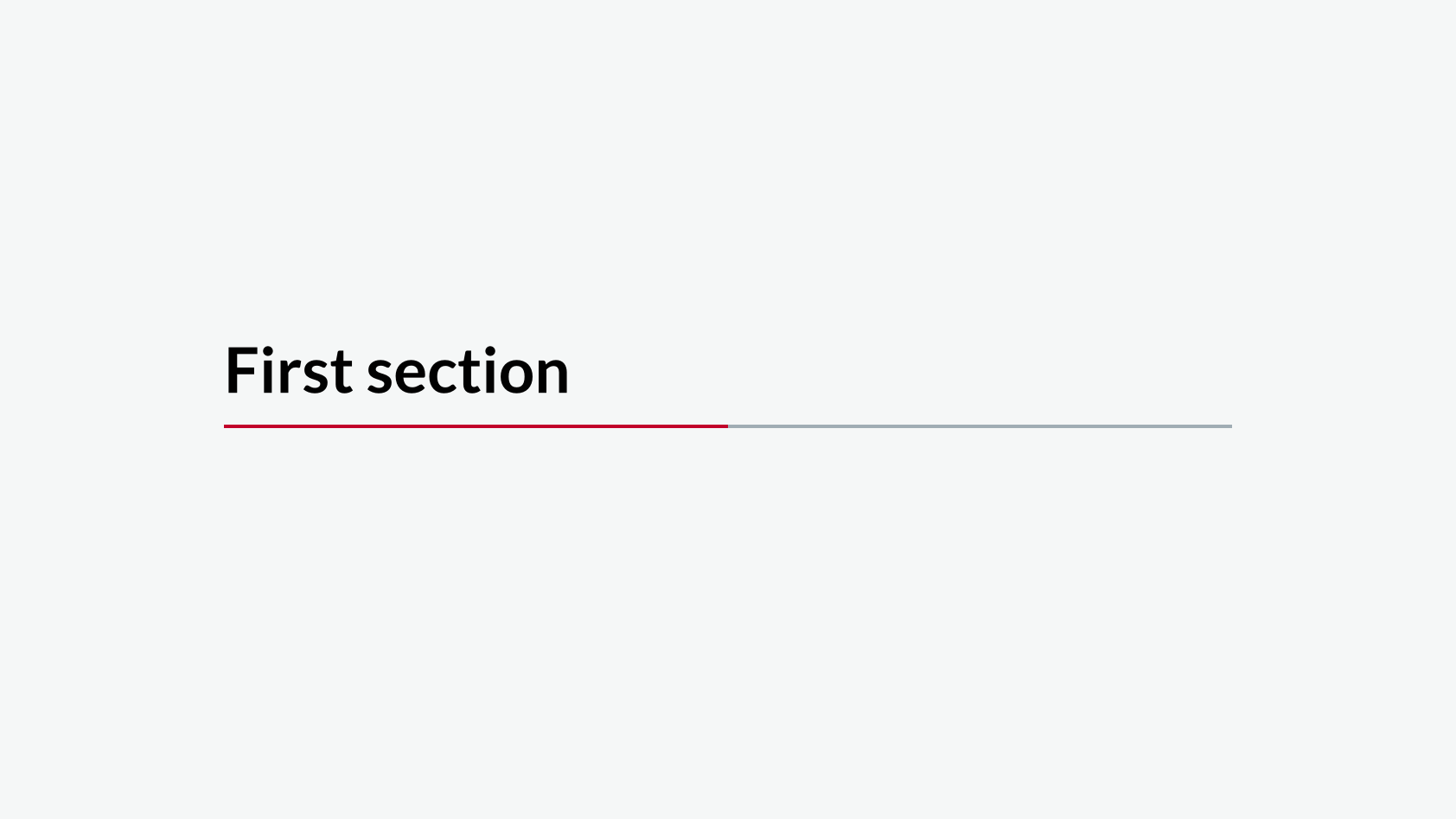
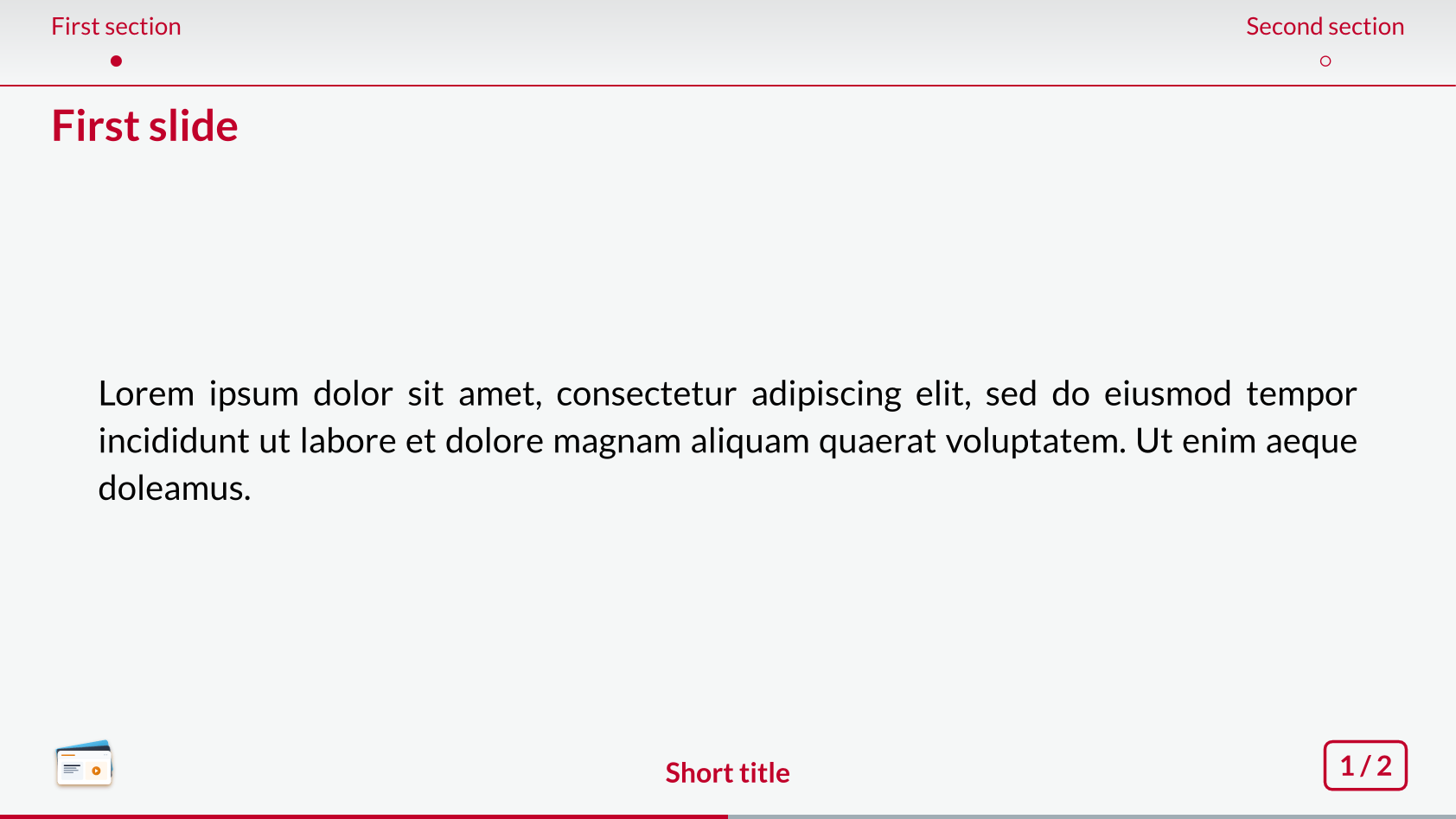
The fancy theme is a variant of the metropolis theme with a more vibrant color palette and additional styling options. It is designed to create visually striking presentations that stand out.
The default color palette and font settings for the fancy theme are:
#let fancy-colors = (
primary: rgb("#c1002a"),
secondary: rgb("#405a68").lighten(50%),
background: rgb("#405a68").lighten(95%),
focus: rgb("#c1002a"),
header: rgb("#c1002a"),
footer: rgb("#c1002a"),
)
#let fancy-fonts = (
body: "Lato",
math: "Lete Sans Math",
raw: "Cascadia Code",
)Topbar navigation style
Minislide navigation style

Cambfurt
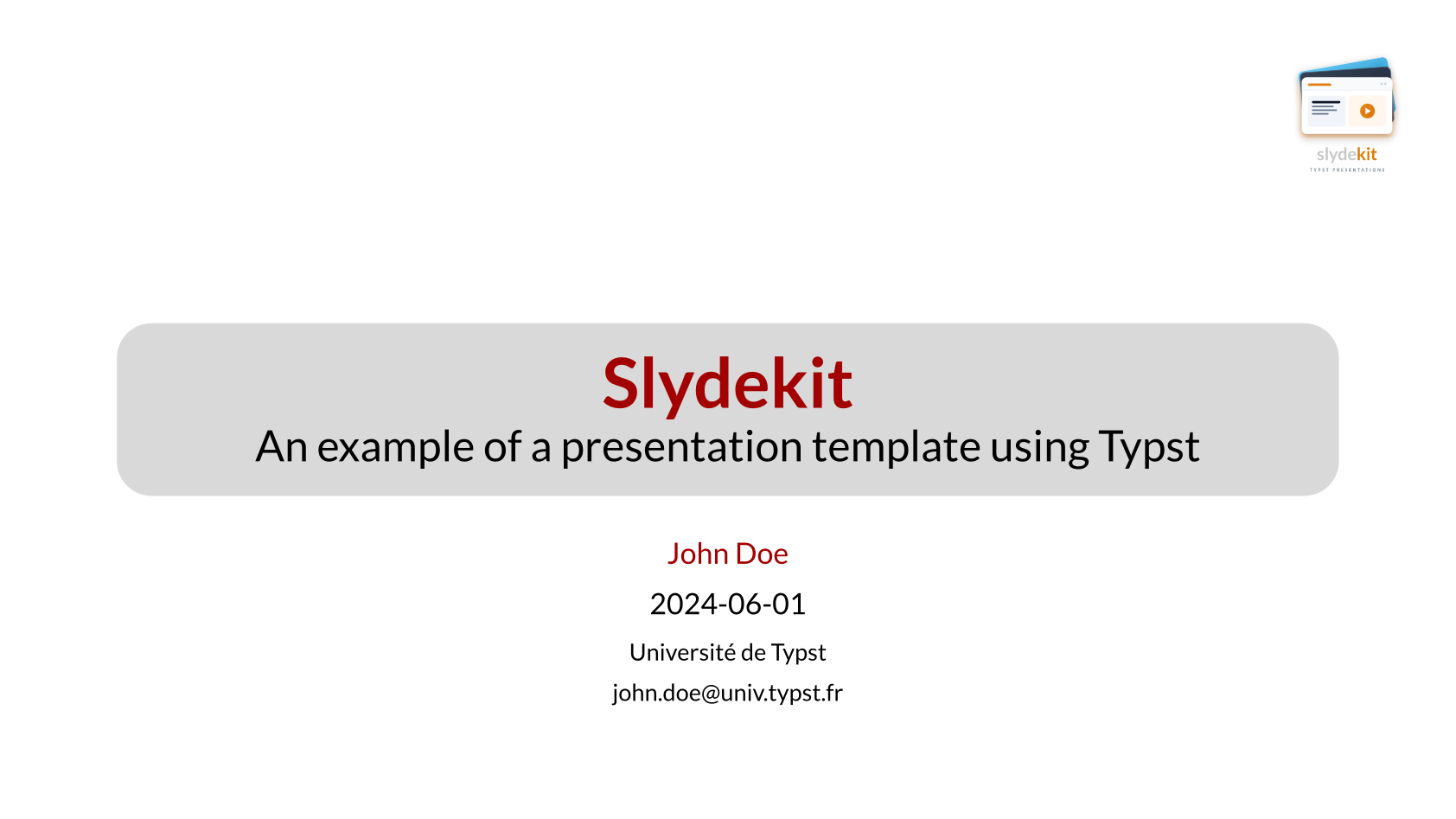
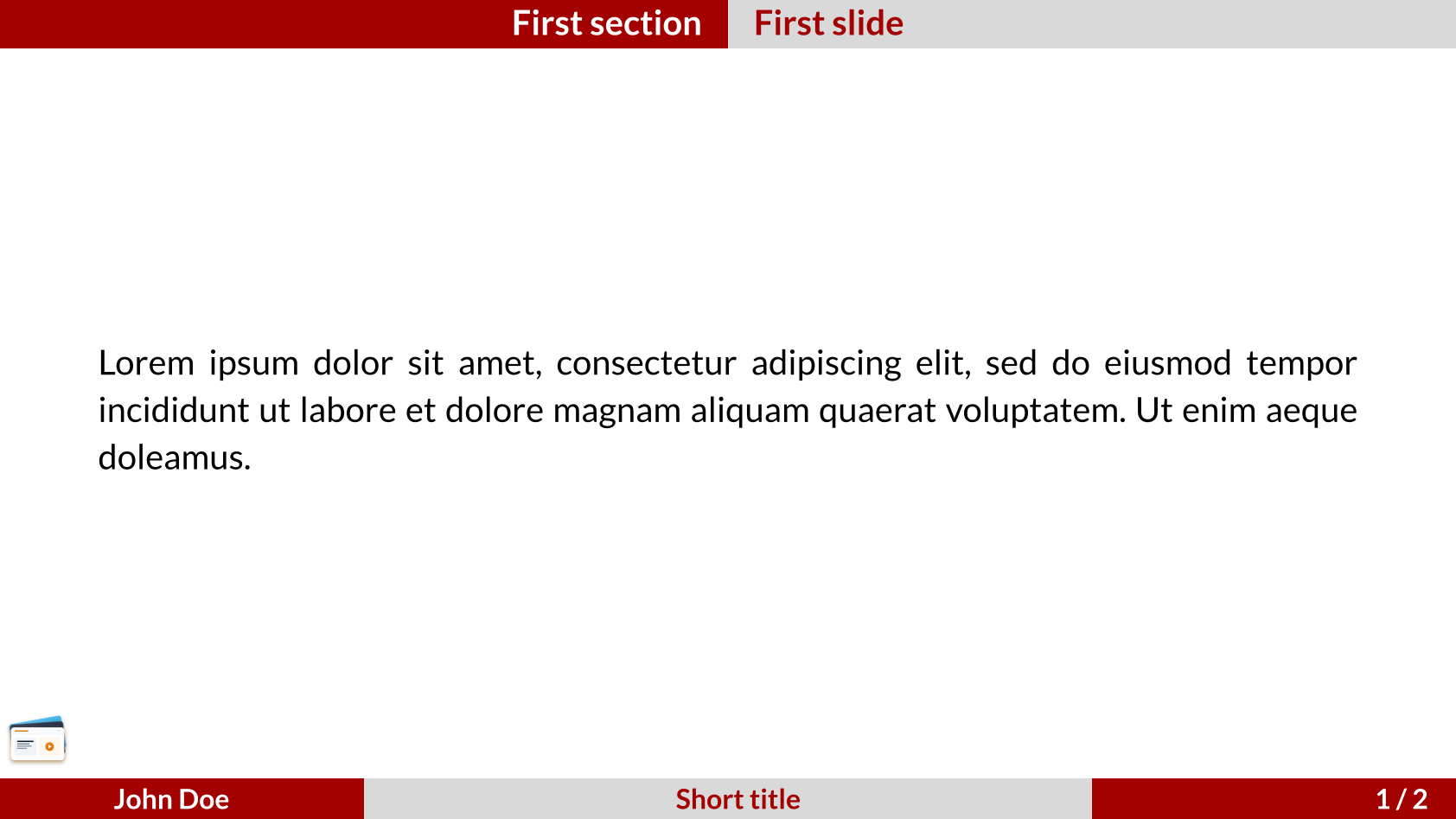
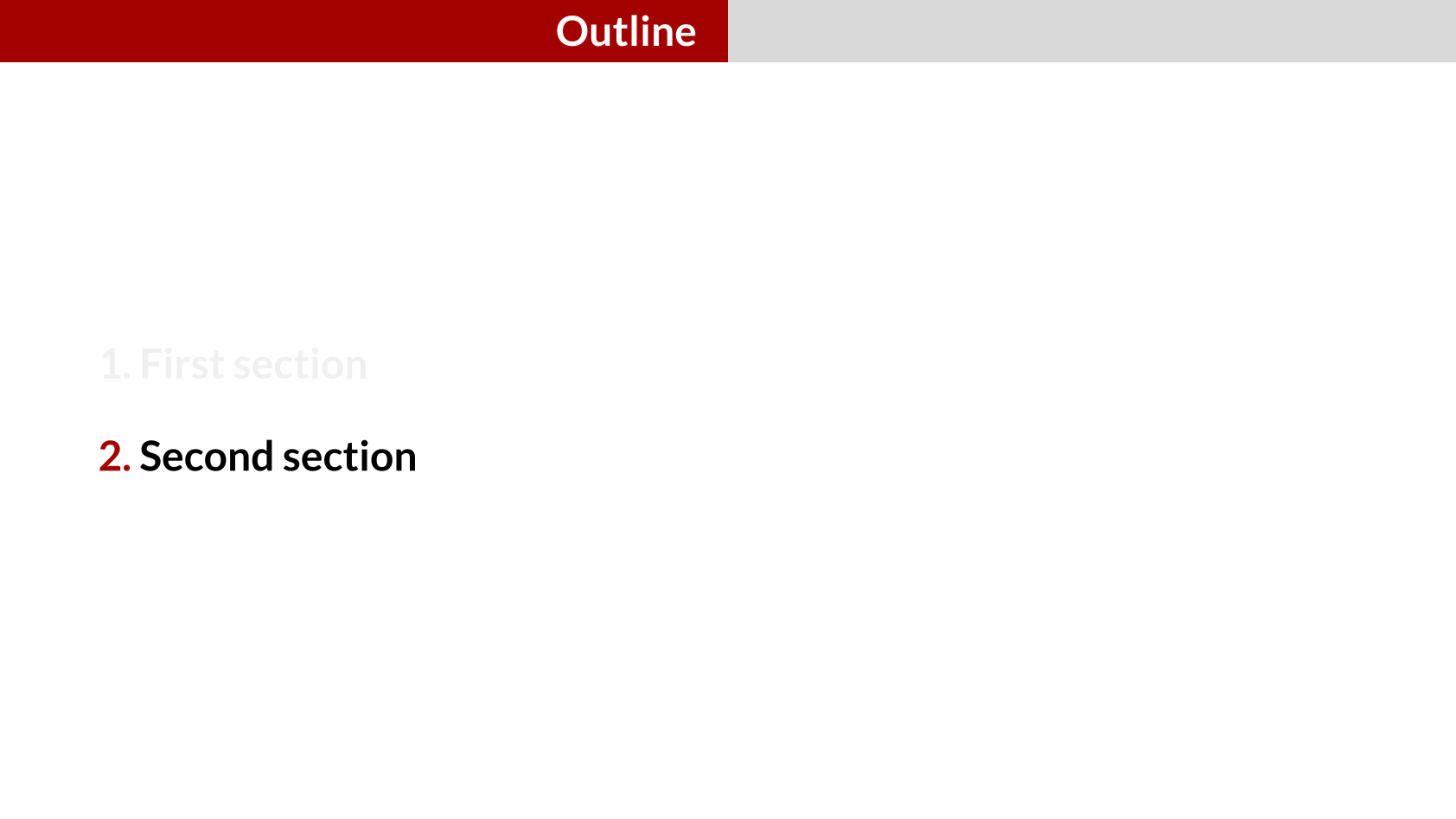
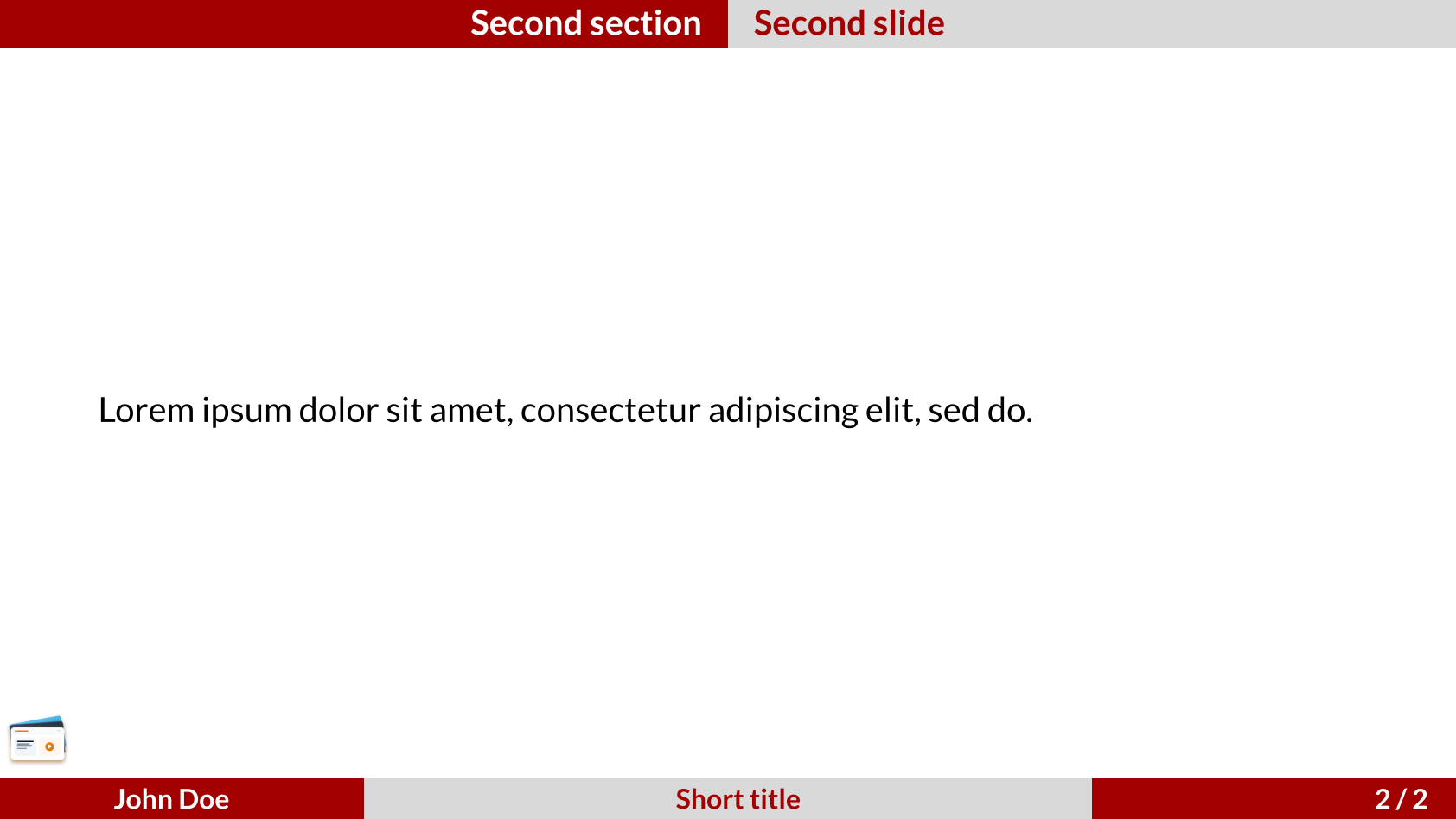
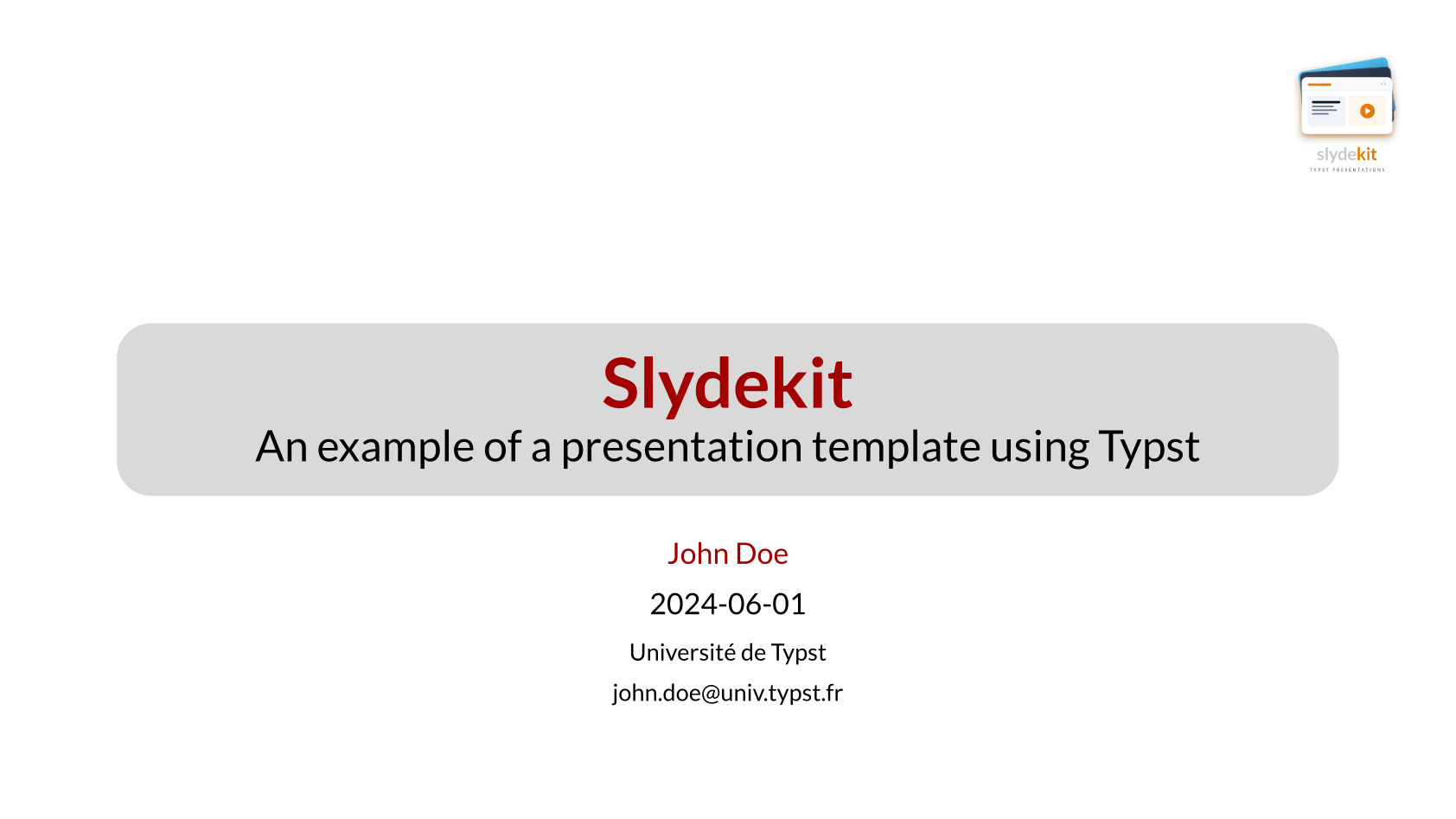
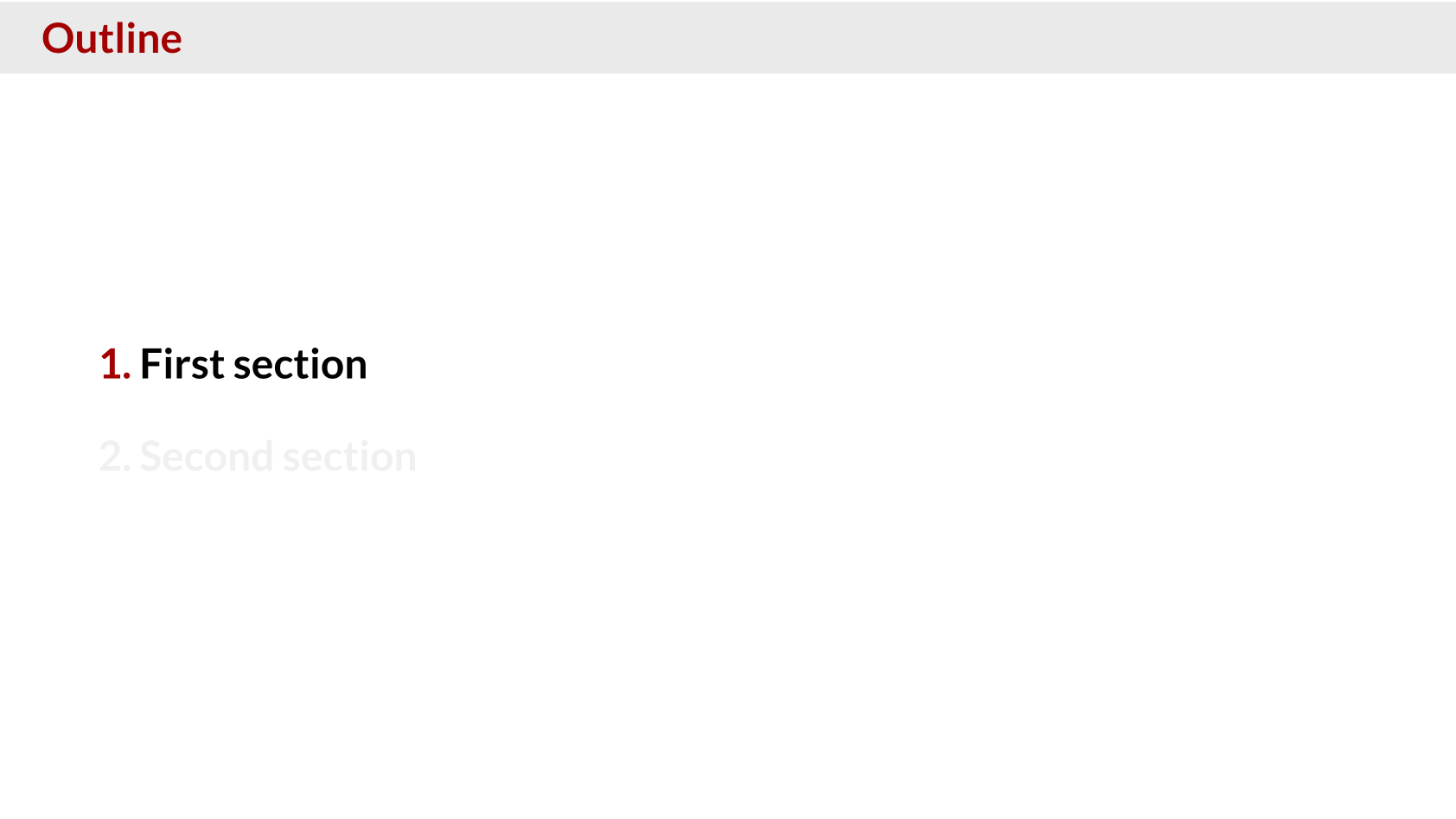
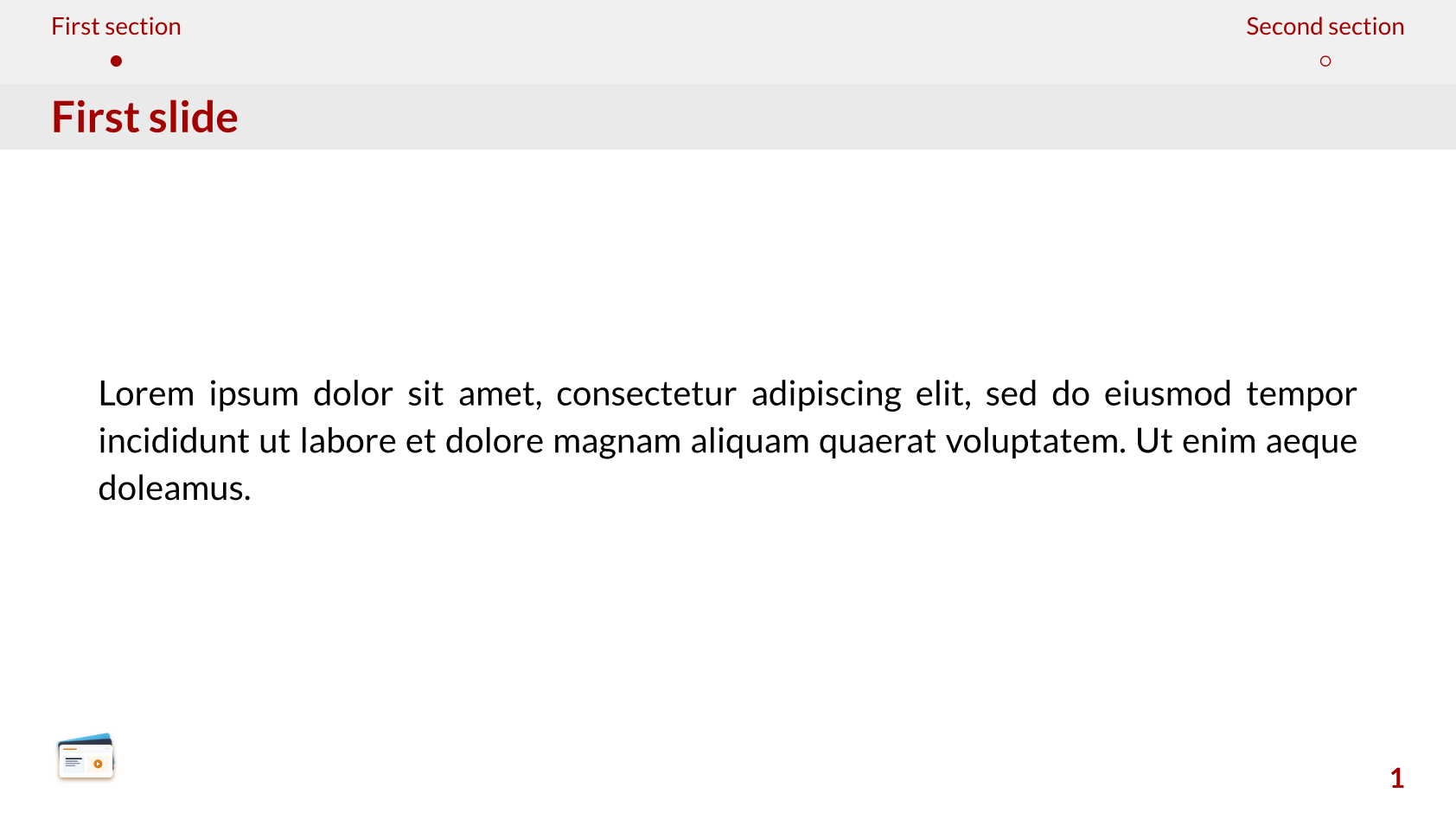
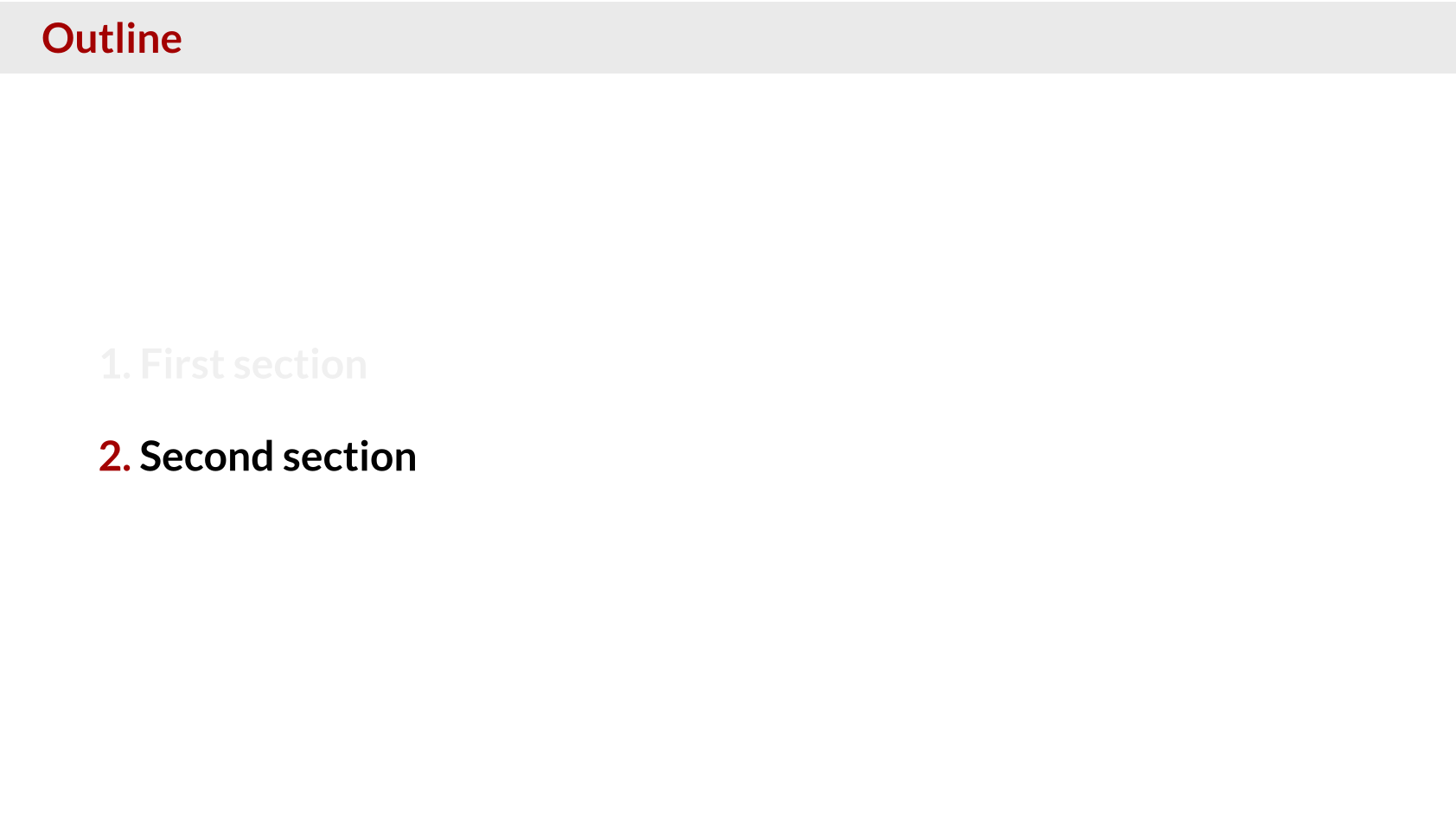
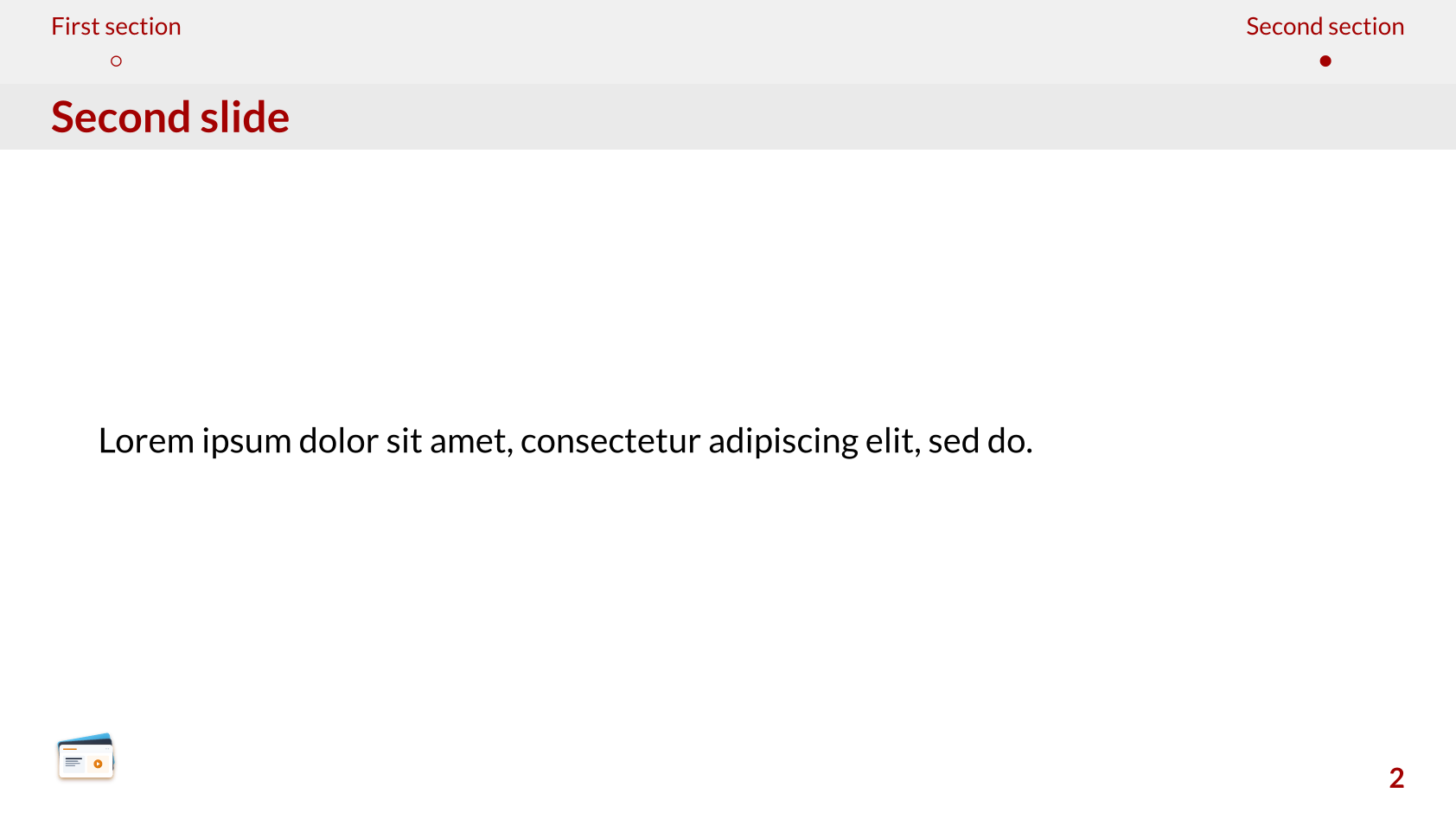
The cambfurt theme is an adaptation of the cambridge and frankfurt themes. If navigation is set to topbar, it will use the cambridge theme, and if it is set to minislide, it will use the frankfurt theme. This theme provides a classic and elegant look for your presentations.
The default color palette and font settings for the cambfurt theme are:
#let cambfurt-colors = (
primary: rgb("#a30100"),
secondary: rgb("#d9d9d9"),
focus: rgb("#a30100"),
background: none,
header: rgb("#a30100"),
footer: rgb("#a30100"),
)
#let cambfurt-fonts = (
body: "Lato",
math: "Lete Sans Math",
raw: "Cascadia Code",
)
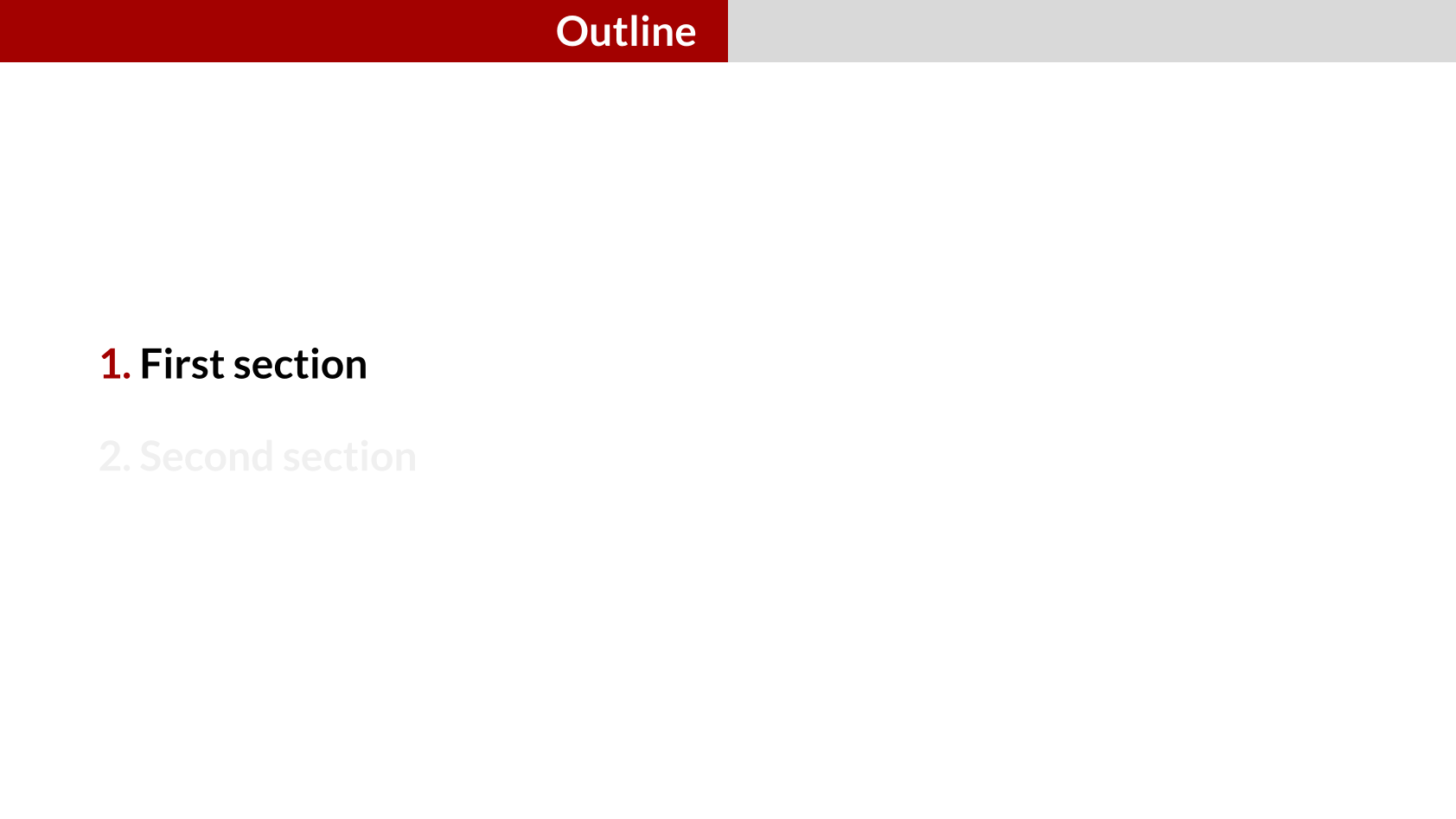

Minislide navigation style

Chalkboard
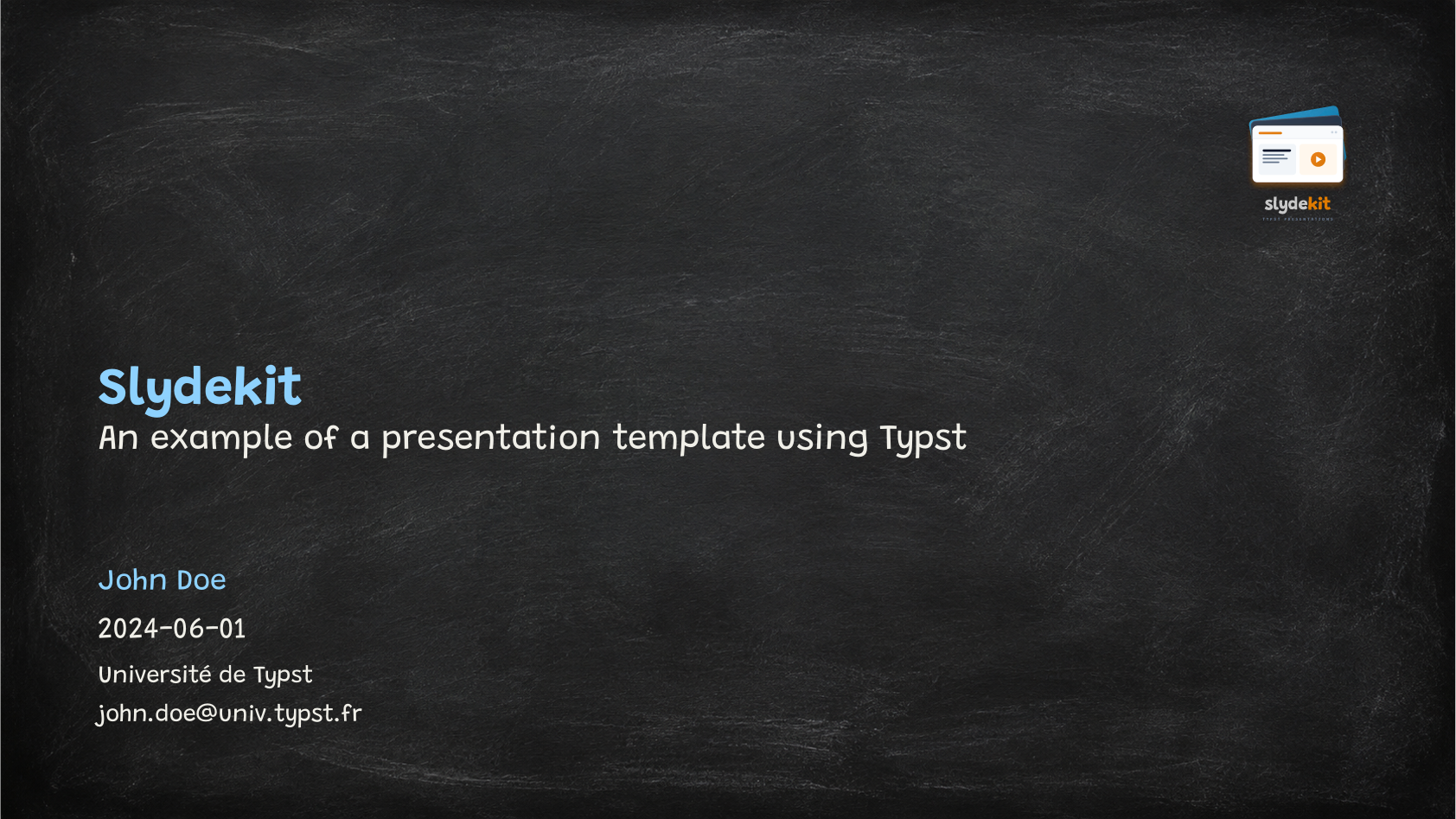
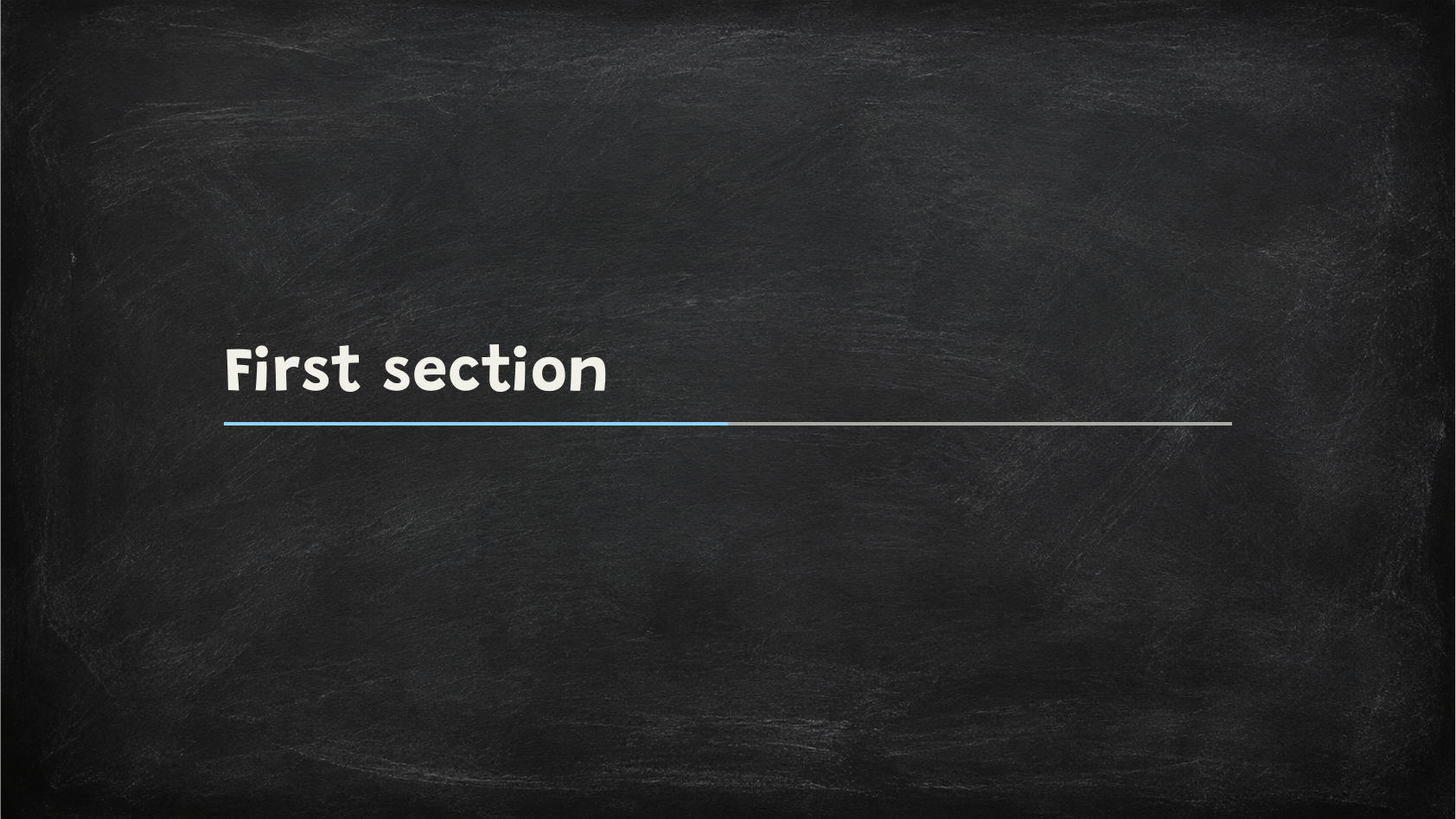
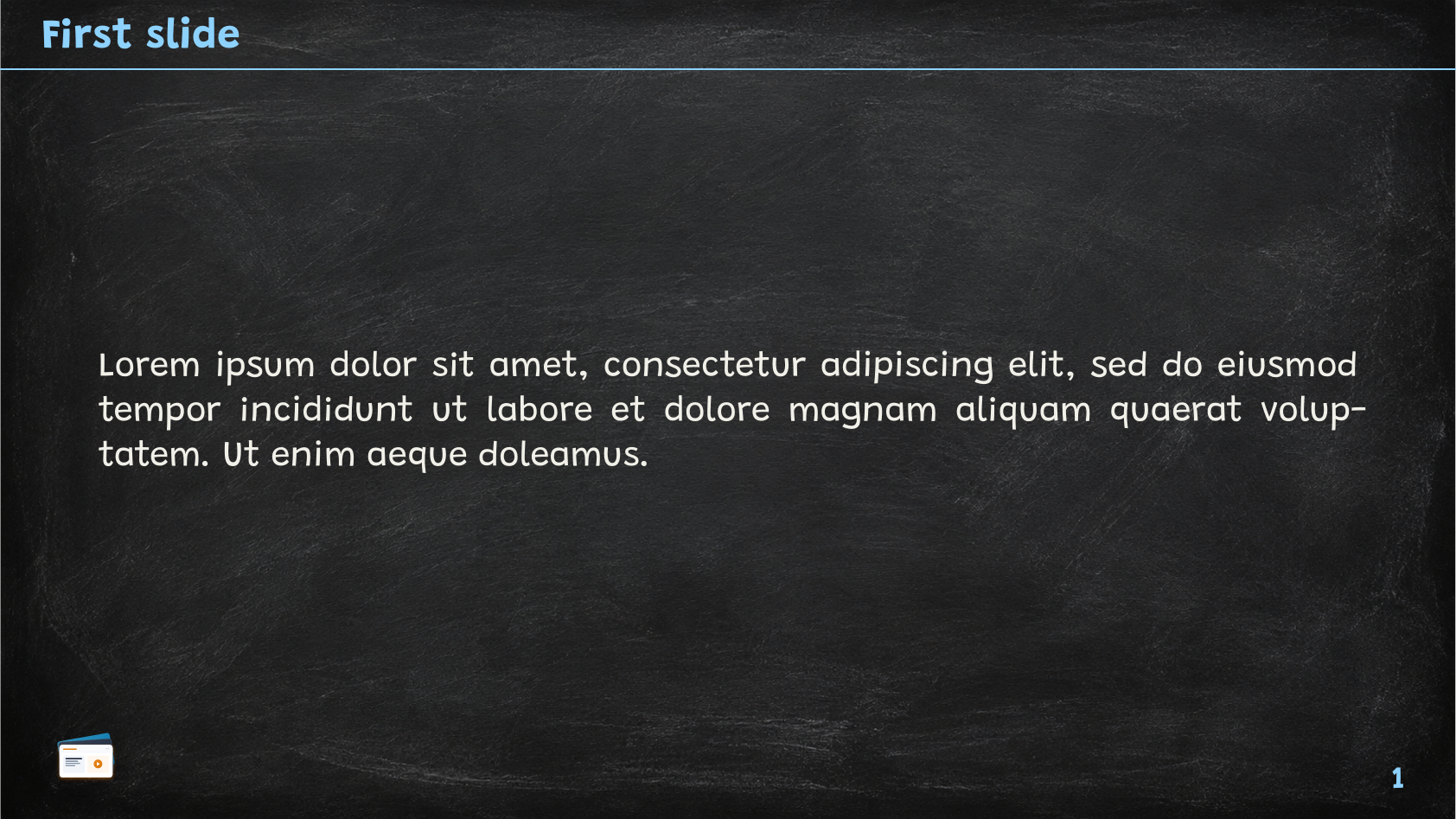
The chalkboard theme is a unique and creative theme that simulates the appearance of a chalkboard. It features a dark background with light-colored text, giving your presentation a distinctive and engaging look.
The default color palette and font settings for the chalkboard theme are:
#let chalkboard-colors = (
primary: rgb("#8fd3ff"),
secondary: rgb("#a9aaa3"),
focus: none,
background: none,
header: rgb("#8fd3ff"),
footer: rgb("#8fd3ff"),
)
#let chalkboard-colors-variant = (
primary: rgb("#e57373"),
secondary: rgb("#a9aaa3"),
focus: none,
background: none,
header: rgb("#e57373"),
footer: rgb("#e57373"),
)
#let chalkboard-fonts = (
body: "Pennstander",
math: "Pennstander Math",
raw: "Fantasque Sans Mono",
)This theme has two variants: the default chalkboard variant and the chalkboard-variant, which uses a different primary color. You can activate the variant color scheme by setting the colors argument in the #slydekit.with function to chalkboard-colors-variant.
#show: slydekit.with(
theme: chalkboard,
colors: chalkboard-colors-variant,
)