StructuralVibration.jl is accompanied by a set of three extensions providing visualization capabilities. The extensions provide a set of functions to visualize the results of the structural dynamics analysis. The extensions are:
SVMakieExt.jl: provides plotting functions and requires Makie.jl.
SVMeshExt.jl: provides functions for mesh manipulation and requires Meshes.jl.
SVAnimExt.jl: provides functions for mesh animation and requires both Meshes.jl and Makie.jl.
1 Plotting functions
To use the plotting extension, you need to activate the SVMakieExt.jl extension by importing the desired plotting package:
usingCairoMakie# orusingGLMakie
1.1 Bode plot
A Bode plot is a graph of the magnitude and phase of a transfer function versus frequency.
The Nyquist plot is either a 2D or 3D plot. In 2D, it is a graph of the imaginary part versus the real part of the transfer function. In 3D, it is a graph of the imaginary part versus the real part of the transfer function and the frequency.
1.2.1 2D plot
nyquist_plot
nyquist_plot(y)
Plot Nyquist diagram
Inputs
y: Complex data vector
Output
fig: Figure
nyquist_plot(H)
1.2.2 3D plot
nyquist_plot
nyquist_plot(freq, y, xlab = "Frequency (Hz)";
             projection = false)
Plot Nyquist diagram in 3D
Inputs
freq: Frequency range
y: Complex vector
ylabel: y-axis label
projection: Projection of the curve on the xy, yz, and xz planes (default: false)
on the xy plane: (freq, real(y))
on the yz plane: (imag(y), freq)
on the xz plane: (real(y), imag(y))
Output
fig: Figure
nyquist_plot(freq, H, projection =true)
1.3 Waterfall plot
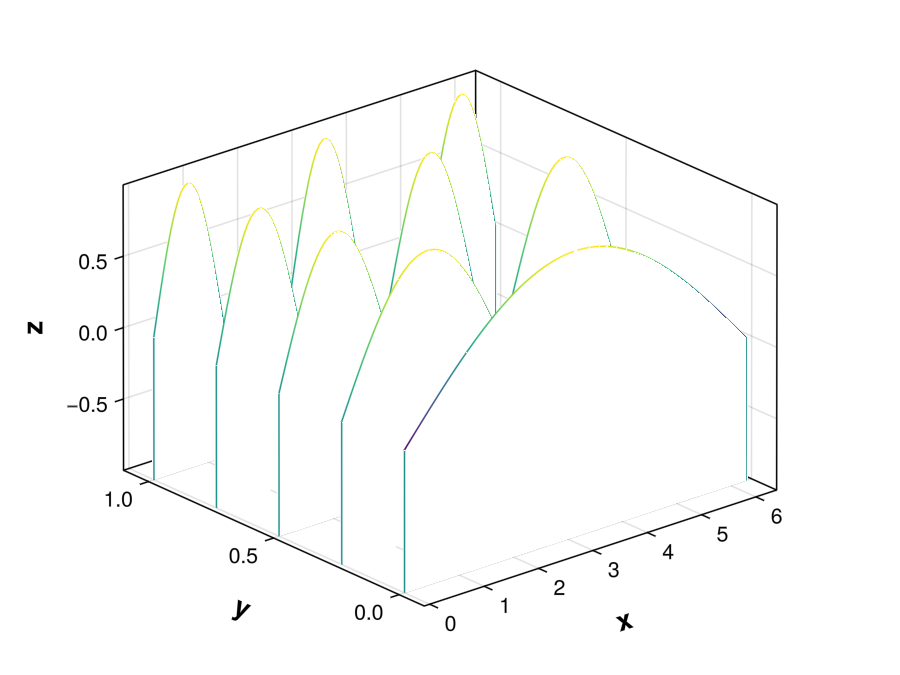
A waterfall plot is a 3D plot with a partial curtain along the y-axis.
Plot stabilization diagram for EMA-MDOF pole stability analysis.
Inputs
stab: EMA-MDOF stabilization data
indicator: Indicator to plot
:psif : Power spectrum indicator function (default)
:cmif : Complex mode indicator function
display_poles: Vector of Bool to choose which poles to display
display_poles[1] : Stable in frequency and damping (default: true)
display_poles[2] : Stable in frequency but not stable in damping (default: true)
display_poles[3] : Not stable in frequency (default: true)
Output
fig: Figure
Examples of stabilization plot can be found in the Modal extraction documentation.
1.5 Peaks plot
The peaks plot is used to visualize the peak detection of a given function. It is a useful tool to define the parameters of the peak detection algorithm use to extract the poles using Sdof methods.
# Signal used in Peaks.jl package documentationT =1/25t =0:T:23y =3sinpi.(0.1t) +2sinpi.(0.2t) +sinpi.(0.6t)peaks_plot(t, y)
Note
StructuralVibration.jl uses the Peaks.jl package for peak detection. This package includes the functions plotpeaks and peaksplot for visualizing peaks and their properties, such as prominence and width. These functions require that the peak detection has been performed beforehand.
The peaks_plot function in StructuralVibration.jl is a simplified version that provides a plotting function which first estimates the peaks and then plots the peaks.
1.6 SV plot
The SV plot (for StructuralVibration plot) is a general function for 2D plotting. It is a helper function aiming at simplifying the plotting process.
To access the mesh manipulation functions, you need to activate the SVMeshExt.jl extension by running the following command:
usingMeshes
This extension provides functions for mesh manipulation, such as building a mesh from nodes and elements, detrending a plane or a mesh, visualizing a mesh, deforming a grid, and renumbering the element connectivity.
2.1 Building a mesh
The build_mesh function allows you to build a mesh from nodes and elements. The function takes as input the nodes and the elements of the mesh and returns a SimpleMesh object from Meshes.jl.
build_mesh
construct_mesh(nodes, elts)
Generate mesh points and connectivity from node coordinates and element connectivity.
Inputs
nodes::Matrix{Float64}: The node coordinates.
elts::Vector{Vector{Int}}: The element connectivity.
Outputs
points::Vector{Point}: A list of mesh points.
tris::Vector{Triangle}: A list of triangular elements.
quads::Vector{Quadrangle}: A list of quadrilateral elements.
Notes
This function is restricted to 2D meshes where elements are either triangles or quadrilaterals.
2.2 Detrending a plane or a mesh
The detrend_plane and detrend_mesh functions allow you to detrend a plane or a mesh, respectively. The detrending process implemented in detrend_plane consists in fitting a plane to the data and substracting the fitted plane from the data. The detrend_mesh function first removes the mean from the mesh and then applies the detrend_plane function to the each plane.
detrend_plane
detrend_plane(nodes, plane = :xy)
Remove the planar trend from a set of 3D points based on the specified plane.
Inputs
nodes::Matrix{Float64}: The original node coordinates.
plane::Symbol: The plane to detrend against (:xy, :xz, or :yz).
Outputs
detrended_nodes::Matrix{Float64}: The detrended node coordinates.
detrend_mesh
detrend_mesh(nodes, elts)
Remove global trends from a mesh defined by node coordinates and element connectivity.
Inputs
nodes::Matrix{Float64}: The original node coordinates.
elts::Vector{Vector{Int}}: The element connectivity.
Outputs
det_nodes::Matrix{Float64}: The detrended node coordinates.
det_mesh::SimpleMesh: The detrended mesh.
2.3 Deforming a grid
The deformed_grid function allows you to deform a grid of points by applying a set of values to its nodes. This is useful, for instance, for visualizing the deformation or mode shapes of a structure.
Generate a deformed grid of points by applying displacements to the original node coordinates.
Inputs
nodes::Matrix{Float64}: The original node coordinates.
values::Matrix{Float64}: The values to apply to the nodes.
scale_factor::Float64: A factor to scale the values (default is 20).
Outputs
deformed_nodes::Vector{Point}: A list of deformed points.
2.4 Renumbering the element connectivity
The renumber_element_connectivity function allows you to renumber the element connectivity of a mesh. This is useful when the element connectivity is not consistent with the node numbering. Indeed, Meshes.jl implicitly states that the nodes in a mesh are numbered from 1 to the number of nodes, and that the element connectivity is defined accordingly. If this is not the case, the renumber_element_connectivity function can be used to renumber the element connectivity to be consistent with the node numbering.
renumber_element_connectivity
renumber_element_connectivity(elts, nodes_ID)
Renumber elements connectivity based on a given list of node IDs.
Inputs
elts::Vector{Vector{Int}}: The original element connectivity.
nodes_ID::Vector{Int}: The list of node IDs.
Outputs
elts_new::Vector{Vector{Int}}: The renumbered element connectivity.
Notes
This function assumes that each node ID in nodes_ID corresponds to a unique node in the original mesh and that the element connectivity in elts references these node IDs.
The renumbering is necessary if the elements ID are not contiguous or if they do not start from 1, which can cause issues when using Meshes.jl for visualization or further processing.
3 Mesh visualization and animation
To access the mesh manipulation and animation functions, you need to activate the SVMeshExt.jl extension by running the following command:
usingMeshes, CairoMakie# orusingMeshes, GLMakie
This extension provides functions for visualizing and animating meshes.
3.1 Visualizing a mesh
The viz_mesh function allows you to visualize a static mesh.
xlabel::String: Label for the x-axis (default is "x").
ylabel::String: Label for the y-axis (default is "y").
zlabel::String: Label for the z-axis (default is "z").
title::String: Title of the plot (default is an empty string).
color: Color mapping for the mesh (default is :white).
colormap::Symbol: Colormap to use for coloring the mesh (default is fast_cmap()).
alpha::Real: Transparency level of the mesh (default is 0.5).
showsegments::Bool: Whether to show element segments (default is true).
segmentsize::Real: Size of the segments if shown (default is 0.5).
segmentcolor: Color of the segments if shown (default is :black).
xlim::Tuple{Real, Real}: Limits for the x-axis (default is no limits).
ylim::Tuple{Real, Real}: Limits for the y-axis (default is no limits).
zlim::Tuple{Real, Real}: Limits for the z-axis (default is no limits).
Output
fig::Figure: The figure containing the visualized mesh.
3.2 Animating a mesh
The animate_mesh function allows you to animate a mesh by applying a set of values to its nodes. This is useful, for instance, for visualizing the deformation or mode shapes of a structure.
values::VecOrMat{Real}: Values to apply to the nodes.
x::AbstractVector{Real}: Parameter values corresponding to each set of values (e.g., time or frequency).
title::String: Title of the animation (default is "Animated mesh").
xlabel::String: Label for the x-axis (default is "x").
ylabel::String: Label for the y-axis (default is "y").
zlabel::String: Label for the z-axis (default is "z").
color: Color mapping for the mesh (default is the values).
colormap::Symbol: Colormap to use for coloring the mesh (default is fast_cmap()).
alpha::Real: Transparency level of the mesh (default is 1.0).
showsegments::Bool: Whether to show element segments (default is true).
segmentsize::Real: Size of the segments if shown (default is 0.5).
segmentcolor: Color of the segments if shown (default is :black).
scale_factor::Real: Factor to scale the values (default is 100).
framerate::Int: Frame rate of the animation in frames per second (default is 35).
frequency::Real: Frequency of the animated motion in Hz (default is framerate).
title_update_framerate::Int: How often (in frames) to update the title of the animation (default is 10).
filename::String: Name of the output video file (default is "animate_mesh.mp4").
xlim::Tuple{Real, Real}: Limits for the x-axis (default is no limits).
ylim::Tuple{Real, Real}: Limits for the y-axis (default is no limits).
zlim::Tuple{Real, Real}: Limits for the z-axis (default is no limits).
Outputs
Animation saved as a video file showing the deformed mesh over time.
Notes
When values is a vector of values and frequency is specified, the animation simulates a harmonic motion of the mesh based on the provided values and frequency. This is useful for visualizing mode shapes or operational deflection shapes in structural vibration analysis.
When values is a matrix and x is provided, the animation shows the evolution of the mesh deformation as a function of the parameter x, which can represent time, frequency, or any other relevant parameter. The title of the animation updates dynamically every 10 frames to reflect the current value of x.
3.3 Example
In this example, we will visualize the second mode shape of a simply supported plate.
3.3.1 Data generation
usingLazyGrids# DimensionsLp =0.6bp =0.4hp =1e-3# Material parametersE =2.1e11ρ =7800.ν =0.33plate =Plate(Lp, bp, hp, E, ρ, ν)
3.3.2 Mesh creation
# Helper function to create a quadrilateral meshfunctioncreate_quad_mesh(xp::Vector, yp::Vector, nx::Int, ny::Int)# Number of quadrangles n_quads = (nx -1) * (ny -1) quads =Vector{Vector{Int}}(undef, n_quads) quad_idx =1for j in1:(ny-1)for i in1:(nx-1)# Indices of the nodes of the quadrangle in counter-clockwise order n1 = (j-1) * nx + i n2 = (j-1) * nx + i +1 n3 = j * nx + i +1 n4 = j * nx + i quads[quad_idx] = [n1, n2, n3, n4] quad_idx +=1endendreturn quadsend# Create the meshnx =10ny =10x, y =ndgrid(range(0., Lp, nx), range(0., bp, ny))xp = x[:]yp = y[:]zp =zeros(length(xp))nodes = [xp yp zp]elts =create_quad_mesh(xp, yp, nx, ny)mesh =build_mesh(nodes, elts)fig_mesh =viz_mesh(mesh, zlim = (-0.15, 0.15), title ="Mesh of the plate")
3.3.3 Visualization of the mode shape
# Compute the second mode shapems =sin.(2π*xp/Lp) .*sin.(π*yp/bp)# Compute deformed gridms_deformed =zeros(3size(nodes, 1))ms_deformed[3:3:end] .= msdpoints =deformed_grid(nodes, ms_deformed, 0.15)fig_deformed =viz_mesh(SimpleMesh(dpoints, mesh.topology.connec), color = ms, zlim = (-0.2, 0.2), title ="Deformed mesh of the plate")
3.3.4 Animating the mode shape
animate_mesh(nodes, elts, ms_deformed, color = ms, scale_factor =0.1, zlim = (-0.2, 0.2), title ="Second mode shape of a simply supported rectangular plate", framerate =24, filename ="animated_plate.mp4")
3.3.5 Colormaps
StructuralVibration.jl provides the Paraview Fast Colormap as a color gradient that can be used for visualizations. The colormap is implemented in the fast_cmap function.
fast_cmap
fast_cmap()
Return the Paraview Fast Colormap as a color gradient.
Output
fast_cmap::ColorGradient: The Paraview Fast Colormap as a color gradient that can be used for visualizations.
Reference [1] F. Samsel, W.A. Scott, K. Moreland, A New Default Colormap for ParaView, in IEEE Computer Graphics and Applications, vol. 44, no. 04, pp. 150-160, 2024.
Link to colormap json file https://github.com/kennethmoreland-com/kennethmoreland-com.github.io/blob/f0f50dcfda94c8e4c9c4927f78a98ff419fea450/content/color-advice/fast/fast.json
Warning
The fast_cmap function is a placeholder for the actual implementation of the Paraview Fast Colormap. The implementation of this colormap is not yet available in ColorSchemes.jl. A pull request has been submitted and merged in ColorSchemes.jl. Once the new version of ColorSchemes.jl is released, the fast_cmap function will be removed in favor of the :fast colormap from ColorSchemes.jl.
4 Theming
StructuralVibration.jl provides a set of themes for the plotting functions. The themes are defined in the theme_choice function.